
Introduction
Producing quality software is hard; doing it as a team is harder. Engineers must be able to review, understand and maintain software produced by other team members. One useful practice to ease collaboration is linting: using a dedicated tool to flag unwanted patterns, enforce consistent style, and keep complexity under control across a software project.
In the world of safety-critical software, adopting a modeling standard is important. It is even mandatory for systems with high criticality levels, e.g. EN 50716 SIL 3 & 4 or DO-178C/DO-331 levels A & B. In this context, automatically verifying compliance with said standard improves both efficiency and model quality.
In this article, we will take a look at Ansys SCADE Design Rules, an open-source database of metrics and rules to enforce consistent modeling practices for a team working with SCADE Suite.
We will first look at how SCADE enables consistent modeling through the Rules & Metrics feature. We will then explore the catalog of rules, showcasing its use with an example.
Metrics & Rules Checker
In the world of textual programming languages, there are many linting tools. At their heart, they are all rule-based, static code analyzers. They detect undesirable patterns in the code and raise warnings or errors based on configurable rules. This can be used to discourage the use of some coding patterns, to enforce naming conventions or project structure, and to encourage a consistent style across the codebase.
There are many benefits to linting. It promotes readability, easing maintenance and evolutions; it improves collaboration and onboarding of new team members; it facilitates compliance with safety regulations.
In the model-based software engineering world, SCADE comes with its own integrated linting feature, called the Metrics & Rules checker.
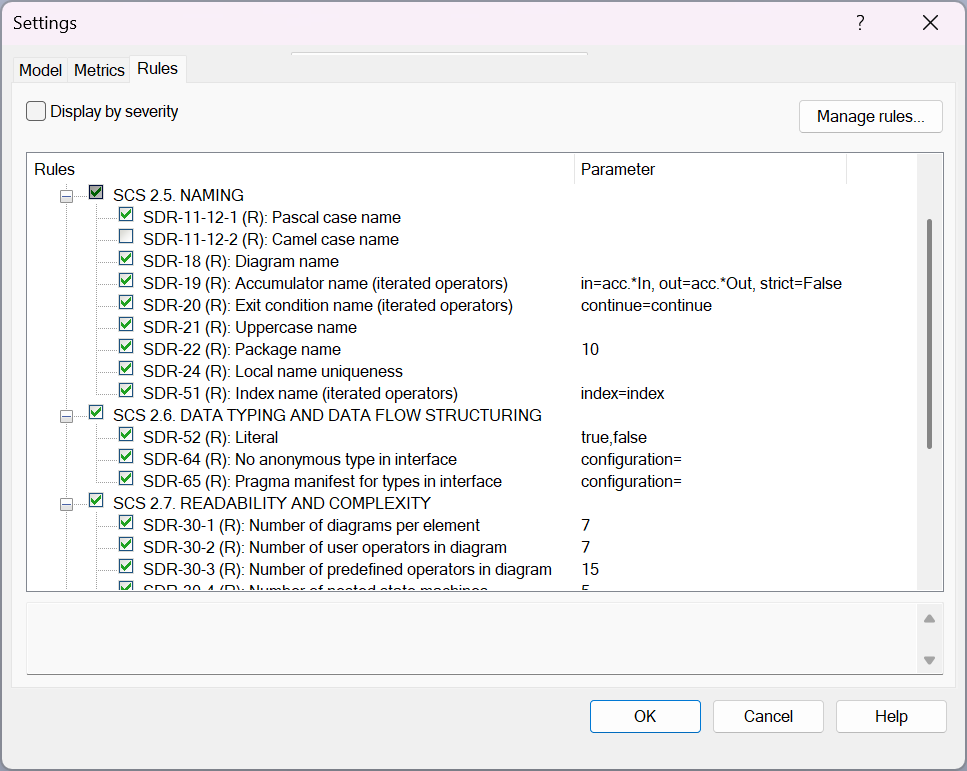
A sample set of rules on a SCADE Suite model
As its name suggests, it allows users to define two kinds of items:
- Metrics, that produce a value measured over the currently-open model – e.g. maximum number of nested state machines in the current model.
- Rules, that verify a property on the model – e.g. enforce that no state machine goes beyond 5 levels of nesting, to ease readability.
Both metrics and rules are implemented as Python scripts that use the SCADE API to walk through the model. As seen in the examples above, rules may rely on metrics to gather data on the model as part of their evaluation. Since metrics and rules are written in Python, users can easily customize them or write their own.
Checking rules produces a human-readable report. Mandatory rules must be observed; Required rules may be violated if a justification is provided; Advisory rules may be broken with no justification. This loosely matches an Error / Warning / Info levels on other linters. Rule severity can be customized by the user.
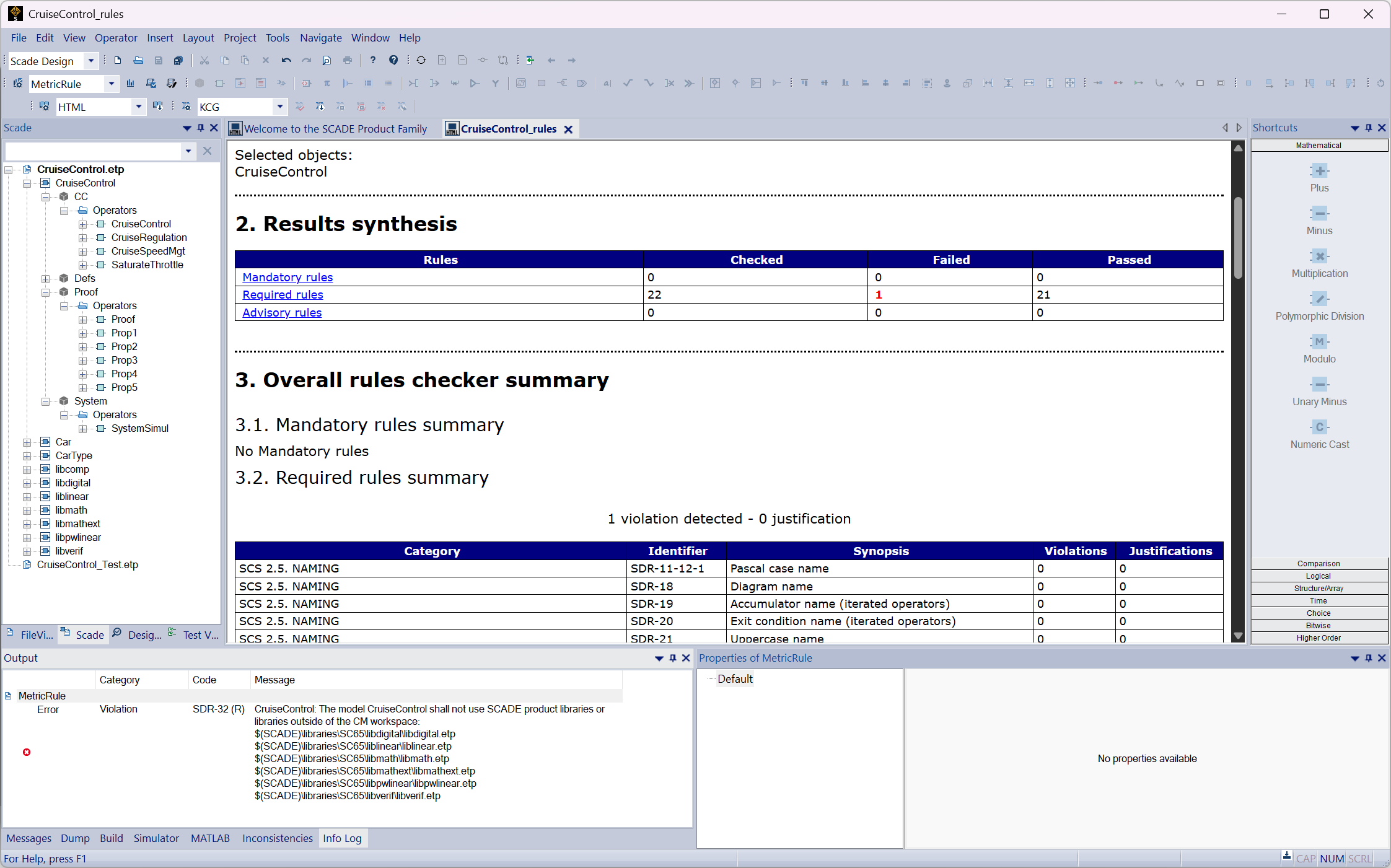
SCADE IDE overview after running a rule check. The central report and bottom left output window show that a required rule is violated.
Rule catalog
SCADE Suite comes installed with a short list of predefined rules. However, the Metrics & Rules Checker is built to be extended, accommodating new metrics and rules written as Python scripts.
This is exactly what Ansys SCADE Design Rules proposes: a public, open-source catalog of more than 100 rules and their corresponding metrics. They are based on modeling best practices from Ansys customers across many industries. The catalog is open source, under MIT license, and contributions are welcome.
Note that, since modeling practices are subjective, some of the catalog’s rules are contradictory. The intent is not to select them all; rather, users should select which rules they want to use, then instantiate them with custom parameters to describe their own modeling practices. We will walk through how to do this in the rest of this article.
Installing the rule catalog
The first step to use SCADE Design Rules is to install the package. If you’re comfortable with Python, the Getting Started page contains instructions to install it, on the Python installation distributed with SCADE, using the pip utility.
Alternatively, you may use the Tools > Manage Extensions… menu to install it through a graphical interface:
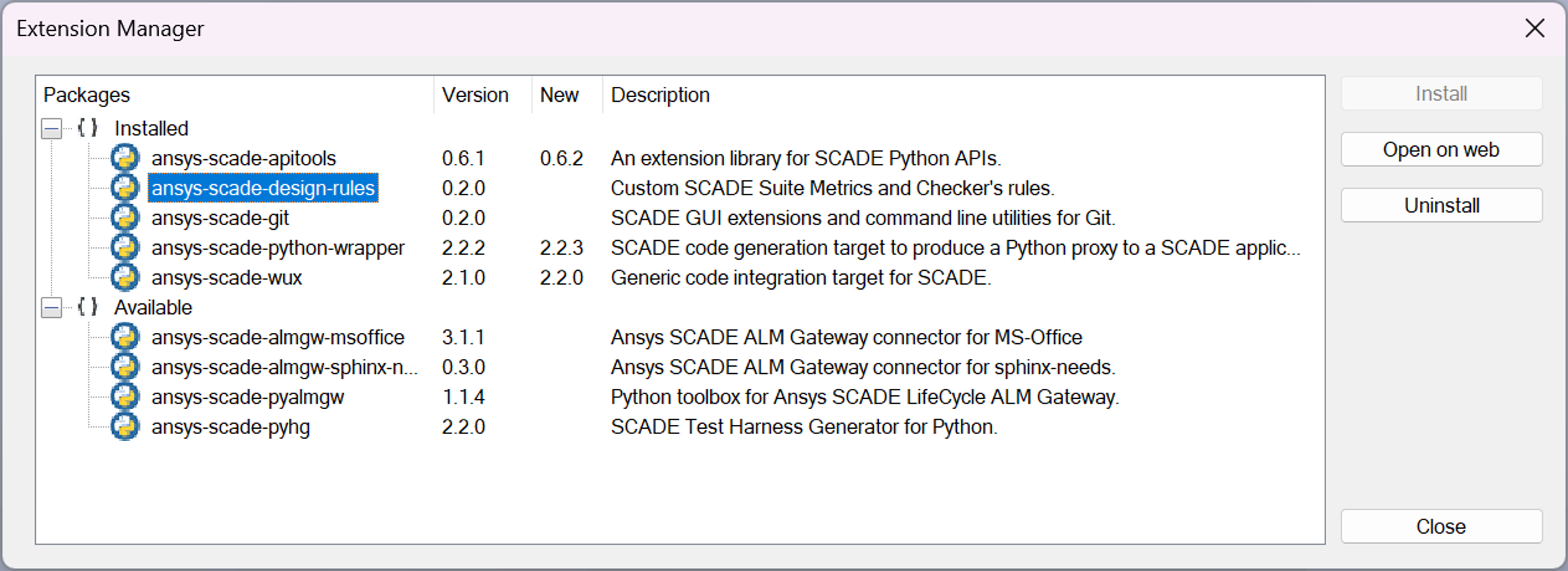
SCADE Suite extension manager with ansys-scade-design-rules installed
Now that the package is installed, the catalog of rules is ready to be used.
Using metrics and rules on a SCADE model is a multi-step process:
- Instantiate a set of metrics & rules in a Python script, optionally overriding some of their parameters to fit your own modeling guidelines.
- Register the Python script with your SCADE Suite model.
- Select metrics & rules that apply to your model, optionally tweaking their parameters.
- Run the checker on your model.
Instantiating metrics & rules
The first step, instantiation, allows describing metrics & rules that apply to your organization. In this process, you should override default properties, such as rule identifiers, to match naming conventions specific to your organization.
This step takes the form of a Python script that imports and creates an instance of each desired metric or rule.
Let’s say that you wish to follow the Ansys Design Standard document, distributed with the SCADE product under %SCADE_INSTALL%\help\Common Help Resources\Design Standard\DesignStandard-SCS-SDS.pdf.
In section 2.6. DATA TYPING AND DATA FLOW STRUCTURING, the standard lists a rule that discourages the use of literal values, also known as magic numbers, in the model:
|
Ansys Rule ID
|
Rule
|
Verification Method
|
|
SDR-52
|
Literals shall only be used in constant values.
Exceptions may be added to this rule to authorize usage of simple literal values directly in models.
Example:
1, 0, -1, true, false, 1.0, -1.0, 0.0
Rationale: Using named constants increases maintainability.
|
Design Review
|
This rule is available in the catalog under the name No Literals. You may instantiate it in Python as follows:
NoLiterals(id='RULE-1', category='Data typing', label='No magic numbers')
In the above snippet, we overloaded the id and category fields to match those of your organization’s design policies. We also overloaded the label field to customize the rule’s name.
Some rules also have a parameter. For instance, another rule, highlighted in bold in the Ansys Design Standard excerpt below, deals with limiting the number of graphical diagrams associated to a model element:
|
Ansys Rule ID
|
Rule
|
Verification Method
|
|
SDR-30
|
The complexity of a SCADE Model shall be in the scope of the following limits:
- Number of diagrams defining an operator, a state, or an action: 7
- Number of graphical user-operator instances within a single diagram: 7
- Number of graphical primitive operator instances within a diagram. This metric also includes textual equations: 15
- Number of hierarchical levels of nested state machines: 5
- Number of hierarchical levels of conditional blocks (“If Block”, “When Block”): 7
- Number of outgoing transitions for a given state (counting forks as multiple transitions): 7
Rationale: Manage models complexity.
|
Design Review
|
This rule is available in the catalog under the name Maximum diagrams per element. Its implementation relies on metric Number of diagrams per element and uses a parameter (default value: 7) to verify that model elements don’t have too many diagrams.
Let’s say that, in your case, you typically use no more than two or three diagrams per model element. You may instantiate the metric, then the rule with a more restrictive parameter, as follows:
NumberOfDiagramsPerElement()
MaximumDiagramsPerElement(id='RULE-2', category='Complexity', parameter='3')
Note that this describes your organization’s modeling policy. There will be an opportunity to fine-tune parameter values before applying the rules to a specific model.
Finally, let’s add a couple of rules to enforce naming conventions on model items. Depending on the SCADE model, you may want to use the Pascal case name rule, which enforces NamesLikeThisOne on multiple model elements including data types, or the Type name structure rule, which enforces a _t suffix on data types.
Note that these two rules are contradictory: both cannot be satisfied at the same time. You’ll have to pick the correct rule depending on the model you are working with. You may overload the description field of these rules to remind yourself of that.
With all the above rules instantiated, your final Python script looks as follows:
from ansys.scade.design_rules.modelling.no_literals import NoLiterals
from ansys.scade.design_rules.metrics.number_of_diagrams_per_element import NumberOfDiagramsPerElement
from ansys.scade.design_rules.structure.maximum_diagrams_per_element import MaximumDiagramsPerElement
from ansys.scade.design_rules.naming.pascal_case_naming import PascalCaseNaming
from ansys.scade.design_rules.naming.name_structure_type import NameStructureType

NoLiterals(id='RULE-1', category='Data typing', label='No magic numbers')
NumberOfDiagramsPerElement()
MaximumDiagramsPerElement(id='RULE-2', category='Complexity', parameter='3')
PascalCaseNaming(id='RULE-3A', category='Naming', description='This rule should only apply to models like so-and-so.')
NameStructureType(id='RULE-3B', category='Naming', description='This rule should only apply to models like such-and-such.')
Note that the above rule selection does not reflect a real-life modeling scenario. A selection of rules matching the Ansys Design Standard document is pre-installed with the product.
Registering a set of metrics & rules
Now that you have assembled a Python script that lists and configures rules pertaining to your organization, you must register this script with your SCADE Suite model.
To do so, open your SCADE Suite model and go to Project > Metrics and Rules Checker > Manage Metrics and Rules… In the pop-up window, use the “x” button to remove the default metrics and rules, then use the “+” button to add your custom script:
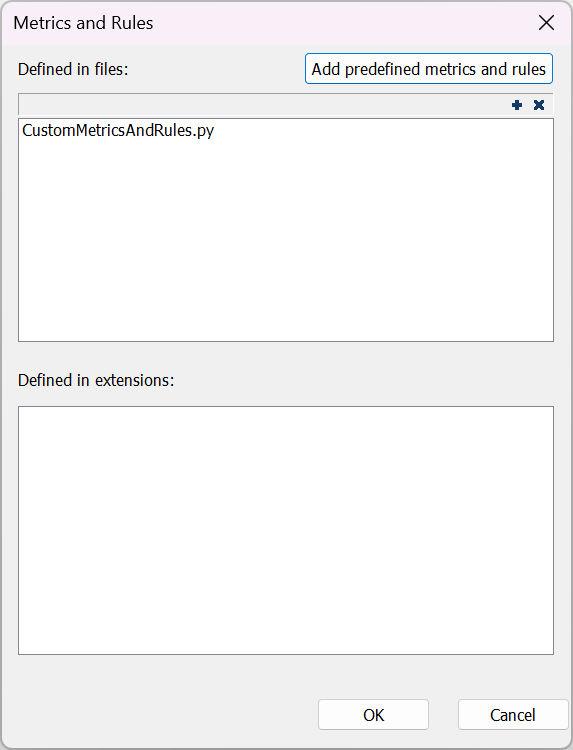
Custom Metrics & Rules registered with a SCADE Suite model
Note that the script can be anywhere on your local computer – the SCADE project will just save a path to the Python file. If you are maintaining your SCADE project under configuration management (which you should!), we recommend picking one of these approaches:
- If your metrics & rules apply to a single model, store the script in the same folder as your model and reference it as a relative path. This is illustrated in the screenshot above.
- If your metrics & rules apply to a set of models living in the same repository, you may want to store the script in the parent folder of your models, and reference it locally. In the screenshot above, it would be
../CustomMetricsAndRules.py.
- If your metrics & rules apply to your whole organization, you may want to store the script in its own repository and reference its path using an environment variable, e.g.
$(METRICS_RULES_REPO)/CustomMetricsAndRules.py. Alternatively, you may package your custom metrics and rules as a Python package, to be distributed and installed directly from the SCADE Suite extension mechanism. More information in Section 6 of the SCADE Python API Guide.
This way, all team members working with SCADE Suite can seamlessly use an up-to-date version of the same metrics and rules.
Selecting and applying metrics & rules
Your metrics and rules are now defined and registered with your model. Under Project > Metrics and Rules Checker > Settings…, you can now see them appear in their respective tabs:
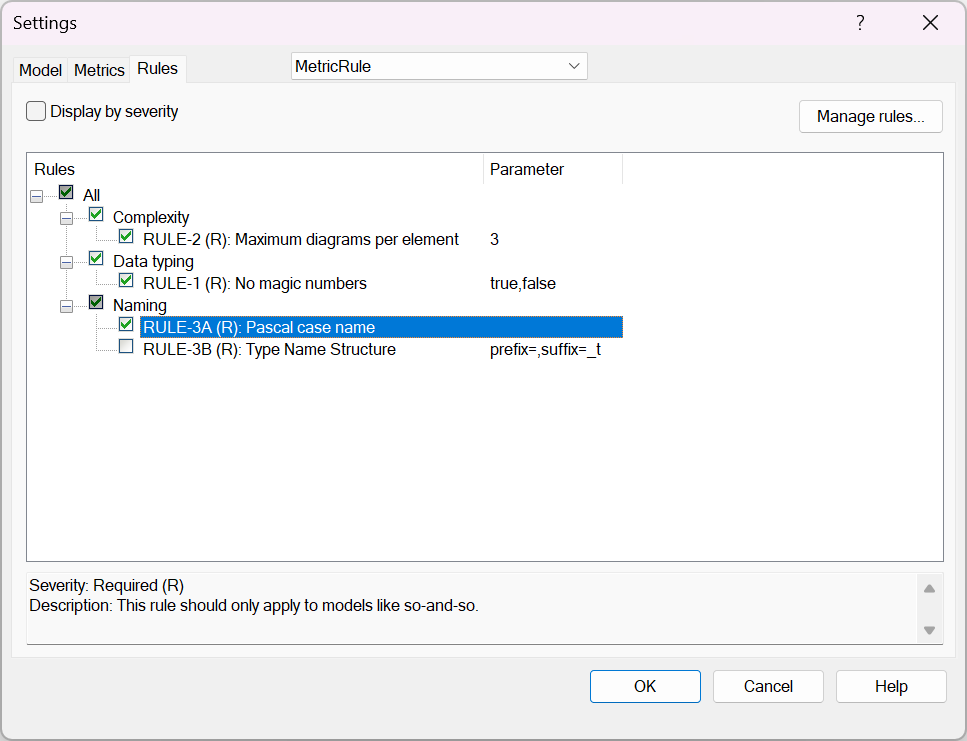
Custom rules registered with the current model. Note the customized labels and descriptions.
In this dialog, you can make some final tweaks to rule application on the current model:
- The Model tab allows you to restrict rule application to some parts of the model only.
- The Metrics and Rules tabs allow you to selectively enable metrics or rules for the current model. In the image above, we have ticked RULE-3A Pascal Case Name for this model, and unticked RULE-3B Type name structure.
- For rules that have a parameter under the Rules tab, you may overload the parameter value by double-clicking it or using the F2 keyboard shortcut.
Running the checker
You are finally ready to run the checker against your current model.
To trigger a manual check, go to Project > Metrics and Rules Checker > Check Rules. You are then presented with a report that displays any rule violations. Depending on rule severity, these violations may need to be fixed to adhere to the modeling standard, or a justification may be provided for cases where the rule should not apply. More information in Section 7 of the SCADE Suite user manual.
If you are keeping your SCADE model under configuration management (which, again, you should!), you may be interested in triggering the rule checker in batch mode, as part of your pre-commit actions or as an action in your CI/CD pipeline.
Explore further
Are you ready to try this out? Head over to our SCADE Design Rules docs and follow the “Getting Started” page to install the extension and select the rules you’d like to start using.
You may also start a 30-day free trial of SCADE Suite. If you’d like to know more about how Ansys SCADE can improve your software development workflow, you may contact us from the Ansys Embedded Software page.
Finally, remember that the metrics & rules catalog is open source; we welcome contributions from industry players to grow it!
About the author
|

|
François Couadau (LinkedIn) is a Senior Product Manager at Ansys. He works on embedded HMI software aspects in the SCADE and Scade One products. His past experience includes distributed systems and telecommunications.
|









 You are navigating away from the AIS Discovery experience