TAGGED: hfss, imported-geometry
-
-
March 15, 2023 at 1:01 am
ha_nguyen3
SubscriberHello,
Anyone please kindly let me know how I can reset the default display of imported model in Ansys HFSS?
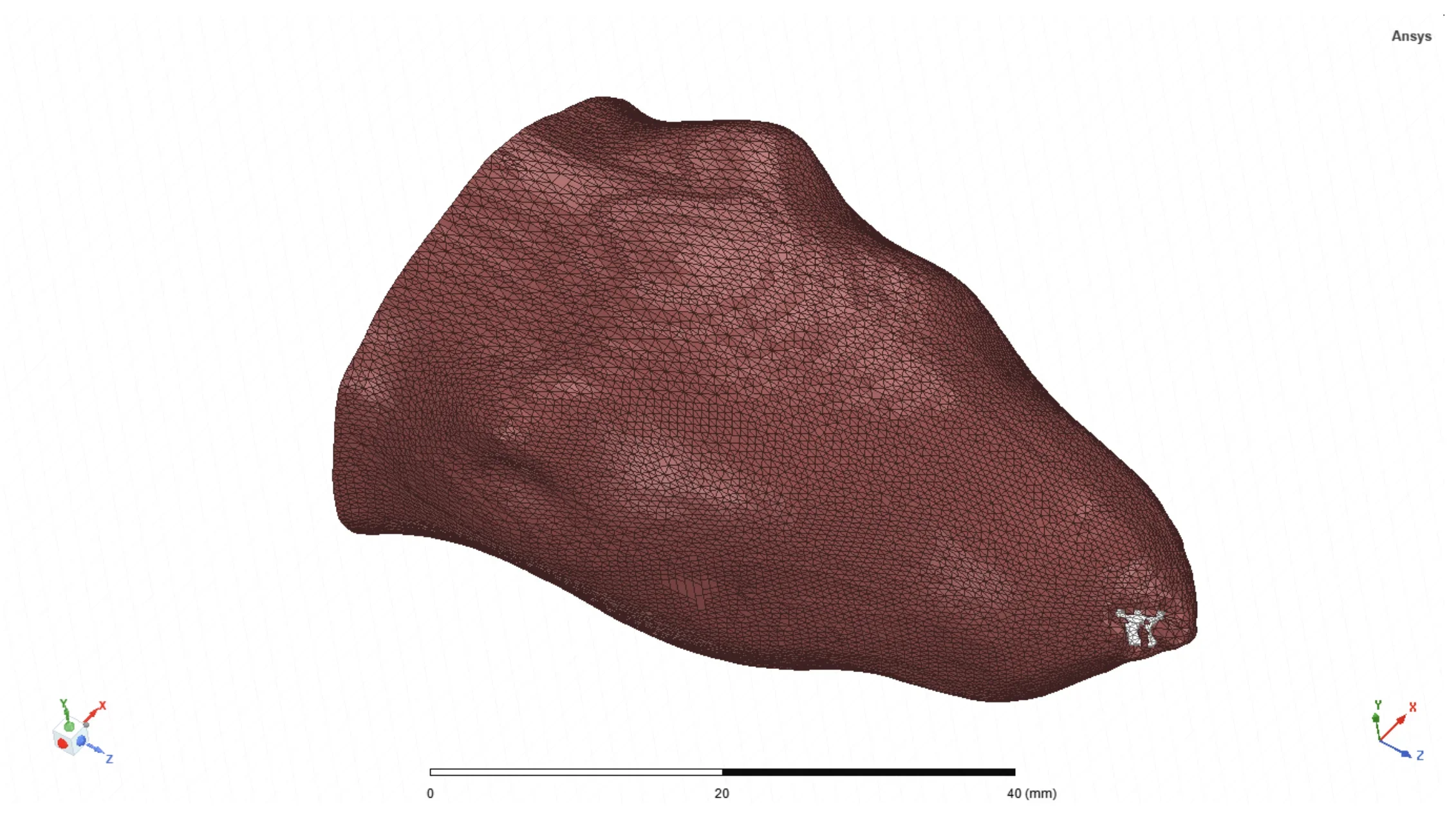
I imported .stl files into Ansys HFSS via Modeler > Import, and the model showed up like the image below. This is what I want.
-
March 30, 2023 at 4:41 am
Praneeth
Ansys EmployeeHi,
Thank you for reaching out and your patience is much appreciated.
Please go through the following observations/comments on your query
- Is your model imported as a single object or a group of objects? - In this case, you might have deleted or hidden those objects accidentally. Please check.
- Did you import this model one more time and see if it displayed correctly?
All the very best,
Praneeth. -
April 13, 2023 at 8:31 pm
ha_nguyen3
SubscriberHi Praneeth,Â
I imported them as a group of objects. I don't think I delete any object as all objects still appeared under the Model tree. I selected all objects, and clicked on the eye with a green check to make sure they are visible. But it did not help.Â
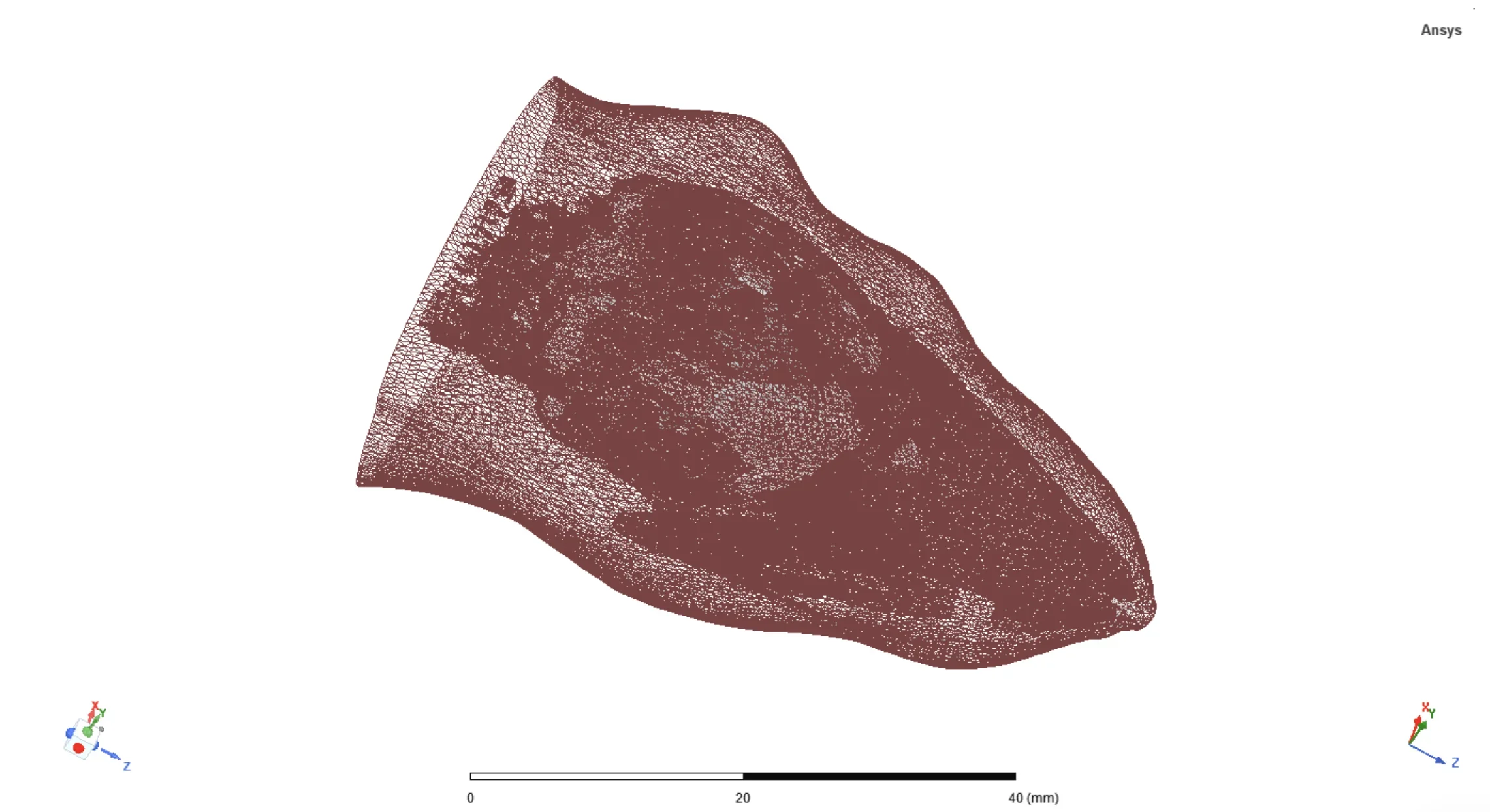
I tried to re-import them multiple times, but the objects still showed up like the second image. Do you have any recommendation? Â
Best,Â
Ha NguyenÂ
Â
-
April 14, 2023 at 4:49 am
Praneeth
Ansys EmployeeHi,
I am a little confused here. Did you restart the application and tried to import the model? This should have worked as you were able to see the model before. Kindly let us know which AEDT version you are using.
Please go through the following recommendations -Â
- Did you observe any errors in the messages windows after the fresh import?
- Are the objects of the model are imported as 3D models or as 2D surfaces? Please share the screen shot of the model along with the model history tree window with details of all the objects as far as possible.
Best regards,
Praneeth. -
April 14, 2023 at 5:16 am
ha_nguyen3
SubscriberHi Praneeth,Â
Thank you for reaching out. I'm also very confused myself why this happened.
I restarted the program, created a new file, and imported again. But it still didn't work. I'm using Ansys Electronics Desktop 2021 R2. I did the following steps:Â
- Create a new project
- Select Desktop > HFSSÂ
- Modeler > Import > Select stl. filesÂ
Currenly, these objects are viewed as below after the fresh import.
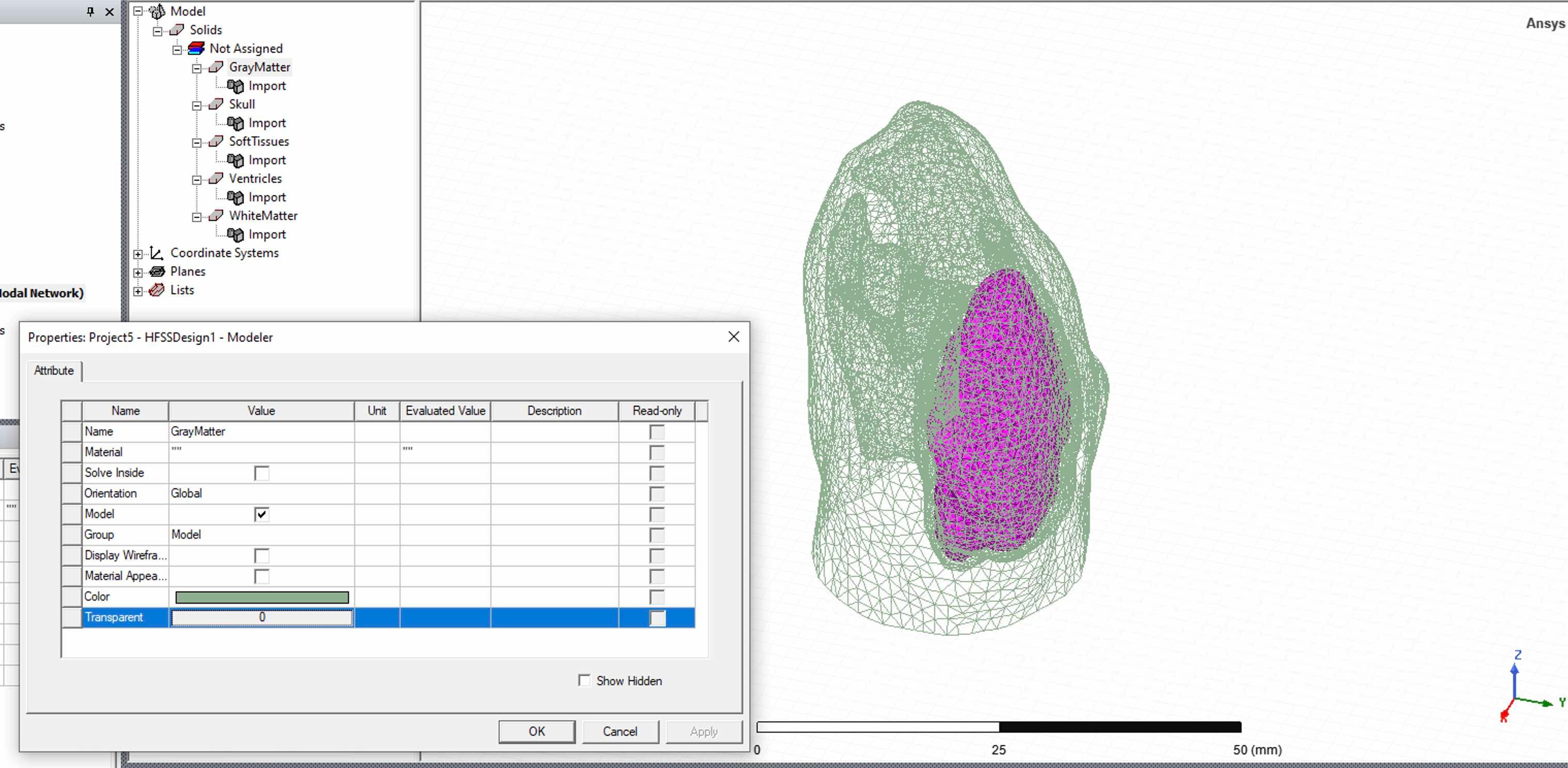
To answer your questions:Â
- There was no error messgase after the new import.Â
- The objects are imported as stl. files - they are 3D surface meshes exported from Simpleware (a 3D model generation program). These files worked previously, and showed up like the first image (i just changed the color of the outer object into brown). I'm not sure why all objects appaered to be transparent mesh now.Â
Best,
Ha NguyenÂÂ
Â
-
April 14, 2023 at 7:11 am
Praneeth
Ansys EmployeeHi,
The following are the next recommendations -
- Can you please check if you are able to see any example simulations normally or not? You can also try to create any random geometry by using the commands in the draw tab. Please share a screenshot if possible.
- Did you modify the model in the simpleware? If possible check the stl model in any other online tool to see if it is displayed correctly.
Best regards,
Praneeth. Â
-
- The topic ‘3D model display in Ansys HFSS’ is closed to new replies.
-
6660
-
1906
-
1469
-
1313
-
1022
© 2026 Copyright ANSYS, Inc. All rights reserved.