

-
-
November 30, 2018 at 12:27 am
ScottHumphreys
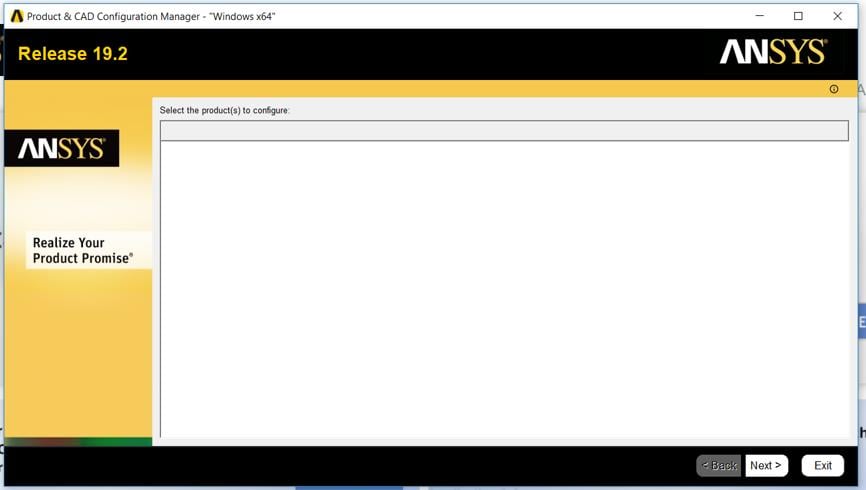
SubscriberI have installed ANSYS for students 19.2. I can run workbench but when I try to enter the DesignModeler to create geometry it fails and says "The geometry editor was closed abnormally". I have seen several other threads discussing a similar issue, and I have uninstalled, reinstalled, changed file names, etc. as suggested. When I run the Product and CAD Configuration Manager and select Configure Products and CADs, no products are displayed at all, which makes me think there is something wrong with the installation.
-
December 1, 2018 at 1:18 am
tsiriaks
Ansys EmployeeHi ScottHumphreys,
Check your installation directory (e.g., C:Program FilesANSYS Inc or C:Program FilesANSYS IncANSYS Student) and see if you have the file named install.err. If so, please post its content here.
Thanks,
Win
-
December 1, 2018 at 2:31 pmSubscriber
Hi Win,
There doesn't seem to be a file with that name in the installation directory.
-
December 3, 2018 at 3:10 pm
JakeC
Ansys EmployeeHi ScottHumphreys,
Please make sure your graphics drivers are up to date, and that you have the High Performance Card set as the default. For example if running an nvidia card:
Nvidia Control Panel -> Manage 3D Settings -> Global Settings -> Preferred graphics processor -> High Performance NVidia Processor
If that doesn't help please send a screenshot of each tab of from the dxdiag.exe application:
Start -> Run -> DxDiag.exe
Thank you,
Jake
-
December 3, 2018 at 5:38 pmSubscriber
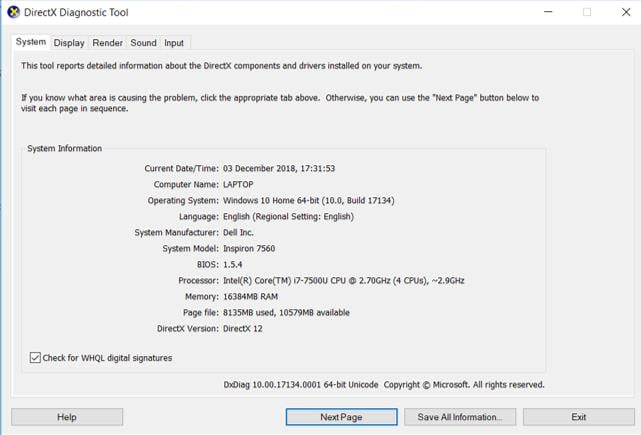
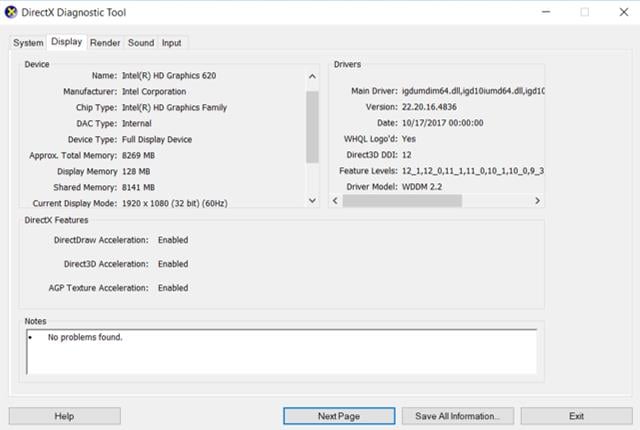
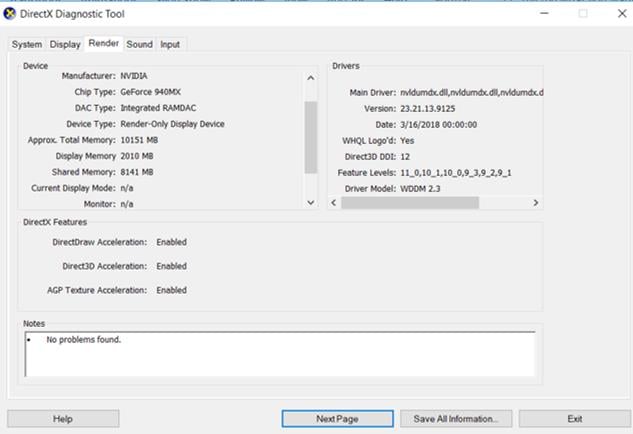
-
December 3, 2018 at 5:47 pmAnsys Employee
Hi ScottHumphreys,
Your Nvidia and Intel drivers are very old. Please update those to the newest versions.
Once complete, reboot, then set the following:
Open Nvidia Control Panel -> Manage 3D Settings -> Global Settings -> Preferred graphics processor -> High Performance NVidia Processor
Thank you,
Jake
-
December 3, 2018 at 6:42 pmSubscriber
Thanks Jake, I'll try that now.
-
December 5, 2018 at 12:12 pmSubscriber
I have updated the drivers and rebooted. The same issue still exists. It seems like it must be to do with the way it is installed. Nothing is shown in the Product and Cad Configuration as if it doesn't recognise that I have the different applications?
-
December 5, 2018 at 12:17 pmSubscriber
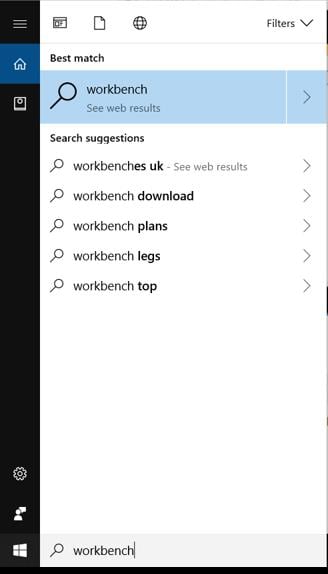
I also cannot find any of the ANSYS applications by using the search bar in Windows. I have to locate the ANSYS folder and run from there.
-
December 5, 2018 at 2:18 pmAnsys Employee
Hi ScottHumphreys,
Please try deleting C:Program FilesANSYS Inc or C:Program FilesANSYS IncANSYS Student
Then reinstall, but make sure you right click on the installer and select "Run As Administrator"
Thank you,
Jake
-
December 5, 2018 at 6:25 pmSubscriber
Should I extract the files to a specific destination? Or is the default (C:UsersNAMEDownloads) OK?
-
December 5, 2018 at 6:27 pmAnsys Employee
Any local location should be fine.
Thank you,
Jake
-
December 5, 2018 at 6:41 pmSubscriber
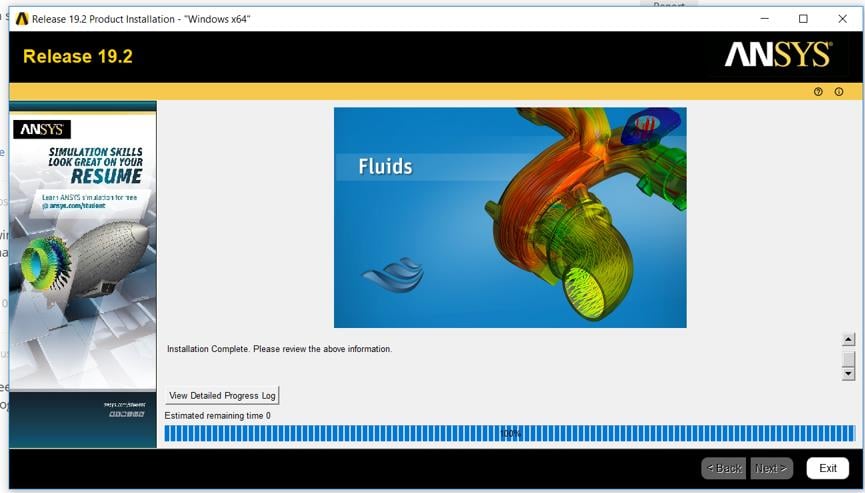
The installation window says "Installation Complete. Please review the above information." Can I click Exit now or will it close automatically? That may be a stupid question but I'm getting very frustrated so want to make sure everything is done correctly.
-
December 5, 2018 at 6:43 pmAnsys Employee
Please post a screenshot of the screen. Also please click on the "Show Detailed Progress Log" button, and paste in the contents of that log.
Thank you,
Jake
-
December 5, 2018 at 6:45 pmSubscriber
-
December 5, 2018 at 6:45 pmSubscriber
>>>
>
Start Installation: Wed Dec 5 18
 3:52 2018
Revision: Release 19.2
Platform specifics:
Windows
Username of Installer: LAPTOPscott
User Has Administrator Privileges
C:UsersscottAppDataLocalTempans_install_tmp19636instcore.exe -usetempdir C:UsersscottAppDataLocalTempans_install_tmp19636 -launchdir C:UsersscottDownloadsANSYSACADEMICSTUDENT_192_WINX64 -admin
Initial mount directory:
C:UsersscottDownloadsANSYSACADEMICSTUDENT_192_WINX64
Installation Directory:
C:Program FilesANSYS IncANSYS Student
Windows x64
Chemkin
Forte
FENSAP-ICE
Date verification complete...No conflicts found.
The installation will copy the prerequisite setup files from the media in case you need to reconfigure later or if you need to configure client machines for products installed to a network share.
This may take a while ...
Successfully copied prerequisites from media.
You don't need to install any prerequisites.
Reading the installation media contents - please wait.
Extraction: C:UsersscottDownloadsANSYSACADEMICSTUDENT_192_WINX64framewrkWINX64.7z ...
Extraction: C:UsersscottDownloadsANSYSACADEMICSTUDENT_192_WINX64instcoretclCOMMON.TGZ ...
Extraction: C:UsersscottDownloadsANSYSACADEMICSTUDENT_192_WINX64instcoretclWINX64.TGZ ...
Extraction: C:UsersscottDownloadsANSYSACADEMICSTUDENT_192_WINX64commonWINX64.7z ...
Extraction: C:UsersscottDownloadsANSYSACADEMICSTUDENT_192_WINX64configscommonWINX64.7z ...
Extraction: C:UsersscottDownloadsANSYSACADEMICSTUDENT_192_WINX64cpythextWINX64.7z ...
Extraction: C:UsersscottDownloadsANSYSACADEMICSTUDENT_192_WINX64cpythnewWINX64.7z ...
Extraction: C:UsersscottDownloadsANSYSACADEMICSTUDENT_192_WINX64turbogrdWINX64.7z ...
Extraction: C:UsersscottDownloadsANSYSACADEMICSTUDENT_192_WINX64configstgWINX64.7z ...
Extraction: C:UsersscottDownloadsANSYSACADEMICSTUDENT_192_WINX64cfxcomonWINX64.7z ...
Extraction: C:UsersscottDownloadsANSYSACADEMICSTUDENT_192_WINX64instutilINSTUTIL.7z ...
Extraction: C:UsersscottDownloadsANSYSACADEMICSTUDENT_192_WINX64instcoretclCOMMON.TGZ ...
Extraction: C:UsersscottDownloadsANSYSACADEMICSTUDENT_192_WINX64instcoretclWINX64.TGZ ...
Extraction: C:UsersscottDownloadsANSYSACADEMICSTUDENT_192_WINX64instcoretkCOMMON.TGZ ...
Extraction: C:UsersscottDownloadsANSYSACADEMICSTUDENT_192_WINX64instcoretkWINX64.TGZ ...
Extraction: C:UsersscottDownloadsANSYSACADEMICSTUDENT_192_WINX64configsclientlicensingWINX64.7z ...
Extraction: C:UsersscottDownloadsANSYSACADEMICSTUDENT_192_WINX64configswbWINX64.7z ...
Extraction: C:UsersscottDownloadsANSYSACADEMICSTUDENT_192_WINX64sgchartsWINX64.7z ...
Extraction: C:UsersscottDownloadsANSYSACADEMICSTUDENT_192_WINX64fwgfxWINX64.7z ...
Extraction: C:UsersscottDownloadsANSYSACADEMICSTUDENT_192_WINX64addinsWINX64.7z ...
Extraction: C:UsersscottDownloadsANSYSACADEMICSTUDENT_192_WINX64addincfgwbWINX64.7z ...
Extraction: C:UsersscottDownloadsANSYSACADEMICSTUDENT_192_WINX64corewbWINX64.7z ...
Extraction: C:UsersscottDownloadsANSYSACADEMICSTUDENT_192_WINX64ekmWINX64.7z ...
Extraction: C:UsersscottDownloadsANSYSACADEMICSTUDENT_192_WINX64addincfgekmWINX64.7z ...
Extraction: C:UsersscottDownloadsANSYSACADEMICSTUDENT_192_WINX64meshingWINX64.7z ...
Extraction: C:UsersscottDownloadsANSYSACADEMICSTUDENT_192_WINX64blademodelerWINX64.7z ...
Extraction: C:UsersscottDownloadsANSYSACADEMICSTUDENT_192_WINX64apipsrvWINX64.7z ...
Extraction: C:UsersscottDownloadsANSYSACADEMICSTUDENT_192_WINX64designmodelerWINX64.7z ...
Extraction: C:UsersscottDownloadsANSYSACADEMICSTUDENT_192_WINX64syscplgWINX64.7z ...
Extraction: C:UsersscottDownloadsANSYSACADEMICSTUDENT_192_WINX64cfxcomonWINX64.7z ...
Extraction: C:UsersscottDownloadsANSYSACADEMICSTUDENT_192_WINX64rsmWINX64.7z ...
Extraction: C:UsersscottDownloadsANSYSACADEMICSTUDENT_192_WINX64addincfgturbosysWINX64.7z ...
Extraction: C:UsersscottDownloadsANSYSACADEMICSTUDENT_192_WINX64secWINX64.7z ...
Extraction: C:UsersscottDownloadsANSYSACADEMICSTUDENT_192_WINX64ccmWINX64.7z ...
Extraction: C:UsersscottDownloadsANSYSACADEMICSTUDENT_192_WINX64cadsacisparaWINX64.7z ...
Extraction: C:UsersscottDownloadsANSYSACADEMICSTUDENT_192_WINX64ansysWINX64.7z ...
Extraction: C:UsersscottDownloadsANSYSACADEMICSTUDENT_192_WINX64configsansysWINX64.7z ...
Extraction: C:UsersscottDownloadsANSYSACADEMICSTUDENT_192_WINX64addincfgansysWINX64.7z ...
Extraction: C:UsersscottDownloadsANSYSACADEMICSTUDENT_192_WINX64solverWINX64.7z ...
Extraction: C:UsersscottDownloadsANSYSACADEMICSTUDENT_192_WINX64aasWINX64.7z ...
Extraction: C:UsersscottDownloadsANSYSACADEMICSTUDENT_192_WINX64dataDATA.GZ ...
Extraction: C:UsersscottDownloadsANSYSACADEMICSTUDENT_192_WINX64apdlAPDL.GZ ...
Extraction: C:UsersscottDownloadsANSYSACADEMICSTUDENT_192_WINX64geomparaWINX64.7z ...
Extraction: C:UsersscottDownloadsANSYSACADEMICSTUDENT_192_WINX64addincfgmechWINX64.7z ...
Extraction: C:UsersscottDownloadsANSYSACADEMICSTUDENT_192_WINX64autodynWINX64.7z ...
Extraction: C:UsersscottDownloadsANSYSACADEMICSTUDENT_192_WINX64addincfgautodynWINX64.7z ...
Extraction: C:UsersscottDownloadsANSYSACADEMICSTUDENT_192_WINX64cfxWINX64.7z ...
Extraction: C:UsersscottDownloadsANSYSACADEMICSTUDENT_192_WINX64addincfgcfxWINX64.7z ...
Extraction: C:UsersscottDownloadsANSYSACADEMICSTUDENT_192_WINX64configscfxWINX64.7z ...
Extraction: C:UsersscottDownloadsANSYSACADEMICSTUDENT_192_WINX64postWINX64.7z ...
Extraction: C:UsersscottDownloadsANSYSACADEMICSTUDENT_192_WINX64cfxcomonWINX64.7z ...
Extraction: C:UsersscottDownloadsANSYSACADEMICSTUDENT_192_WINX64fluentWINX64.7z ...
Extraction: C:UsersscottDownloadsANSYSACADEMICSTUDENT_192_WINX64fluentcWINX64.7z ...
Extraction: C:UsersscottDownloadsANSYSACADEMICSTUDENT_192_WINX64addincfgfluentWINX64.7z ...
Extraction: C:UsersscottDownloadsANSYSACADEMICSTUDENT_192_WINX64configsfluentWINX64.7z ...
Extraction: C:UsersscottDownloadsANSYSACADEMICSTUDENT_192_WINX64addincfgcfdpostWINX64.7z ...
Extraction: C:UsersscottDownloadsANSYSACADEMICSTUDENT_192_WINX64aviewWINX64.7z ...
Extraction: C:UsersscottDownloadsANSYSACADEMICSTUDENT_192_WINX64configsaviewWINX64.7z ...
Extraction: C:UsersscottDownloadsANSYSACADEMICSTUDENT_192_WINX64spaceclmWINX64.7z ...
Extraction: C:UsersscottDownloadsANSYSACADEMICSTUDENT_192_WINX64configsspaceclmWINX64.7z ...
Extraction: C:UsersscottDownloadsANSYSACADEMICSTUDENT_192_WINX64icemwbWINX64.7z ...
Extraction: C:UsersscottDownloadsANSYSACADEMICSTUDENT_192_WINX64electroWINX64.7z ...
Extraction: C:UsersscottDownloadsANSYSACADEMICSTUDENT_192_WINX64ecadxltrWINX64.7z ...
Extraction: C:UsersscottDownloadsANSYSACADEMICSTUDENT_192_WINX64cadsspatialiopWINX64.7z ...
Extraction: C:UsersscottDownloadsANSYSACADEMICSTUDENT_192_WINX64cadsspatialWINX64.7z ...
Extraction: C:UsersscottDownloadsANSYSACADEMICSTUDENT_192_WINX64acpWINX64.7z ...
Extraction: C:UsersscottDownloadsANSYSACADEMICSTUDENT_192_WINX64addinsacpWINX64.7z ...
Extraction: C:UsersscottDownloadsANSYSACADEMICSTUDENT_192_WINX64configsacpWINX64.7z ...
Extraction: C:UsersscottDownloadsANSYSACADEMICSTUDENT_192_WINX64hlphlpviewerHLPVIEWER.7z ...
Extraction: C:UsersscottDownloadsANSYSACADEMICSTUDENT_192_WINX64configshelpWINX64.7z ...
Extraction: C:UsersscottDownloadsANSYSACADEMICSTUDENT_192_WINX64tpWINX64.7z ...
Extraction: C:UsersscottDownloadsANSYSACADEMICSTUDENT_192_WINX64tphdf5WINX64.7z ...
Extraction: C:UsersscottDownloadsANSYSACADEMICSTUDENT_192_WINX64tpzlibWINX64.7z ...
Extraction: C:UsersscottDownloadsANSYSACADEMICSTUDENT_192_WINX64tpjreWINX64.7z ...
Extraction: C:UsersscottDownloadsANSYSACADEMICSTUDENT_192_WINX64chemkinWINX64.7z ...
Extraction: C:UsersscottDownloadsANSYSACADEMICSTUDENT_192_WINX64configschemkinWINX64.7z ...
Extraction: C:UsersscottDownloadsANSYSACADEMICSTUDENT_192_WINX64forteWINX64.7z ...
Extraction: C:UsersscottDownloadsANSYSACADEMICSTUDENT_192_WINX64addincfgforteWINX64.7z ...
Extraction: C:UsersscottDownloadsANSYSACADEMICSTUDENT_192_WINX64configsforteWINX64.7z ...
Extraction: C:UsersscottDownloadsANSYSACADEMICSTUDENT_192_WINX64fensapWINX64.7z ...
Extraction: C:UsersscottDownloadsANSYSACADEMICSTUDENT_192_WINX64configsfensapWINX64.7z ...
Extraction: C:UsersscottDownloadsANSYSACADEMICSTUDENT_192_WINX64studentWINX64.7z ...
Extraction: C:UsersscottDownloadsANSYSACADEMICSTUDENT_192_WINX64licenseWINX64.7z ...
Successfully created file associations.
RSS is disabled
Performing licensing configuration via the following command...
"C:Program FilesANSYS IncANSYS StudentShared Filesbinwinx64tclsh.exe" "C:Program FilesANSYS IncANSYS StudentShared FilesLicensinglicadminscriptsLicAdminMain.itcl" -silentinstallclient -release "19.2" -lang en-us
Licensing configuration has completed.
Running C:Program FilesANSYS IncANSYS Studentv192commonfilesconfigswinx64configAnsConfigCommon.exe
Configuring ANSYS TurboGrid ...
Running C:Program FilesANSYS IncANSYS Studentv192commonfilesconfigswinx64configAnsConfigTG.exe
Creating Start menu items for ANSYS client licensing ...
Running C:Program FilesANSYS IncANSYS Studentv192commonfilesconfigswinx64configAnsConfigWB.exe
Running C:Program FilesANSYS IncANSYS Studentv192FrameworkbinWin64Ans.DriverSetup.exe
*******************************************************************************
NVidia driver installation found.
Driver: 41722
Branch: r417_18
No existing profile found for : Ansys Workbench Products
New profile created.
settings:
Enable application for Optimus(0x10f9dc81) = 1
Shim Rendering Mode Options per application for Optimus(0x10f9dc84) = 0
Optimus flags for enabled applications(0x10f9dc80) = 1
applications:
Registering Windowed with the profile.
Registering Console with the profile.
No existing profile found for : Ansys ACP
New profile created.
settings:
(0x20335bca) = 0
(0x205f7e3b) = 0
(0x205fb5ab) = 0
applications:
Registering ACP with the profile.
Profile updated.
*******************************************************************************
Running "C:Program FilesANSYS IncANSYS Studentv192RSMbinAnsConfigRSM.exe" -encodingUTF8
Configuring RSM...
Configuring default RSM and ARC Port numbers for Release 19.2 ...
Done!
User has Administrator privileges
Creating Start Menu Shortcut for RSM Release 19.2 Configuration...
Created Shortcut C:ProgramDataMicrosoftWindowsStart MenuProgramsANSYS 19.2Remote Solve ManagerRSM Configuration 19.2.lnk
Creating Start Menu Shortcut for RSM Release 19.2 Job Monitor...
Created Shortcut C:ProgramDataMicrosoftWindowsStart MenuProgramsANSYS 19.2Remote Solve ManagerRSM Job Monitoring 19.2.lnk
Creating Start Menu Shortcut for RSM Release 19.2 Cluster Monitor...
Created Shortcut C:ProgramDataMicrosoftWindowsStart MenuProgramsANSYS 19.2Remote Solve ManagerRSM Cluster Monitoring 19.2.lnk
Creating Start Menu Shortcut for ARC Release 19.2 Configuration...
Created Shortcut C:ProgramDataMicrosoftWindowsStart MenuProgramsANSYS 19.2Remote Solve ManagerARC Configuration 19.2.lnk
Running C:Program FilesANSYS IncANSYS Studentv192commonfilesconfigswinx64configAnsConfigANSYS.exe
Adding write permissions for Users and Administrators group ...
Running C:Program FilesANSYS IncANSYS Studentv192commonfilesconfigswinx64configAnsConfigCFX.exe
Running C:Program FilesANSYS IncANSYS Studentv192commonfilesconfigswinx64configAnsConfigFLUENT.exe
Configuring ANSYS Viewer ...
Running C:Program FilesANSYS IncANSYS Studentv192commonfilesconfigswinx64configAnsConfigSpaceClaim.exe
Configuring ACP ...
Running C:Program FilesANSYS IncANSYS Studentv192commonfilesconfigswinx64configAnsConfigACP.exe
Configuring Help ...
Running C:Program FilesANSYS IncANSYS Studentv192commonfilesconfigswinx64configAnsConfigHelp.exe
ANSYS Internet Doc has been configured.
Running C:Program FilesANSYS IncANSYS Studentv192commonfilesconfigswinx64configAnsConfigCHEMKIN.exe
Running C:Program FilesANSYS IncANSYS Studentv192commonfilesconfigswinx64configAnsConfigFENSAP.exe
Running "C:Program FilesANSYS IncANSYS Studentv192aisol..commonfilesCADbinwinx64Ans.CadInt.CADConfigurationUtility.exe"
Log files is C:Program FilesANSYS IncANSYS Studentv192CADConfigLogsLatestCADConfigurationMgr.log
MessageLogger.logFilePath is C:Program FilesANSYS IncANSYS Studentv192CADConfigLogsLatestCADConfigurationMgr.log
ErrorLogger.errorFilePath is C:Program FilesANSYS IncANSYS Studentv192CADConfigLogsCADConfigurationMgr.err
Prerequisites ..... Configure Success
SCDM Workbench PlugIn ..... Configure Success
Installation Complete: Wed Dec 5 18
9:12 2018
<
<<< -
December 5, 2018 at 6:47 pmAnsys Employee
Looks ok with the exeception of:
C:Program FilesANSYS IncANSYS Studentv192CADConfigLogsCADConfigurationMgr.err
Click exit, and post the contents of the the above file.
Thank you,
Jake
-
December 5, 2018 at 7:12 pmSubscriber
There is no file with that exact name in that location. There was a file called "CADConfigurationMgr" in the "Latest" folder at that location. I'll post the contents of that.
-
December 5, 2018 at 7:12 pmSubscriber
Installing User: LAPTOPscott
Working Directory: C:Program FilesANSYS IncANSYS StudentShared FilesLicensing
Process Directory: C:Program FilesANSYS IncANSYS Studentv192commonfilesCADbinwinx64
AWP_ROOT192: C:Program FilesANSYS IncANSYS Studentv192
ANSYS_SYSDIR: winx64
LOCALE: en-us
SILENT: False
______________________________________________________________________
______________________________________________________________________
<
>
File: C:Program FilesANSYS IncANSYS Studentv192aisolbinwinx64AnsCoreObjects.tlb
Mode: Configure
Result: Success
______________________________________________________________________
<
>
File: C:Program FilesANSYS IncANSYS Studentv192aisolbinwinx64DSPartMgr.tlb
Mode: Configure
Result: Success
<
>
File: C:Program FilesANSYS IncANSYS Studentv192aisolbinwinx64ReaderHostU.dll
Mode: Configure
Exit Code: 0 -- expecting 0
Result: Success
______________________________________________________________________
<
>
Successful update of CAD Controller
SCDM Workbench PlugIn ..... Configure Success
______________________________________________________________________
___________________________________________________________________________
ReadPackageInstallData succeeded.
SpaceClaimEngineering Not Detected
Saving to C:Program FilesANSYS IncANSYS Studentv192commonfilesCADCADConfigurationInfo.XML
WriteUpdateConfigurationStatusFile Update Success
-
December 5, 2018 at 7:12 pmSubscriber
I notice it says "SpaceClaimEngineering Not Detected"...
-
December 5, 2018 at 7:47 pmAnsys Employee
That should be fine, as SpaceClaim Engineer is a different product from Ansys SpaceClaim.
Please give it a shot and see if things work better for you now.
Thank you,
Jake
-
December 5, 2018 at 8:08 pmSubscriber
It's still not working

-
December 5, 2018 at 8:09 pmAnsys Employee
What anti-virus/security software are you using?
-
December 5, 2018 at 8:11 pmSubscriber
Windows Defender
-
December 5, 2018 at 8:11 pmSubscriber
I have had it disabled throughout this process.
-
December 5, 2018 at 8:13 pmAnsys Employee
Ok, just to make sure we are still on the same page,
Do you now see Ansys in the start menu?
You can still open workbench correct?
It crashes when you try to open Mechanical/Mesher, is this still correct?
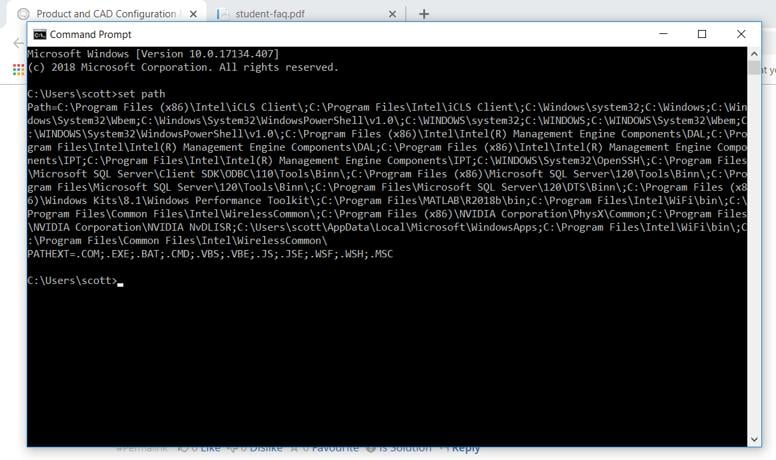
Can you also open a command prompt (Start -> Type cmd -> Click Command Prompt)
Then at the prompt type:
set path
Please post a screenshot of that screen.
Thank you,
Jake
-
December 5, 2018 at 8:14 pmSubscriber
"DesignModeler takes several minutes to open.
•When DesignModeler opens, the dialog: ANSYS Workbench - Select desired length units does not display.
•In Tools > Options panel > DesignModeler > Units, the panel shows two identical preference settings labeled Length Unit.
These symptoms are most likely to occur if Windows Defender is installed and running. There have been reports that Microsoft Windows Defender removes the localhost setting from the C:Windowssystem32driversetchosts file. See the instructions in FAQ Question 5"
Could this be the same issue?
-
December 5, 2018 at 8:15 pmAnsys Employee
It could be yes.
Can you paste in the contents of that file?
Thank you,
Jake
-
December 5, 2018 at 8:16 pmSubscriber
I can open Workbench. I can find it in the program list in the start menu. It aborts when I try to open DesignModeler from Geometry.
-
December 5, 2018 at 8:16 pmSubscriber
-
December 5, 2018 at 8:17 pmAnsys Employee
Are you connected to a VPN?
-
December 5, 2018 at 8:18 pmSubscriber
Contents of hosts file:
# Copyright (c) 1993-2009 Microsoft Corp.
#
# This is a sample HOSTS file used by Microsoft TCP/IP for Windows.
#
# This file contains the mappings of IP addresses to host names. Each
# entry should be kept on an individual line. The IP address should
# be placed in the first column followed by the corresponding host name.
# The IP address and the host name should be separated by at least one
# space.
#
# Additionally, comments (such as these) may be inserted on individual
# lines or following the machine name denoted by a '#' symbol.
#
# For example:
#
# 102.54.94.97 rhino.acme.com # source server
# 38.25.63.10 x.acme.com # x client host
# localhost name resolution is handled within DNS itself.
# 127.0.0.1 localhost
# ::1 localhost
-
December 5, 2018 at 8:19 pmSubscriber
I'm not connected to a VPN
-
December 5, 2018 at 8:19 pmSubscriber
# Copyright (c) 1993-2009 Microsoft Corp.
#
# This is a sample HOSTS file used by Microsoft TCP/IP for Windows.
#
# This file contains the mappings of IP addresses to host names. Each
# entry should be kept on an individual line. The IP address should
# be placed in the first column followed by the corresponding host name.
# The IP address and the host name should be separated by at least one
# space.
#
# Additionally, comments (such as these) may be inserted on individual
# lines or following the machine name denoted by a '#' symbol.
#
# For example:
#
# 102.54.94.97 rhino.acme.com # source server
# 38.25.63.10 x.acme.com # x client host
# localhost name resolution is handled within DNS itself.
# 127.0.0.1 localhost
# ::1 localhost
-
December 5, 2018 at 8:21 pmAnsys Employee
Ok lets try this:
open command prompt
type in:
set Path=C:windowssystem32;C:windows;C:windowsSystem32Wbem
cd "C:Program FilesANSYS IncANSYS Studentv192Frameworkbin"
runwb2
This will open Workbench.
Try opening Design Modeler from there.
See if that makes a difference.
If so, there are some conflicting .dll files in your path.
If it doesn't help please look in c:windowssystem32 and see if there are any .dll files that have "qt" in them.
Thank you,
Jake
-
December 5, 2018 at 8:22 pmSubscriber
I am not connected to a VPN
-
December 5, 2018 at 8:23 pmSubscriber
Sorry for that, my pc isnt showing all of these things I post I had to read your response on another pc. I'll try that now.
-
December 5, 2018 at 8:27 pmSubscriber
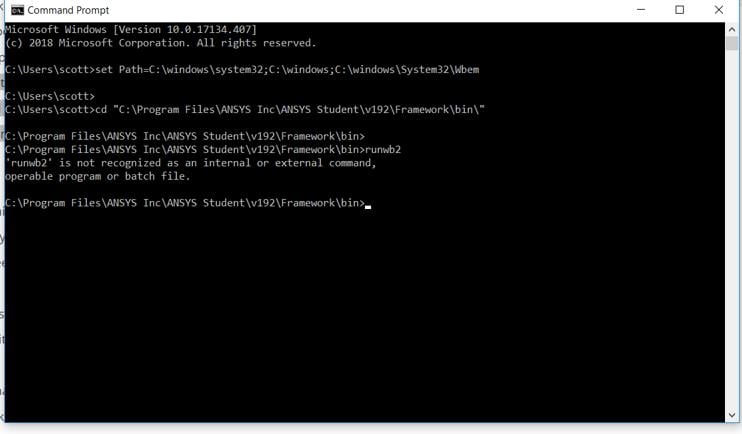
It isn't recognising that as a command.
-
December 5, 2018 at 8:28 pmAnsys Employee
Sorry my fault. The cd path should be:
cd "C:Program FilesANSYS IncANSYS Studentv192FrameworkbinWin64"
Then run:
runwb2
Thank you,
Jake
-
December 5, 2018 at 8:30 pmSubscriber
Thanks Workbench has opened. I'll check if designmodeler does
-
December 5, 2018 at 8:31 pmSubscriber
It did not. I have looked in c:windowssystem32 and there dont appear to be any .dll files with "qt" in them
-
December 5, 2018 at 8:34 pmAnsys Employee
Ok, so its not a path issue.
Have you changed this already?
Nvidia Control Panel -> Manage 3D Settings -> Global Settings -> Preferred graphics processor -> High Performance NVidia Processor
Thank you,
Jake
-
December 5, 2018 at 8:35 pmSubscriber
Yes I changed that previously.
-
December 5, 2018 at 8:40 pmAnsys Employee
Ok,
From the command prompt please try:
ping %HOSTNAME%
And then
ping %HOSTNAME% -4
Then post a screenshot of the result.
Also you can try editing the host file:
c:windowssystem32driversetchosts
and remove the "#" from the line:
# 127.0.0.1 localhost
becomes
127.0.0.1 localhost
Thank you,
Jake
-
December 5, 2018 at 8:48 pmSubscriber
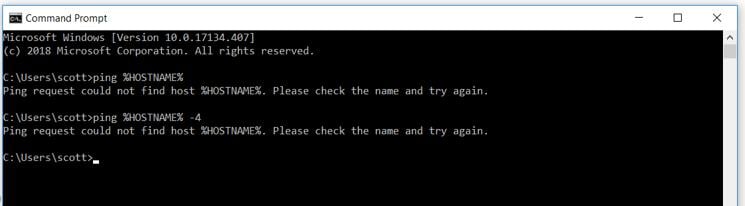
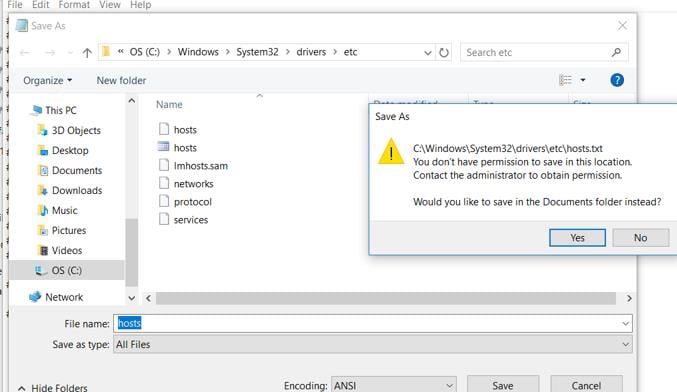
-
December 5, 2018 at 8:50 pmSubscriber
That seems strange as I am an administrator
-
December 5, 2018 at 8:51 pmAnsys Employee
In those commands change %HOSTNAME% to %COMPUTERNAME% and see what you get with the ping commands.
As for editing the hosts file, open notepad as administrator
Start -> Type Notepad -> Right Click on Notepad -> Run As Administrator
Then use File -> Open to edit the hosts file.
Be sure that it doesn't save as hosts.txt, its important that there is no extension on that file.
Thank you,
Jake
-
December 5, 2018 at 8:53 pmSubscriber
The ping cmd has worked now. Am I OK to share that data here? Is it not a unique code for my laptop?
-
December 5, 2018 at 8:54 pmSubscriber
I have changed the host file
-
December 5, 2018 at 8:54 pmAnsys Employee
I'm assuming the ip address is a private IP (meaning not available to the greater internet), so you should be fine.
-
December 5, 2018 at 8:57 pmSubscriber
OK thanks, just being careful!
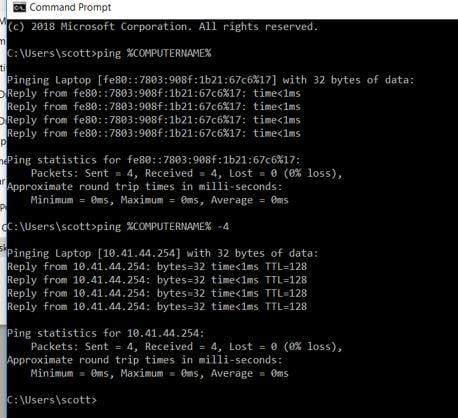
-
December 5, 2018 at 8:58 pmAnsys Employee
Add the following line to the end of the hosts file:
10.41.44.254 laptop
Save
Then retry launching Workbench then Design Modeler.
Thank you,
Jake
-
December 5, 2018 at 9:02 pmSubscriber
That didn't work.
-
December 5, 2018 at 9:07 pmAnsys Employee
Unfortunately, I'm running out of ideas here.
How long does it take before it crashes? Just a few seconds, or does it take closer to a minute?
Also can you open the Windows Event Viewer:
Start -> Type Event Viewer
Select -> Open Windows Logs -> Application
Locate the latest Ansys crash, and post a screenshot of the "General" tab.
Thank you,
Jake
-
December 5, 2018 at 9:13 pmSubscriber
I really appreciate the help, thank you. It is getting very frustrating.
It shows a grey screen for a few seconds and then crashes.
I don't really know how to locate the latest Ansys crash. There don't seem to be any events corresponding to it.
-
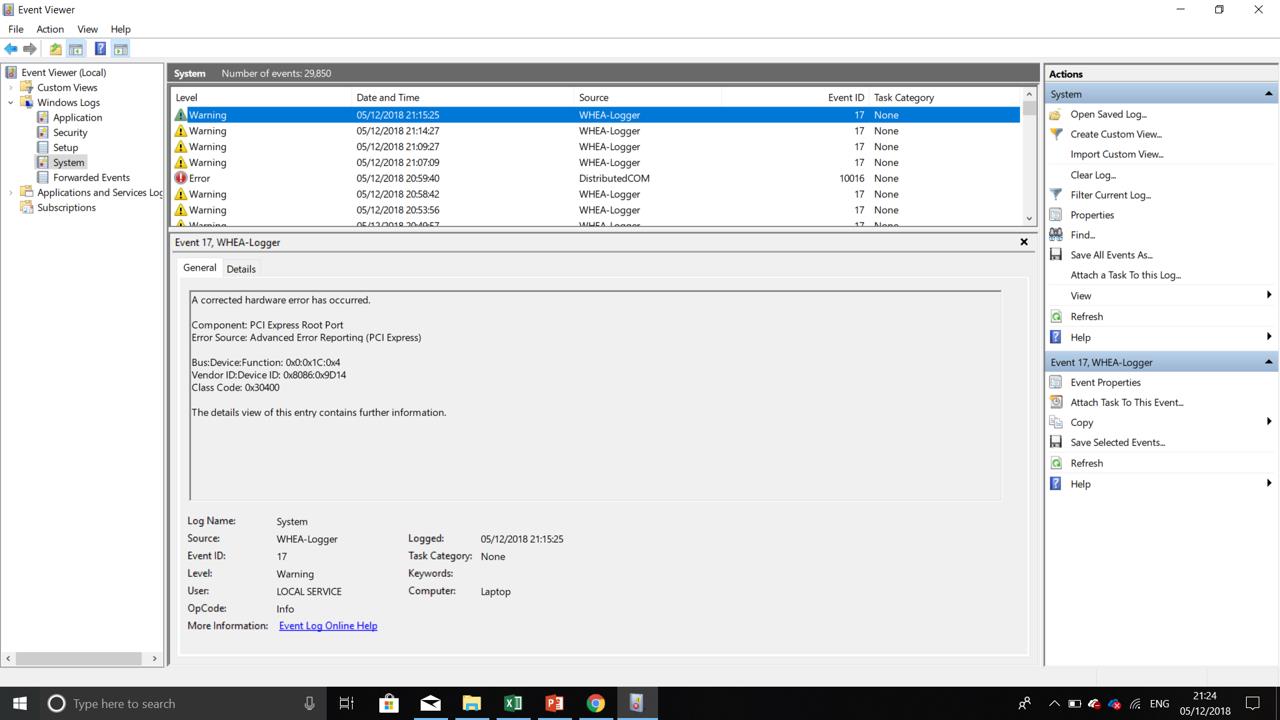
December 5, 2018 at 9:15 pmAnsys Employee
Please post a screenshot of what you see in the event viewer.
Thank you,
Jake
-
December 5, 2018 at 9:16 pmSubscriber
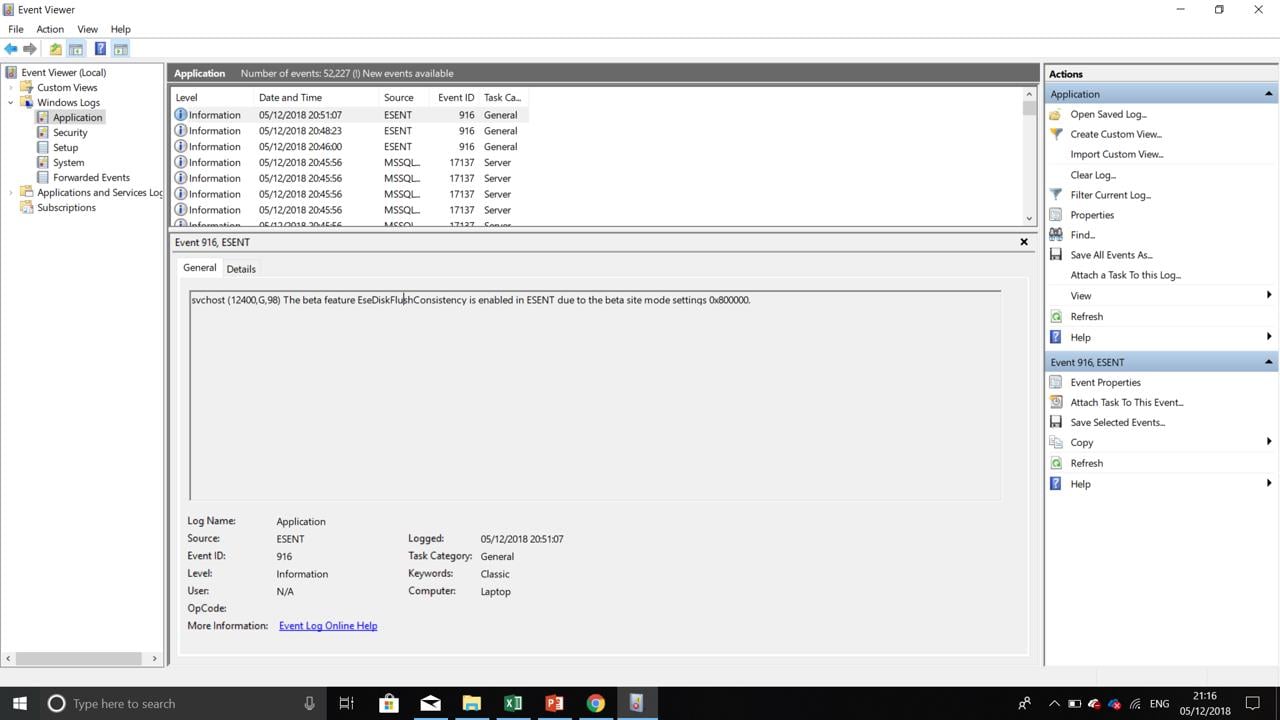
-
December 5, 2018 at 9:22 pmAnsys Employee
Maybe look in the "System" section. But its probably not there.
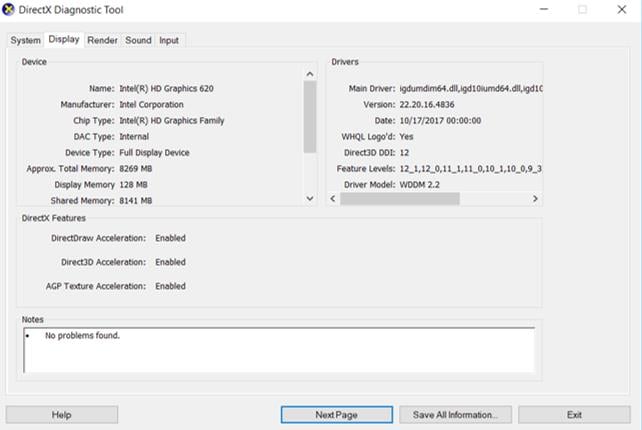
Can you post the "Display" and "Render" tabs again from DxDiag now that you updated the drivers?
Thank you,
Jake
-
December 5, 2018 at 9:24 pmSubscriber
-
December 5, 2018 at 9:26 pmAnsys Employee
Hi ScottHumphreys,
Just to make sure, what is the exact name of the installation package that you are using ?
Could you post the output of
set a
from your CMD Prompt ?
Thanks,
Win
-
December 5, 2018 at 9:37 pmSubscriber

-
December 5, 2018 at 9:37 pmSubscriber
C:Usersscott>set a
ALLUSERSPROFILE=C:ProgramData
ANSYS192_DIR=C:Program FilesANSYS IncANSYS Studentv192ANSYS
ANSYS_SYSDIR=winx64
ANSYS_SYSDIR32=win32
ANS_OLD_ATTACH=1
APPDATA=C:UsersscottAppDataRoaming
AWP_LOCALE192=en-us
AWP_ROOT192=C:Program FilesANSYS IncANSYS Studentv192
-
December 5, 2018 at 9:38 pmAnsys Employee
Looks like your intel drivers are still old. Please update those as well.
Thank you,
Jake
-
December 5, 2018 at 9:39 pmSubscriber
I have updated the intel driver. It didnt change that version date.
-
December 5, 2018 at 9:42 pmAnsys Employee
Can you try creating a new local user account on that machine, and try running workbench as that user?
Thank you,
Jake
-
December 5, 2018 at 9:44 pmAnsys Employee
Sorry, to be clear, I mean create a new local user, log in as that user, then run workbench while logged in as that user, then try DM again.
Thank you,
Jake
-
December 5, 2018 at 9:49 pmSubscriber
I created a new user and tried but it had the same issue.
-
December 5, 2018 at 9:53 pmAnsys Employee
Maybe try right clicking on Workbench, and select Run As Administrator and try that way.
If that doesn't work, I'm out of ideas.
Thank you,
Jake
-
December 5, 2018 at 9:55 pmSubscriber
Interestingly workbench does appear when i type workbench in the windows search bar when acting as the new user. When i search from my main user it does not. It doesn't look like anything is working. Thanks very much for your time, Jake.
-
December 5, 2018 at 9:58 pmAnsys Employee
Windows 10 has some issues with updating the Start Menu database sometimes. A new user forces a completely rebuild for that user.
Can you try installing on a different machine, and see if you have the same issues?
Thank you,
Jake
-
December 5, 2018 at 10:00 pmSubscriber
Unfortunately I can't. I wanted it on my laptop so that I could use Ansys when I'm not in University. The only other computers i have access to are in the University Clusters.
-
December 5, 2018 at 10:02 pmAnsys Employee
Do you still have the issue with blank product config with this new user ?
Have you tried this
---
Manually register the DLLs listed below by starting a Command Prompt (DOS) "as administrator" and changing to the directory c:windowssystem32, then typing:
regsvr32.exe ole32.dll
regsvr32.exe atl.dll
regsvr32.exe oleaut32.dll
regsvr32.exe scrrun.dll
regsvr32.exe jscript.dll
regsvr32.exe vbscript.dll
---
-
December 5, 2018 at 10:21 pmSubscriber
I do still have the issue with the blank product config with the new user. I have just tried the manual registration thing. A couple of error dialogue boxes came up but it did seem to say some or all were successful.
-
December 5, 2018 at 10:23 pmSubscriber
Correction: oleaut32 scrrun and jscript failed
-
December 5, 2018 at 10:33 pmSubscriber
Apologies, I forgot to run cmd as admin, they all succeeded.
-
December 5, 2018 at 10:39 pmSubscriber
It seems to have worked! Thank you both so much!
-
December 5, 2018 at 11:00 pmAnsys Employee
That's excellent news !
I'm glad it's working now.
Thanks,
Win
-
- The topic ‘Product and CAD Configuration Manager – No Products Displayed’ is closed to new replies.



-
peteroznewman
 6465
6465 -
scabo
 1906
1906 -
Dennis Chen
 1458
1458 -
javat33489
 1308
1308 -
Shyam Prasad V Atri
1022



© 2026 Copyright ANSYS, Inc. All rights reserved.

 You are navigating away from the AIS Discovery experience