TAGGED: install-error
-
-
January 27, 2025 at 9:08 pm
kajetankurtek
SubscriberHello,
I recently installed Ansys Student 2025 R1 on my Windows 11 system. The installation process appeared to complete successfully, as indicated by the installation log. However, I encountered an issue when attempting to start the software.
I noticed there was no Ansys folder in the start menu after installation.
I manually navigated to the executable file located at:
C:\Program Files\ANSYS Inc\ANSYS Student\v251\Framework\bin\Win64\RunWB2.exe
When I tried to open this file, the following error message appeared:
An unexpected error has occurred: Root element missing.
System.Xml.XmlException: Root element missing.
  at System.Xml.XmlTextReaderImpl.Throw(Exception e)
  at System.Xml.XmlTextReaderImpl.ParseDocumentContent()
  at System.Xml.XmlLoader.Load(XmlDocument doc, XmlReader reader, Boolean preserveWhitespace)
  at System.Xml.XmlDocument.Load(XmlReader reader)
  at System.Xml.XmlDocument.Load(String filename)
  at Ansys.Core.Addins.AddinConfigReader.ReadConfigFile(String file)
  at Ansys.Core.Addins.AddinConfigReader.ReadConfigFilesFromAddinsConfiguration()
  at Ans.Program.Runtime.LoadAddins(RuntimeSettings settings)Any help resolving this issue would be greatly appreciated! I'm unsure how to proceed and would be grateful for any advice or troubleshooting tips.
Regards
Kajetan
-
January 28, 2025 at 4:12 pm
George Karnos
Ansys EmployeeTry the following:
Verify no Ansys programs are running.
Open windows file explorer.In the address bar, type in:Â
%APPDATA%\AnsysRename the directory: v251 to v251.old
Now, try to run.
If that doesn't fix it, try:
right click on ProductConfig.exe located under:
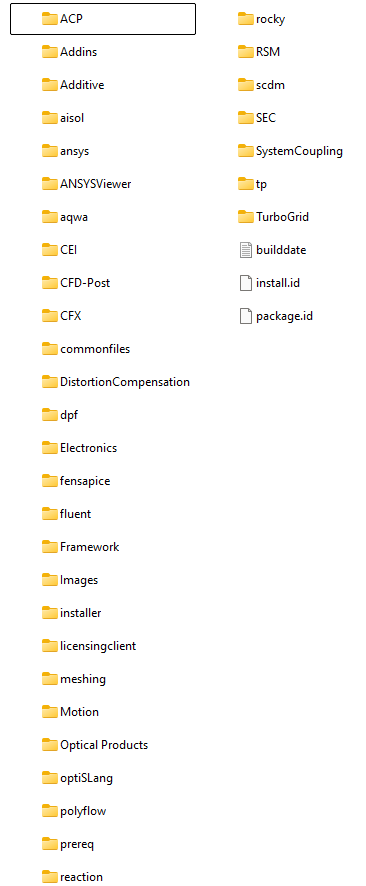
c:\Program Files\ansys Inc\ANSYS Student\v251
Choose: run as administrator.Choose Unconfigure Products and Cads.
Choose all. Uncofigure
Rerun ProductConfig.exe (right-click-> run as administrator)
Choose Configure Product and Cads
Now try to run.-
February 9, 2025 at 11:28 am
kajetankurtek
SubscriberHello, I appreciate your previous suggestions. I tried them, but unfortunately, they didn’t resolve the issue. I replied with more details a few days ago—have you had a chance to see my message? I’d really welcome any further guidance you can provide. Thanks in advance
-
-
January 28, 2025 at 7:57 pm
kajetankurtek
SubscriberThank for the response. Unfortunately the first method does not work, the same error message appears when I attempt opening the file. I tried to use the second method, however in the given location (c:\Program Files\ansys Inc\ANSYS Student\v251) I have no ProductConfig.exe file. I attached the screenshots of the folder contents.
-
- You must be logged in to reply to this topic.
-
6635
-
1906
-
1469
-
1312
-
1022
© 2026 Copyright ANSYS, Inc. All rights reserved.