-
-
May 30, 2020 at 9:04 pm
rodmarti
Subscriber Hello everyone!
 Hope you are doing well. I am struggling with the Fracture Tool in the new 2020R1. Does anybody know of a bug?
 I am currently teaching finite elements and I use Ansys to solve some exercises.
 I Can un the same model with my older version 2019R1, but now I got all sorts of error messages.
 t’s a simple 2D model. I use it to compare to the analytical solution.
I am attaching the model. The main error is that I have two different materials in the same crack, or something of this sort. But I only have the default structural steel!
 I hope I am just making a mistake in the setup of the analysis. I would be glad if some of you could help me.
Thanks in advance.
 Rodrigo
-
May 31, 2020 at 12:06 am
peteroznewman
SubscriberHello Rodrigo,
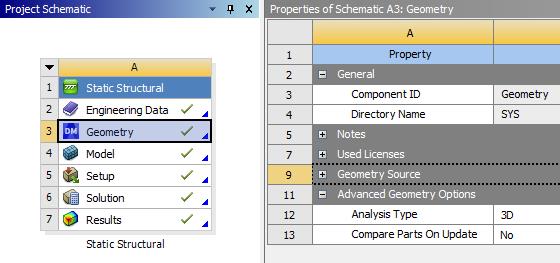
The mistake is the Geometry cell in Workbench has the Analysis Type set to 3D.
That means in Mechanical, the elements are 3D Shell elements not 2D Plane elements.
Fracture analysis does not support 3D Shell elements, only 2D elements or 3D Solid elements are supported.
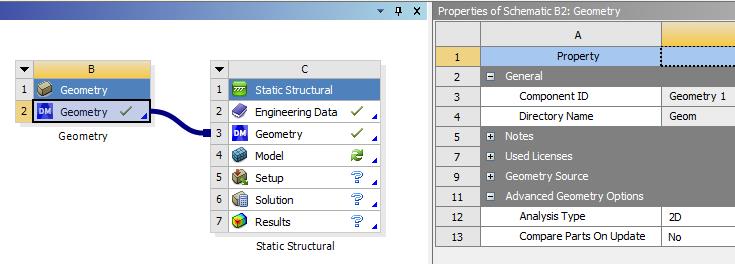
Drag and drop a new Geometry component onto this system, break the link, then set the Geometry cell Properties for Analysis Type to 2D. Then you can drag and drop a new Static Structural onto that new Geometry Cell. Note that you cannot change a 3D Analysis Type to 2D after the geometry has been read into the Model. You must start from the beginning.
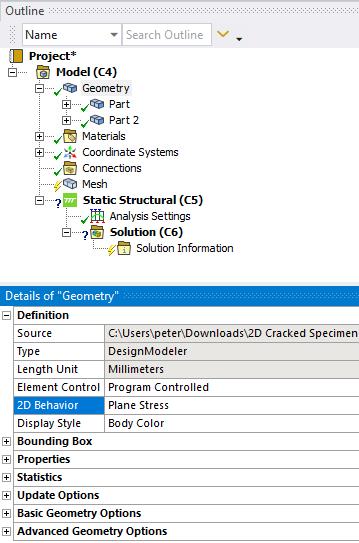
Now when you open the Model and click on Geometry in Mechanical, it shows it is a Plane Stress model and the elements are 1 mm thick.
If this answers your question, please mark the Is Solution link below.
Â
-
May 31, 2020 at 2:32 pm
rodmarti
SubscriberHello Peter!
Â
Thank you for the response.
Â
Â
Â
Good to know that the crack does not work in 3D.
Â
Â
Â
However, my original model was 2D plane stress. Since I was receiving plenty of error messages, I changed it in a desperate attempt to run the model.
Â
Check out the errors in the 2D model:
Â
" alt="">
Â
Â
Â
Than, I receive this problem, that was the original one. With the 3D I got a different one, but now I know that the crack was not supposed to work anyways.
Â
Â
Â
-
May 31, 2020 at 5:20 pm
peteroznewman
SubscriberHello Rodrigo,
I downloaded your attached file and opened it in WB 2020 R1. I showed the properties of the Geometry in the first image of my reply. It is clearly showing an Analysis type of 3D not 2D. This is the original cause of the errors you see.
After you open the model in Mechanical, I agree that you have surface bodies in the XY plane, but because of the setting of the geometry to be 3D and not 2D, these surface bodies are meshed with 3D shell elements and not 2D Plane elements.
You can confirm this because when you run the solver, it shows the type of element type in the Solution Output.Â
ELEMENT TYPEÂ Â Â 1 IS SHELL181.Â
I didn't say the crack doesn't work in 3D. I said it doesn't work on SHELL elements. It does work on SOLID elements meshing a volume in 3D.
I gave detailed instructions on how to recover a 2D Plane Stress analysis. Please try to follow them. If you are successful, the element type will be PLANE. One simplification to what I said, just drag and drop a Static Structural and drop it on the Geometry cell, then delete the link.
When you do what I said, click on Geometry to show that it is set to Plane Stress. Your model doesn't show that.
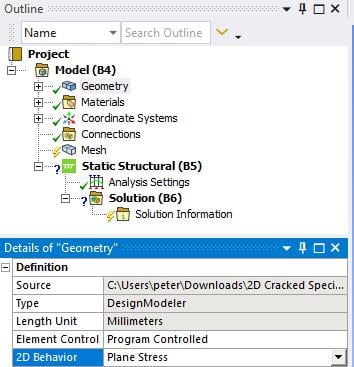
When you solve the rebuilt model, it will show this in the Solution Output:Â ELEMENT TYPEÂ Â Â 1 IS PLANE183
Repeating what I said above, you cannot simply change the Geometry property in WB from 3D to 2D after the geometry has been attached to the Model. You must start over with a fresh copy of Static Structural where the initial attach of the geometry was done when it was 2D.
Also, when replying, please don't copy paste from any program that includes formatting. You can copy paste from a Text Editor like Notepad.

-
June 1, 2020 at 4:56 pm
rodmarti
SubscriberHi Peter,
Â
Thank you for your help, but unfortunately, I still got the same first error.
Â
I started from scratch, only with a 2D model. No change there.
Â
I didn’t know how to re-send you the file from the blog, so I am sending you a link from my Dropbox.
Â
https://www.dropbox.com/s/3to1oa95efar46j/2D%20Cracked%20Specimen_startedover.wbpz?dl=0
Thanks Peter!
Have a nice week!
Â
Rodrigo
Â
Â
-
June 2, 2020 at 1:18 am
peteroznewman
SubscriberI opened the file from your dropbox, which is the same as the one you attached.
If you look at the Solution Output, you will see this...
 *** ERROR ***                          CP =      2.047  TIME= 13:50:21
 Fracture parameter calculation issue: Contour integration for crack 1 Â
 has detected more than two material models in the domain integration, Â
 which is not supported. The contour integration results may not be   Â
 correctly calculated.                                                 Â
In DM, you have two parts each with shared topology. Even though both parts have Structural Steel assigned, the above error occurs. I believe this is a bug in ANSYS 2020 R1. It should not do that and the developers should fix that.
As a workaround, open the geometry in SpaceClaim, go to the Workbench tab and click the Share button, then click the red X button to Unshare the three edges that define the crack.
 You might have to include some manual mesh connections also.
Â
-
June 4, 2020 at 5:52 pm
rodmarti
SubscriberThank you Peter!
-
- The topic ‘Problems with cracks in the new version of Ansys (2020R1)’ is closed to new replies.
-
5874
-
1906
-
1420
-
1306
-
1021
© 2026 Copyright ANSYS, Inc. All rights reserved.