TAGGED: ansys-issues, installation-issue, server-issue
-
-
December 5, 2025 at 10:19 am
harvey.deason
SubscriberHi all,Â
I’m wondering if you may be able to help, I’m a student through open university but using my company laptop to study my modules.Â
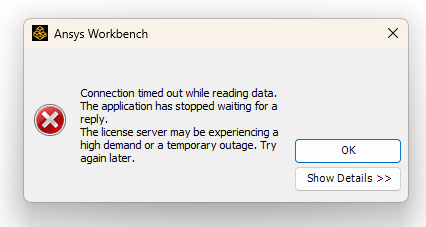
I’m currently trying to run Ansys on my work computer but to do this, IT and security need to make some exemptions, by any chance would you have a list of what these are so they can be made? They’ve currently allowed the licence to connect, it’s when trying to access workbench where things go wrong. They're happy to resolve this but just need to know the list of required exceptions so ansys can function.Â
Â
-
December 9, 2025 at 9:31 am
Rajeshwari Jadhav
Forum ModeratorHi Harvey,
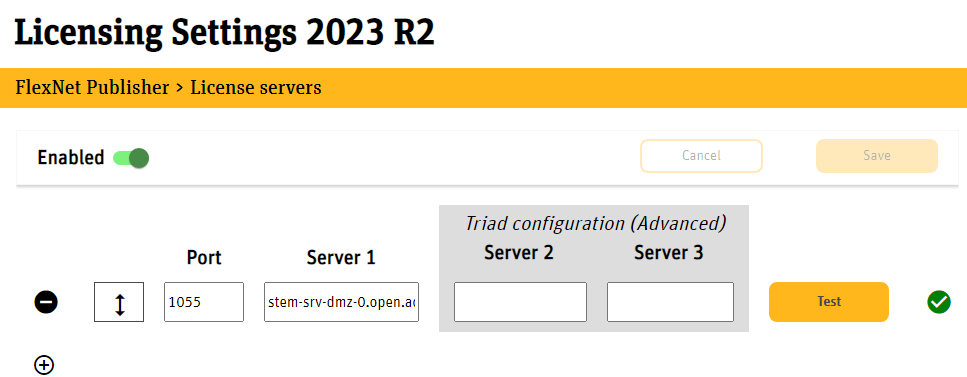
Launch Ansys Licensing Settings> feature in use and verify if all increments are visible if yes then try the below steps:
Please try the below steps: (take help from your IT if you don’t have admin access)
Close all the Ansys applications before trying the below suggestion step by step. Can you please try adding the below timeout features in the ansyslmd.ini file –
Â- Go to C:\Program Files\ANSYS Inc\Shared Files\Licensing directory, copy the ansyslmd.ini file to the desktop location.
Open the ansyslmd.ini file using Notepad and add the following lines –
Â
ANSYSLI_FNP_IP_ENV=1
ANSYSLI_TIMEOUT_FLEXLM=20
ANSYSLI_FLEXLM_TIMEOUT_ENV=20000000
ANSYSCL_TIMEOUT_CONNECT=60
ANSYSCL_TIMEOUT_RESPONSE=300
Â
Once you add the lines, click Save As > ensure that the save as file type is ‘all files’.
Once the file is saved, please replace the old ansyslmd.ini file using the newly created one.
Â
- Also set the following Environment Variable –
Go to START > ‘Edit the System Environment Variables’ > click Environment Variables.
Under the System Variables, please click NEW and create a new variable.
Â
Variable Name – FLEXLM_TIMEOUT
Variable Value – 50000000
Â
Save it.
 - Config File Reset - Â
Now open a file explorer and type %appdata% in the address bar.
Locate the Ansys folder and rename it to Ansys.old.
Â
- Go to C:\Program Files\ANSYS Inc\Shared Files\Licensing directory, copy the ansyslmd.ini file to the desktop location.
-
- You must be logged in to reply to this topic.
-
5834
-
1906
-
1420
-
1305
-
1021
© 2026 Copyright ANSYS, Inc. All rights reserved.