Do you want to get all elements inside a body, such as a cutout feature inside a body?
Or do you just want elements or faces attached to a face?
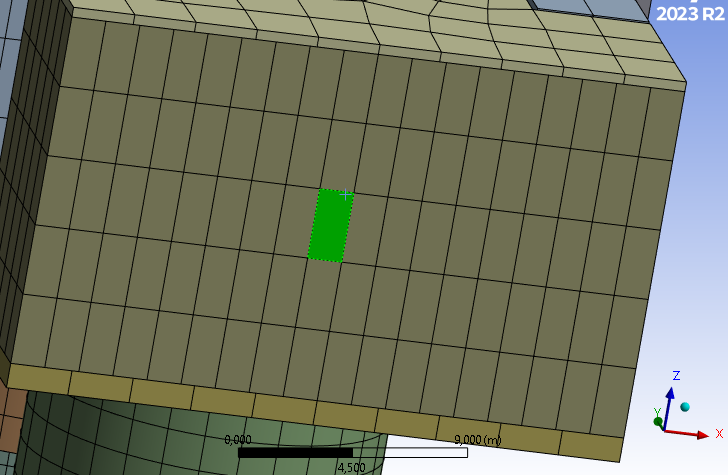
If it is the latter, you will need the ID of the face, or else place the face in a named selection first, then your script can get the entities in the named selection, which would be the .Entities under the named selection object. To query an ID, select the face, and use ExtAPI.SelectionManager.CurrentSelection.
Once you have the python face object, you can get its mesh nodes with this method:
mesh = ExtAPI.DataModel.MeshDataByName(‘Global’)
nodeIds = []
for geoId in face_Ids:
nodeIds.extend(mesh.MeshRegionById(geoId).NodeIds)
Similarly, you can get the attach elements with:
mesh.MeshRegionById(geoId).ElementIds
If you leave out the “Ids” after NodeIds or ElementIds, you can get the python node or element objects which have things underneath, such as the node X,Y,Z locations. If the geometry is a surface body the elements you get will be shell elements. Otherwise, for solid bodies, the elements will be volume elements.
To get the faces of solid elements on the selection, you can use:
mesh.MeshRegionById(geoId).GetFaces()
It will return a list, of which the second index in the list is another list containing the nodes of the faces. Each element will have its corner nodes and midside nodes listed in order of each element. So for a quad element with midside nodes, the first 8 nodes are for the first element, and for each face the corner nodes are listed before the midside nodes. The only thing it doesn’t delineate is quad faces from tri faces. You can use different methods if you know you will have mixed face types: GetQuad4ExteriorFaces(), GetQuad8ExteriorFaces(), GetTri3ExteriorFaces(), GetTri6ExteriorFaces().
Using element faces is probematic. Most loads in Mechanical are applied to the nodes, or it creates overlain surface elements, but it does not create these surface elements until it writes the solver input file, so you will not have these overlain elements in Mechanical for preprocessing. But you can get them in the results mesh, if you are plotting results. If you really want to use element faces you will need to communicate through the APDL element type (ename number) it writes for the volume elements to get the APDL face ID based on the nodes of the faces and the element definition. It gets a bit complicated and would be different for each element type, so you would have to write the python code to figure out the APDL face IDs for the specific element types you know you will have in the model. If you want to send APDL commands to create some load, all you need is the node IDs and you can use ESURF.
Have you considered using the “External Data” to map load forces to the nodes if you intend to script a load application?


















 You are navigating away from the AIS Discovery experience