Ansys Assistant will be unavailable on the Learning Forum starting January 30. An upgraded version is coming soon. We apologize for any inconvenience and appreciate your patience. Stay tuned for updates.
LS Dyna

LS Dyna

Topics related to LS-DYNA, Autodyn, Explicit STR and more.

How to Change the Display Style of the Pressure Contour Map?

    • 1479601362
      Subscriber

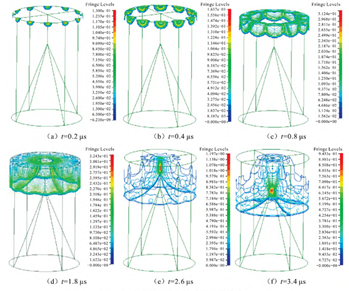
      How should I set LS-Prepost to achieve the pressure cloud map style shown in the figure

    • 1479601362
      Subscriber

      In the calculation case, I used the S-ALE algorithm

    • Nanda
      Ansys Employee

      Hello User,

      • First, pick what you are contouring with Post → Fringe Component (Fringe → Fcomp), e.g. von Mises stress, displacement, etc.​

      • Then turn on the fringe display if needed (Fringe on/off button in the main toolbar or via the Fringe menu).​

      • Use Post → Fringe Range (FriRang) to control:

        • Min/max values (Global, Current).​

        • Number of levels, averaging option, or to identify min/max entities.

      Let me know if this doesn't help.

      Regards,

      Nanda.

      Introducing Ansys Assistant a 24/7 AI-powered virtual assistant for active Ansys academic customers.

      Have a look at our public help documentation website: Ansys Help

      For more exciting courses and certifications, hit this link: Ansys Innovation Courses | ANSYS Innovation Space

      Guidelines for Posting on Ansys Learning Forum

      • 1479601362
        Subscriber

        Hello Nanda,I followed your method and the post line contour mode can be displayed normally in the calculation case using the ALE method. But in the calculation case using the S-ALE method, I selected a part and selected pressure in the "Fringe Component", but when I clicked on "post line contour mode" in the "Fringe on/off button", the part I selected disappeared from the screen. How should I set the post line contour mode correctly in the calculation case using the S-ALE method?

    • Nanda
      Ansys Employee

      Hello,

      • If the part disappears when switching to line contour mode, try toggling between element shade modes (View > Element Shade > Mesh) or switching between flat and smooth shading in the View menu. This can help restore visibility for S-ALE meshes.
      • Ensure that the correct result state (time) is selected in the Animate window, as S-ALE simulations may have moving meshes, and the display can change between time steps. 
      • If issues persist, try resetting the display using the Clear button to remove previous selections, then reapply the desired contour and shading settings.
      • 1479601362
        Subscriber

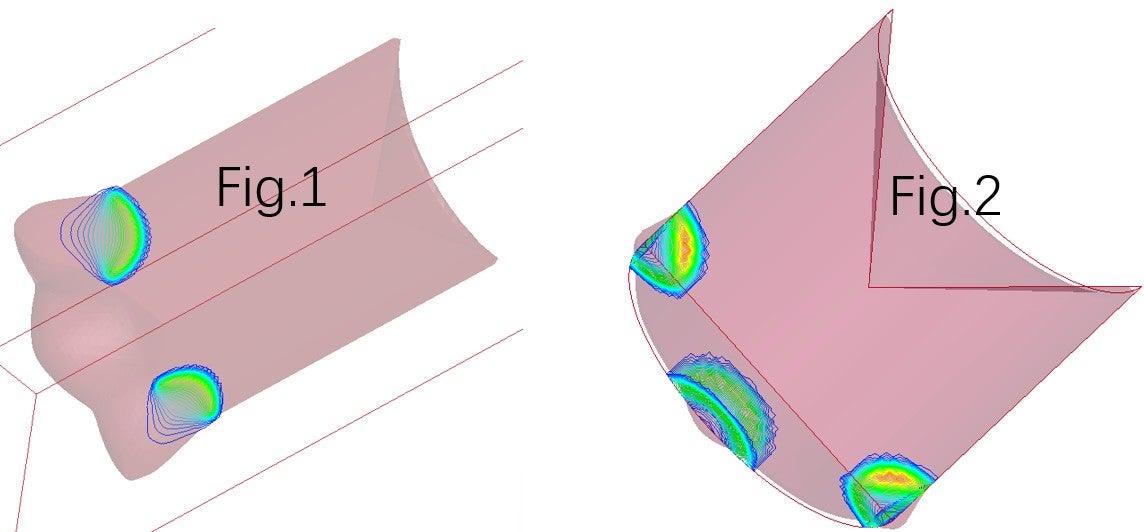
        Thank you.But I have another question. I have two similar calculation cases with only geometric differences. When viewing their pressure cloud maps, I opened the "Post Line Contour Mode" Fig.2 and used the ALE method. Three line contours appeared in the graph, all of which are three-dimensional spatial curves, which is consistent with the actual situation. Fig.1 uses the S-ALE method, which only shows a two-dimensional line contour on two symmetrical planes. This is not consistent with the actual situation. How should I set it to display the correct line contour when using the S-ALE method?


Viewing 3 reply threads
  • You must be logged in to reply to this topic.

[bingo_chatbox]