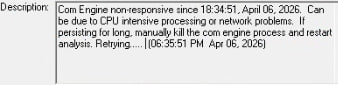
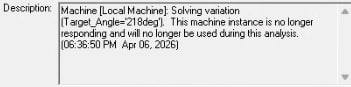
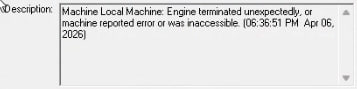
The "Com Engine non-responsive" message usually indicates a high load on the analysis machine or network. However, since this issue occurred after updating Windows OS from 10 to 11, please first check the following:
① Check disk space
Please check if the data size of the Temp folder, where data is temporarily stored, is taking up too much disk space.
You can find the location of the Temp folder by selecting the menu:
Tools > Options > General Options
and then navigating to General > Directories > Temp: in the Options window.
Try deleting files and folders in the Temp folder while HFSS is not running.
Also, please check if you have access rights to the specified Temp folder.
Furthermore, please consider changing the Temp Directory to another drive with available space.
If you change it, check "Override" in the above settings and enter the folder path.
When doing so, be sure to create a folder and specify that folder, rather than specifying the root directory of the drive. (Example: D:\temp)
Please note that when setting the Temp folder, avoid using network drives and use a local drive on the analysis machine.
② Perform an analysis environment reset.
With AEDT not running, delete the folder $HOME\\Ansoft\ElectronicsDesktop20##.#\config.
③ Please update your graphics driver to the latest version.
Do not update your NVIDIA graphics driver through the OS's Device Manager; always download the latest version from the NVIDIA website.
④ Is the folder hierarchy where your project files (with the .aedt extension) are located too long?
If you are using a Windows environment, exceeding the Windows OS character limit may prevent the system from recognizing the files inside the aedtresults folder where the analysis results are saved.
Please avoid using long file names and long folder paths.
Also, if you are saving and analyzing files on a network drive, please save them to the local drive of your analysis machine and perform the analysis there.


















 You are navigating away from the AIS Discovery experience