Ansys Assistant will be unavailable on the Learning Forum starting January 30. An upgraded version is coming soon. We apologize for any inconvenience and appreciate your patience. Stay tuned for updates.
Preprocessing

Preprocessing

Topics related to geometry, meshing, and CAD.

Workbench journal for automatic mesh generation

    • marcin9.nowak3
      Subscriber

      Hi,

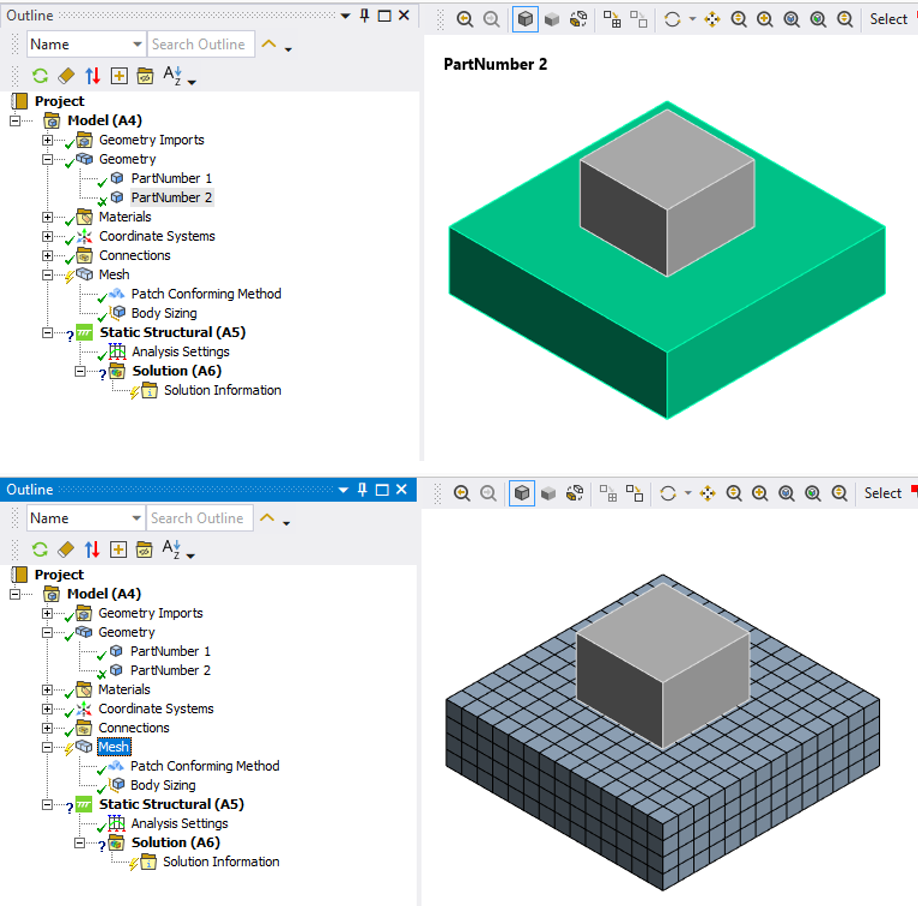
      I got already-working journal for the parametric geometry creation. Now I want to prepare a selective body meshing, in ANSYS Meshing. 
      I want to do this by workbench scripting, ie. by creating and reading a workbench journal (.wbjn file) in Workbench. This is a way how I dealed with the geometry parametrization.
      However as I experienced, Workbench does not record clicking "generate mesh on selected body" in Meshing. I tried another way unsuccessfully - it does not record clicking "Generate mesh through this step" in the Meshing Worksheet panel.
      I know that there is "Mechanical scripting" utility in Meshing, so maybe there I could set up the selective body meshing and running the meshing process, however I got there two issues:
      - Workbench does not record clicking "Run macro" in Meshing
      - I dont have neither experience nor source, for Mechanical scripting

      Therefore I would like to ask for advice how to deal with this. Namely do the following in Workbench journal:
      - Open existing project
      - update a geometry using new dimensions (I already got this)
      - update geometry in meshing and do a selective body meshing (here I got the problem)

      Regards
      Simulator


    • Deepak
      Ansys Employee


      Hi,

      If you want to perform operations inside Mechanical—such as meshing a specific part—you can send Python commands directly to the model using the SendCommand method. Here’s an example:


      system = GetSystem(Name="SYS")
      model = system.GetContainer(ComponentName="Model")

      # Refresh the system to pull updated geometry
      system.Refresh()

      # Open Mechanical interactively
      model.Edit(Interactive=True)

      # Define Mechanical Python code for selective meshing
      cmd = '''
      geodata = DataModel.GetObjectsByName("PartNumber 2")[0]
      geodata.GenerateMesh()
      '''
      # Send the script to Mechanical and close
      model.SendCommand(Language='Python', Command=cmd)
      model.Exit()


      Thanks,

      Deepak


    • Matthew Middleton
      Ansys Employee

      I don't mean to be argumentative, but my testing has shown that the SendCommand() is smart enough to open Mechanical itself. So the model.Edit() is not necessary, which also means the model.Exit() is not necessary. The SendCommand() will automatically open in batch (no GUI display). The only time you need to explicity open Mechanical is when pictures are needed, such as generating the report. In this case the argument would always be Interactive=True, although you are free to set the argument to False if you want to explicity open it with your script but still want it to be in batch. There are some script command defects that need the Details or tabular view of an Outline object to refresh and display after creation before you can alter their settings.

       
    • Deepak
      Ansys Employee


      Thanks for the clarification — this helps fine-tune the approach depending on the use case.


Viewing 3 reply threads
  • You must be logged in to reply to this topic.
[bingo_chatbox]