Hello mergen.eric,
Unfortunately I was not able to reproduce the reported behaviour on my end.
Have you installed the latest service pack for 2024R2? To install service pack 4 for 2024R2, follow the instructions appended below.
Also, the following actions are known to resolve incidental problems:
Reset Ansys program settings by clearing the AppData folder.
The required steps for this purpose are described below:
- Close Workbench and its applications.
- Type %appdata% in Windows Explorer's Address bar (path) to access AppData / Roaming.
- Open the Ansys folder.
- Find the folder vXXY, where XXY is the release you are using. For example, if it's 2023R1, then the folder name should be v231.
- Rename the folder as vXXY_old, or similar. This is used to store the old settings in case you need to refer to them.
- Create an empty folder named vXXY.
- Open vXXY_old and copy the MigratePreferences.txt file. Paste it into the new vXXY folder.
- Delete all content in the MigratePreferences.txt of the vXXY folder and save.
- Open Workbench. Files will be added automatically to the new folder.
Clear temporary Ansys files.
In Windows Explorer in the Address bar type: %temp%.
Rename the .ansys folder
Start a new Workbench session.
How to install a Service Pack for Workbench/Mechanical?
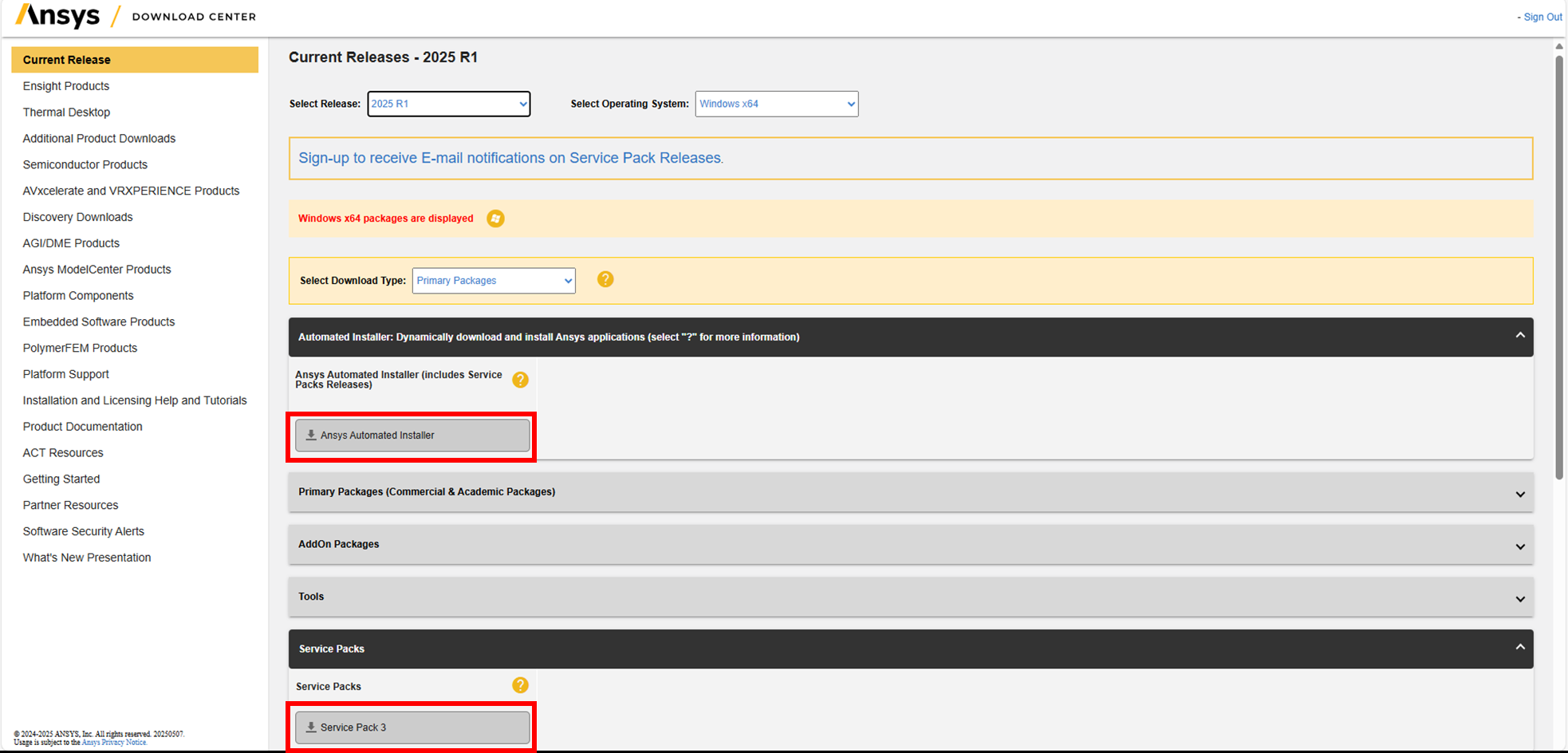
You can install a Service Pack (SP) for Workbench using either the Automated Installer or standalone executable files. To access these, sign in to Ansys Customer Portal and go to the Download Center. Select the release of interest. Then, download the automated installer or standalone Service Pack installation files. E.g.:
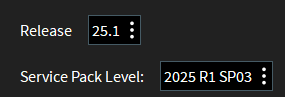
If you are using the installer, run the downloaded executable "as administrator" and follow the steps provided in the installation wizard. Select the desired SP level in the corresponding screen. E.g.:
If you are using the standalone SP installation files, un-archive the files after downloading, then run the executable "as administrator" and follow the instructions in the installation wizard.
Let me know if any of the suggested actions helped restore the problem. Thank you!


















 You are navigating away from the AIS Discovery experience