Ansys Assistant will be unavailable on the Learning Forum starting January 30. An upgraded version is coming soon. We apologize for any inconvenience and appreciate your patience. Stay tuned for updates.
3D Design

3D Design

Topics related to Ansys Discovery and Ansys SpaceClaim.

How to create and rotate the views in drawing sheet

TAGGED: 

    • JUGYEONG SHIN
      Subscriber

      Hi there!

      I have two questions about Drawing sheet of SpaceClaim.


      1. How to create the three basic views(front, bottom, left) in manual way? 

      If I made new drawing sheet, the sheet is made automatically with three basic views. I don't know, however, how to add additional views when I delete or need to make more views. ANSYS HELP said that I can get more views by using 'General' function, but only trimetric view is made by that function(I guess...).

      So, I want to know how to create the three basic views again. And is it possible to make right view either?


      2.  How to move or rotate the view of one part independently of assembly model in drawing sheet?

      In assembly file, I opened one component and made drawing sheet of the component. I used 'Move' function because I only want to make the views of the part are aligned. But the original part in assembly was moved, too.

      Then, I wanna know the way to rotate just the views in drawing sheet independently of assembly. I don't want to rotate the real part of assembly.

      If there is no sure way, is there an alternative?


      Thank you.

    • Naresh Patre
      Ansys Employee

      Hello  JUGYEONG SHIN

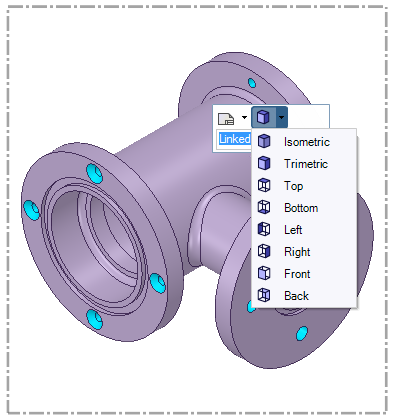
      You can create basic views using "Generic" option. The Generic option adds an isometric view by default. To change this view, click the arrow button next to isometric image and you will see a list of standard views. See below snapshot. You can select any view from this list to create that particular view in the drawing sheet. 


      The view added through "Generic" option is not linked to the geometry and you can rotate it as required. 

      • JUGYEONG SHIN
        Subscriber

        Naresh Patre Wow I didn't realize that! Thank you so much.

        Is there any answer to question number two? I really need to know that..T.T

    • Naresh Patre
      Ansys Employee
      🛈 This post originally contained file attachments which have been removed in compliance with the updated Ansys Learning Forum Terms & Conditions

      Hello JUGYEONG SHIN

      After adding a generic view, select that view (and not the geometry) and rotate it. This will only rotate the view and not the geometry. Please check out attached video for more details.

      • JUGYEONG SHIN
        Subscriber

        Naresh Patre Thank you, again! God bless you!!

    • Ethan Geometry Rabinowitz
      Forum Moderator

      Hello  JUGYEONG SHIN

      The first view which is called "General" in the primary and independant view.

      After making the first use, use the projected view tool and click inside the first view (not on the part) and then click in white space to place it.  The projections will be dependant on the first view and changing the view orientation of the first will automatically update the others.

      Please see the 10th tutorial on this page Discovery SpaceClaim: Getting Started Tutorials

      You can also save custom views in the views tab in the design space.  They will appear in the view dropdown when you select a view.

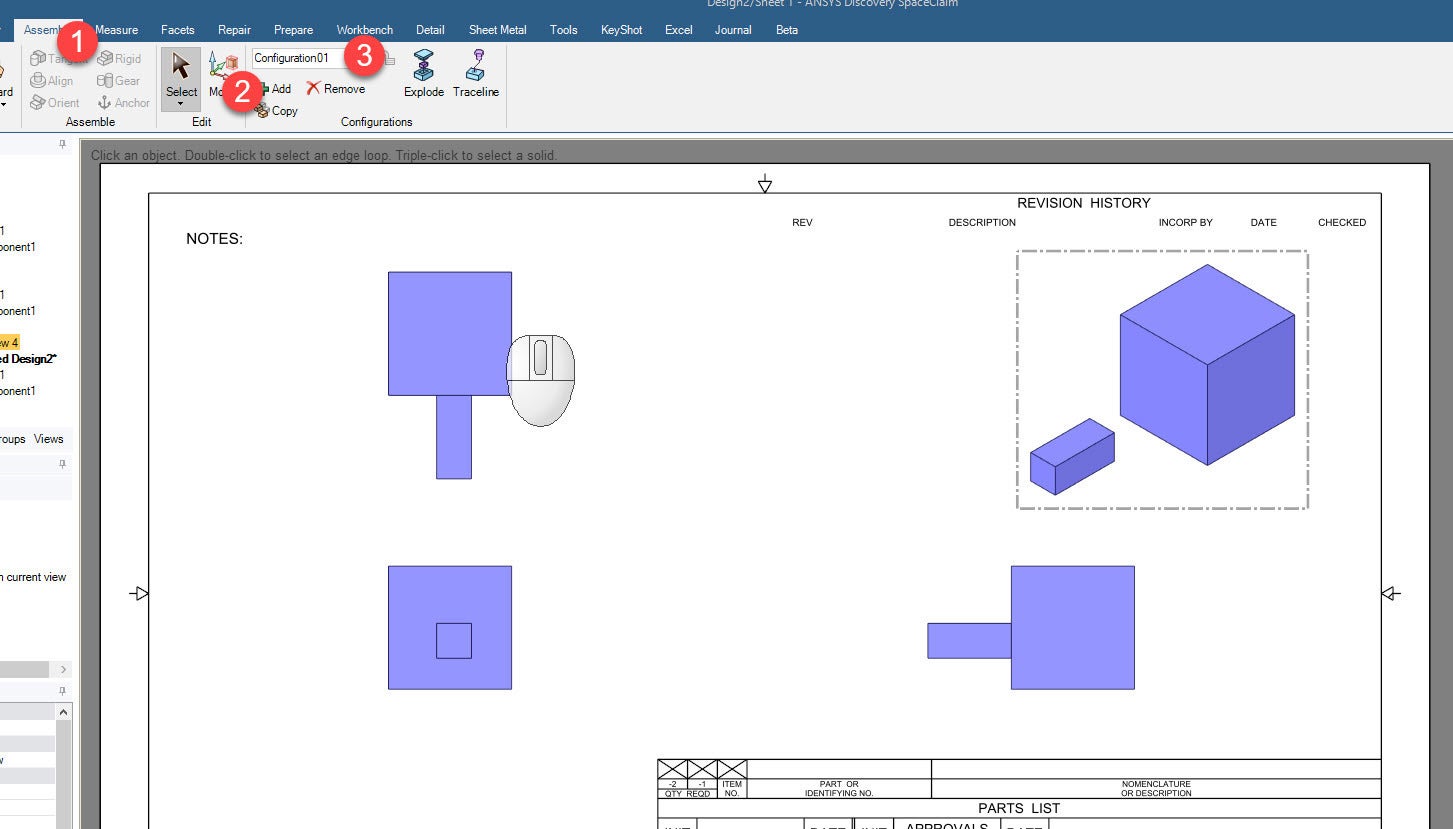
      Regarding moving a body in 1 view but not editing the model.  In the assembly tab on the right are configurations.  You can move components and add configurations while in the normal design space.  Then in the drawing sheet, add a new general view, select the view and then select a configuration from the assembly tab and it will give you the view you exploded:


Viewing 3 reply threads
  • The topic ‘How to create and rotate the views in drawing sheet’ is closed to new replies.
[bingo_chatbox]