-
-
July 10, 2018 at 12:16 pm
Adisa
SubscriberHi,
Does anyone know, why are these warnings occurring:
Element shape checking is currently inactive. Issue SHPP, ON or SHPP, WARN to reactivate, if desired.
Material number 17 (used by element 147869 ) should normally have at least one MP or one TB type command associated with it. Output of energy by material may not be available.
Best regards.
Â
-
July 10, 2018 at 12:27 pm
peteroznewman
Subscriber Hi Adisa,
Element shape checking doesn't need to be done by the solver because ANSYS Meshing created the mesh and did the shape checking then set it to inactive when it sent the mesh to the solver.
Someone else can comment on the MP TB warning.
Best regards.
Â
-
July 10, 2018 at 2:20 pm
sk_cheah
Subscriberhttps://www.eng-tips.com/viewthread.cfm?qid=367279 by Rick Fischer gave a good response.Â
-
July 10, 2018 at 2:21 pm
-
July 10, 2018 at 4:44 pm
peteroznewman
SubscriberContacts in Mechanical have a Behavior setting.
In Mechanical you pick one face to be the Contact side and another face to be the Target side of the pair that make up one contact definition.
Behavior can be Symmetric, Asymmetric or Auto Asymmetric.
Asymmetric gives you one set of elements: the Contact elements on the surface you picked for the Contact side, and Target elements on the surface you picked for the Target side.Â
Symmetric creates a second set of elements, but with the Contact and Target sides switched and both sets of elements are checked by the solver as it computes the contact. This adds a little to the model size and takes a little longer to solve, but has a better chance of avoiding excessive penetration.
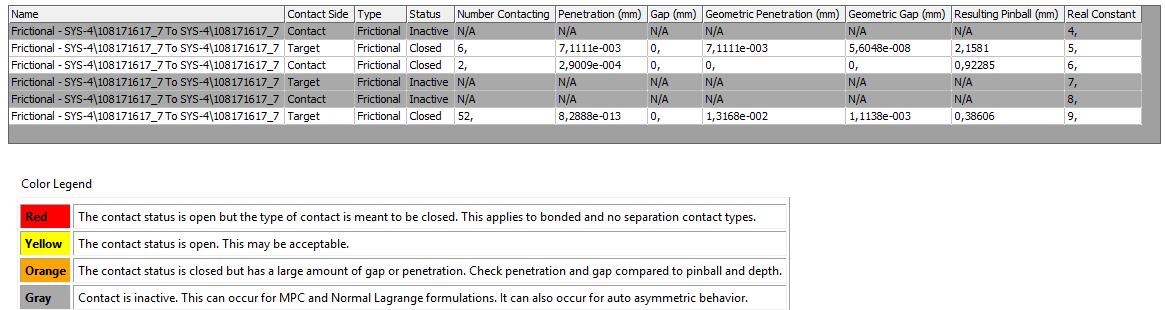
Auto Asymmetric was used in your example where the Solver is given a Symmetric pair of contacts and picks one of them to use, and makes the other Inactive.
Â
-
July 11, 2018 at 11:54 am
-
July 11, 2018 at 6:45 pm
peteroznewman
SubscriberHello Adisa,
It looks like you wanted to do a 2D analysis. You should do that.
First, set the Geometry properties to 2D instead of 3D
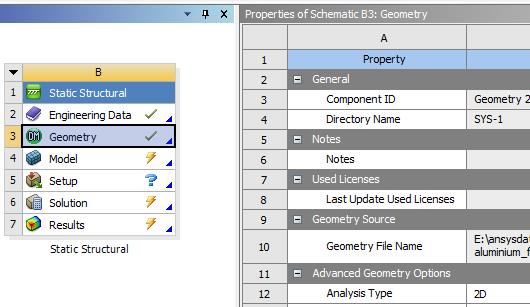
Then in DesignModeler, create surfaces from sketches instead of Extrude a solid.
Open Mechanical and set the geometry to Plane Strain.
What is in your 3D model is not Plane Strain because you only held one face of each body to have z=0. If you had picked the front and the back faces of each body to have z=0, then it would have been Plane Strain. What you have is more like Plane Stress, but two bodies that thin would buckle out of plane under these conditions.
So after not answering your questions, let me now answer them.
The first message is just a warning. Large deformation effects may have invalidated ... but in this case, they did not invalidate anything. Everything you wanted is still valid. You can ignore this warning.
The second message is seen when there may be rigid body motion, or a mechanism type of situation. There is no Static Equilibrium in those cases, so rather than throw an error and say no solution, ANSYS adds some weak spring to prevent a "divide by zero" error, and lets the solution continue. Usually contact is established and strong contact forces come into play. The contact forces are much larger than the weak springs, so the weak springs become negligible in the final solution, but they were needed to get the solution past the "divide by zero" problem at the beginning. You can check the reaction forces in the weak springs to verify that they are not significant. You can also make sure there is a tiny bit in penetration in the contact at the beginning, then weak springs will not be needed.
The ANSYS 19.0 2D Plane Strain model is attached.

-
July 12, 2018 at 9:18 am
Adisa
SubscriberPeter, thank you so much.
Yes, You are right, the reaction force in the weak spring is negligible in the final solution.
One more, thank Peter.
Best regards.
Â
-
July 26, 2023 at 2:33 am
Victor Patrick
SubscriberÂ
The warnings you mentioned seem to be related to a specific software or programming context, but without more information about the context in which these warnings are occurring, it is challenging to provide a precise answer.
In order to resolve these warnings, it is important to understand the specific software or programming environment in which they are occurring. Depending on the context, different actions may be required, such as enabling shape checking or ensuring that the necessary material properties or commands are defined correctly.Â
-
October 11, 2023 at 1:57 am
Paul Moorer
Subscriber"Element shape checking is currently inactive" warning: This warning suggests that the software's shape checking feature is turned off. Shape checking is a process that verifies the quality and suitability of the finite element mesh (the discretized representation of the analyzed structure or object). It ensures that the elements have appropriate shapes and sizes for accurate results. To reactivate shape checking, you may need to enable the SHPP (shape checking, output) or SHPP, WARN (shape checking, warning) command in the software.
-
October 11, 2023 at 7:48 am
-
- The topic ‘Warnings’ is closed to new replies.
-
4673
-
1565
-
1386
-
1236
-
1021
© 2025 Copyright ANSYS, Inc. All rights reserved.