Ansys Assistant will be unavailable on the Learning Forum starting January 30. An upgraded version is coming soon. We apologize for any inconvenience and appreciate your patience. Stay tuned for updates.
Electronics

Electronics

Topics related to HFSS, Maxwell, SIwave, Icepak, Electronics Enterprise and more.

How to run pure IE simulation without FE-BI/Hybrid in HFSS 2024 R2?

    • gyummine
      Subscriber

      Hello,

      I am using HFSS 2024 R2 and I would like to simulate a Horn antenna and a metallic sphere using only the IE (Integral Equation) solver, without any FEM or FE-BI regions.

      However, I am facing two main issues:

      Missing Menu: I cannot find the "Insert HFSS-IE Design" option in the Project/Insert menu. Only "Insert HFSS Design" and other standard menus are available.

      2. Port Error in Hybrid Mode: Since I couldn't find the IE-only design, I tried using "HFSS with Hybrid and Arrays" mode. But when I delete the vacuum/air box around the lumped port to solve it strictly with IE, I get the following error:

      [error] Port refinement, process hf3d error: Port 1 does not have a solved inside material on either side.

      It seems the solver is forcing me to use an FEM region (vacuum) with FE-BI around the port.

      My questions are:

      • Is it possible to perform a 100% Surface Integral Equation (SIE) simulation for both the antenna and the sphere in 2024 R2?

      • If so, how can I activate the standalone HFSS-IE Design or solve the port refinement error without adding a 3D vacuum object?

      I would appreciate any guidance on how to bypass the Hybrid/FE-BI requirement and use the IE solver exclusively.

    • Takeshi Itadani
      Ansys Employee
      To use IE Regions in the 2024R2 version you're using, select "HFSS with Hybrid and Arrays" for Solution Type, as is currently done. IE Region-only designs are a legacy feature and have been discontinued in the current version.
      The error message indicates that the sheet on which the port is configured does not contain a dielectric for electromagnetic waves to propagate, which is likely because you have not configured an IE Region for the port. However, is the port configured for the horn antenna a Wave Port? In that case, a Wave Port cannot be applied to a design that only has an IE Region configured. If you try to use a Wave Port for a design that only has an IE Region configured, the following error message will be displayed. 
      Apply FE-BI to the horn antenna and configure IE Regions for other objects.
       
          [error] IE region sheet object 'port1' does not have a boundary or port assignment of allowable types. 
          [error] Wave ports 'p1' are not supported for designs with freestanding IE/PO regions only.
    • gyummine
      Subscriber

      Follow-up: Validation of Partial Hybrid setup (Waveguide FEM + Horn IE) correctness

      Body: Thank you for your clear explanation regarding the "HFSS with Hybrid and Arrays" solution type and the legacy status of IE-only designs. Your answer was very helpful.

      I have two follow-up questions regarding the validity and accuracy of my setup:

      1. Verification of Partial FEM + IE Accuracy My original goal was to simulate the entire environment (Horn + Sphere) using exclusively the IE solver, as I understand it provides the most accurate results for surface scattering problems by strictly enforcing the radiation condition. To achieve this in 2024 R2, I have configured a partial hybrid setup:

      • Waveguide: Modeled using FEM (Vacuum box inside the waveguide).

      • Horn Flare & Sphere: Modeled using IE Regions (Metallic sheets only).

      • Interface: The FEM region (waveguide output) connects directly to the IE region (horn flare).

      Currently, this simulation runs without errors. However, I want to confirm if this specific configuration is numerically sound. Does this "Partial Hybrid" approach yield the same level of accuracy as a full FE-BI setup (where the entire antenna is enclosed in an airbox)? I am concerned about potential discontinuities or accuracy loss at the junction between the FEM vacuum box and the IE sheet. Is this a recommended practice for high-accuracy scattering analysis?

      2. Lumped Port Assignment Currently, I have successfully configured a Wave Port on the back face of the waveguide vacuum box, backed by a PEC cap, and it works fine. However, I am also interested in using a Lumped Port as an alternative for different testing scenarios. If I were to replace the Wave Port with a Lumped Port in this specific hybrid feed structure, how should I properly configure it? Specifically, I would like to know the correct placement of the port sheet and the definition of the integration line.

      Thank you again for your valuable guidance, Mr. Itadani.

    • Takeshi Itadani
      Ansys Employee

      Currently, this simulation runs without errors. However, I want to confirm if this specific configuration is numerically sound. Does this "Partial Hybrid" approach yield the same level of accuracy as a full FE-BI setup (where the entire antenna is enclosed in an airbox)? I am concerned about potential discontinuities or accuracy loss at the junction between the FEM vacuum box and the IE sheet. Is this a recommended practice for high-accuracy scattering analysis?

      When you say FEM applied to the waveguide portion, are you specifically referring to FE-BI?
      It is possible for an FE-BI set region to come into contact with an object set with an IE Region, but as you've feared, the problem of electromagnetic field mismatch at the contact location cannot be avoided.
      Depending on the analysis results, an unrealistic plot may be generated, generating an electric field strength several times greater than the excited electromagnetic field.
      If you want to use an IE Region to accurately analyze surface scattering problems, we recommend setting the entire horn antenna with FE-BI. FE-BI analyzes the interior of the air region using FEM, and the boundary surface of the air region using IE Region.
       
      You're probably concerned about the accuracy of surface scattering problems because when using FEM alone, the accuracy of the electromagnetic field at the boundary surfaces of the analysis space is low, which could lead to concerns about the accuracy of the Far Field calculation results. This is certainly a concern, so when analyzing using FEM alone, we recommend setting a manual mesh with a length of 1/7 of the wavelength determined by the analysis frequency at the boundary surfaces of the analysis space.
      However, with FE-BI, the boundary surfaces of air regions are analyzed using the IE Region, so manual mesh setting is generally not necessary.
       
      The HFSS example includes a sample in which a horn antenna is configured with FE-BI and a scatterer is configured with an IE Region. Select File > Open Examples... from the menu and refer to HFSS > Antennas > Parabolic_Dish_with_Horn.aedt. The horn antenna and scatterer (Parabolic Dish) are 3D Components, so you can check the horn antenna model settings by right-clicking 3D Component > Horn1 in the Project Manager and selecting Edit Definition.... You can see that FE-BI is configured in the air region surrounding the horn antenna.
       

      2. Lumped Port Assignment Currently, I have successfully configured a Wave Port on the back face of the waveguide vacuum box, backed by a PEC cap, and it works fine. However, I am also interested in using a Lumped Port as an alternative for different testing scenarios. If I were to replace the Wave Port with a Lumped Port in this specific hybrid feed structure, how should I properly configure it? Specifically, I would like to know the correct placement of the port sheet and the definition of the integration line.

      Only Wave Ports can be used for ports set in the waveguide section. Lumped Ports require two conductors, a Terminal and a Reference, to excite them. This is true even for Driven Modal.


    • gyummine
      Subscriber

      Re: Follow-up: Validation of Partial Hybrid setup and Lumped Port assignment

      Dear Mr. Itadani,

      Thank you for the detailed and insightful explanation.

      I clearly understand the risks associated with the "Partial Hybrid" setup. As you warned, the potential for electromagnetic field mismatch and unrealistic field spikes at the junction is a critical concern. Based on your recommendation, I will proceed with the Full FE-BI setup (enclosing the entire horn antenna in an airbox with FE-BI boundaries) to ensure the highest accuracy for surface scattering analysis.

      I'll also refer to the Parabolic_Dish_with_Horn.aedt example you suggested to verify my model settings.

      Regarding the port assignment, I also understand that a Lumped Port is physically not applicable to a single-conductor waveguide structure and that the Wave Port is the only correct choice here.

      One final question regarding Near-Field Data Extraction:

      Now that the simulation setup is clarified, I plan to export the complex Near-Field data ($E$ and $H$) to perform an external Near-Field to Far-Field Transformation (NFFFT) manually.

      Since my antenna structure is elongated, I would like to extract the field data on a Cylindrical surface.

      However, when I check the Field Overlays > Edit Near Field Line/Surface Definition menu, I only see options for Sphere, Box, and Line.

      Question:

      To define a cylindrical sampling surface for data export, is the standard workflow to draw a dummy Cylinder (Non-model, Vacuum) in the Modeler and then select its face when generating the Fields Report? Or is there a specific feature for cylindrical scanning that I might have missed?

      Thank you again for your continued kind support!

    • Takeshi Itadani
      Ansys Employee

      For Near Field Radiation Setup, you can select from the available Line, Rectangle, Box, and Sphere options, but if you want to set an area other than these, you can select Point List and import a pre-defined file (with the extension .pts) to set it as the Near Field Radiation.
      For information on the format of .pts files, see section 6 of the online help below.

      Ansys HFSS 2025 R2

      Alternatively, after setting it up in Box and outputting the physical quantities, use only the points you need.

    • gyummine
      Subscriber


      Thank you for the excellent solution! I was not aware of the "Point List (.pts)" feature, and it seems perfect for defining the cylindrical surface I need.

      I will proceed with this setup for now. I may return with follow-up questions related to this topic as I implement it.

      Thank you so much for your great help.

      Have a good day, Mr. Itadani!


    • gyummine
      Subscriber


      Hello, Mr. Itadani! Long time no see!
      I am currently simulating a Horn Antenna and a Metal Sphere(2.5m Distance) using Hybrid Solver(FE-BI & IE).  My goal is to analyze the Target Reflection Signal (S11) by performing Background Subtraction.

      The Problem: To accurately subtract the background noise from the S11 data, I need to keep the mesh identical between the "Target" (Sphere present) and "Background" (Sphere absent) simulations using Mesh Import. However, changing the sphere's material (e.g., from PEC/IE to Vacuum) forces a re-mesh, causing the Mesh Import to fail.

      Attempts:

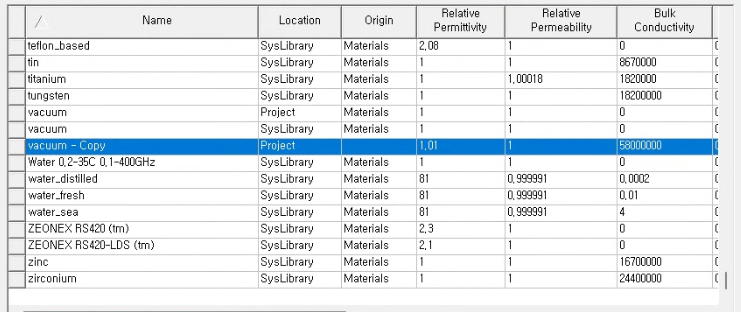
      1. Virtual Material: Used a "virtual material" (permittivity=1.01) instead of Vacuum to trick the solver into maintaining the mesh structure.

      2. Configurations: Tested Pure FE-BI, Hybrid FEM+IE, and Dual FE-BI setups.

      3. Tuning: Reduced Delta S and increased mesh density for higher accuracy.

      Current Result:

      The background noise is subtracted, but the peak level of the subtracted S11 signal (Time Domain) is significantly lower (-80dB) compared to the measurement data (-50dB).

      Questions:

      1. Is using a "Virtual Material" a valid workaround to force Mesh Import for S11 subtraction in a Hybrid Solver setup?

      2. How can I strictly "freeze" the mesh when the target object (IE Region or PEC) is removed for the background simulation?

    • gyummine
      Subscriber


      I have attached three additional images to better illustrate my simulation setup and material settings.

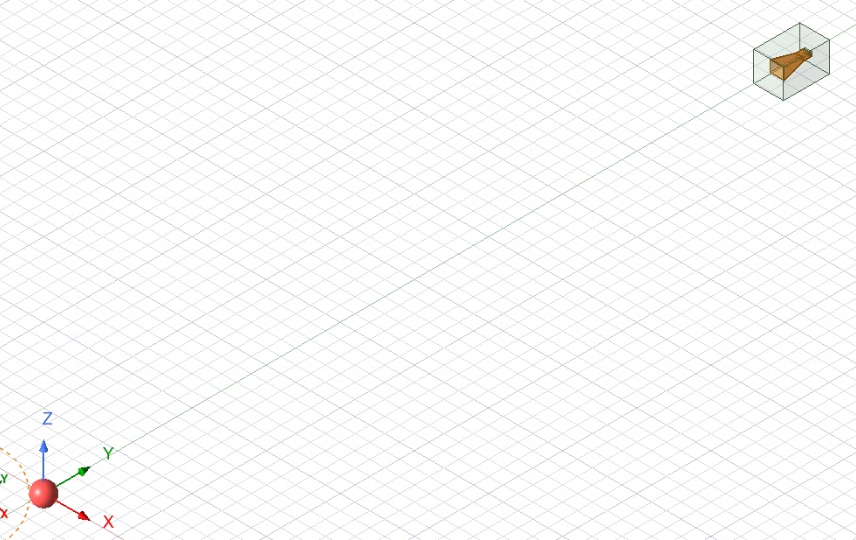
      1. Geometry View (Horn Antenna & Sphere)

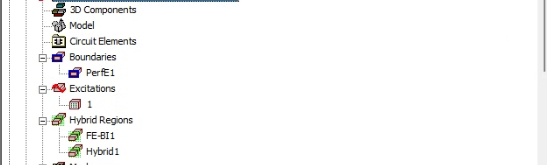
          2.Setup Tree (Hybrid Regions & Boundaries)

          3. Material Settings (Virtual Material with permittivity = 1.01)

      I apologize for posting these as a comment (reply). I was unable to create a new post due to a system issue, so I am sharing the supplementary information here instead.

      I look forward to your response. Thank you!

    • Takeshi Itadani
      Ansys Employee
      > 1. Is using a "Virtual Material" a valid workaround to force Mesh Import for S11 subtraction in a Hybrid Solver setup?
       
      I have no experience with such analysis cases, so I don't know if it's an effective workaround.
       
      > 2. How can I strictly "freeze" the mesh when the target object (IE Region or PEC) is removed for the background simulation?
       
      Are you trying to import a mesh by checking Import Mesh on the Advanced tab of Setup?
      If so, select Ignore mesh operations in target design under Additional mesh refinements in Setup Link,
      and set Maximum Number of Passes to 0 on the General tab of Setup and Minimum Number of Passes to 0 on the Adaptive Options tab to avoid additional mesh generation.
    • gyummine
      Subscriber


      In addition to my inquiry above, I am attaching supplementary images to better illustrate the issue.

      1. TDR Comparison (Simulation vs. Measurement):

      As shown in the graph, the peak level of the simulation result (after background subtraction) is approximately -80dB, whereas the actual measurement data shows a peak of -50dB.

      2. Simulation Setup & Material Details:

      I have also attached screenshots of my current Hybrid setup and the ‘Virtual Material’ settings used for the Mesh Import workaround.

      I hope these materials help clarify my situation. I look forward to your advice.


    • gyummine
      Subscriber

      Dear Mr. Itadani,

      Thank you for your specific advice regarding the "Maximum/Minimum Number of Passes = 0" setting.

      I have a few follow-up questions to ensure I understand the fundamental mechanism correctly:

      1. Difference between Passes = 0 and 1 I previously attempted the simulation with "Maximum Passes = 1" and confirmed that the mesh count remained fixed. However, the Mesh Import still failed when the sphere's material changed (Topology change). Is setting "Passes = 0" fundamentally different from "Passes = 1" in terms of how HFSS handles mesh import and topology validation?

      2. Standard Method for "Air Sphere" (Topology Preservation) Aside from the "Virtual Material" workaround I used, is there a standard or official way to preserve the mesh of a "Vacuum (Air) Sphere" in the Background simulation? I need to know if there is a proper method to force the solver to recognize the "Air Sphere" as a meshable object without assigning artificial material properties.

      I look forward to your valuable insights! 

    • Takeshi Itadani
      Ansys Employee
      > 1. Difference between Passes = 0 and 1 I previously attempted the simulation with "Maximum Passes = 1" and confirmed that the mesh count remained fixed. However, the Mesh Import still failed when the sphere's material changed (Topology change). Is setting "Passes = 0" fundamentally different from "Passes = 1" in terms of how HFSS handles mesh import and topology validation?
       
      Setting Maximum Number of Passes to 1 will force one Adaptive analysis. If you are using Import Mesh for your design and do not want to generate a mesh, you should set it to 0.
       
      > 2. Standard Method for "Air Sphere" (Topology Preservation) Aside from the "Virtual Material" workaround I used, is there a standard or official way to preserve the mesh of a "Vacuum (Air) Sphere" in the Background simulation? I need to know if there is a proper method to force the solver to recognize the "Air Sphere" as a meshable object without assigning artificial material properties.
       
      There is no standard way to do this. I think you can do this by copying the design with only the material property changed to Air, and then Import Mesh from the original design.
    • gyummine
      Subscriber


      Dear Mr. Itadani,

      Thank you for your guidance.

      Following your advice, I set the Maximum Number of Passes to 0 and enabled Ignore mesh operations in the target design, as shown in the attached image. I then attempted to change the sphere’s material to Vacuum for the background simulation.

      However, assigning Vacuum to the IE Region resulted in a critical error, which you can see in image below. The error message states: A dielectric IE region of the same material as global material environment is not allowed. This confirms that HFSS prevents creating a Volume IE Region if it shares the same material as the background.

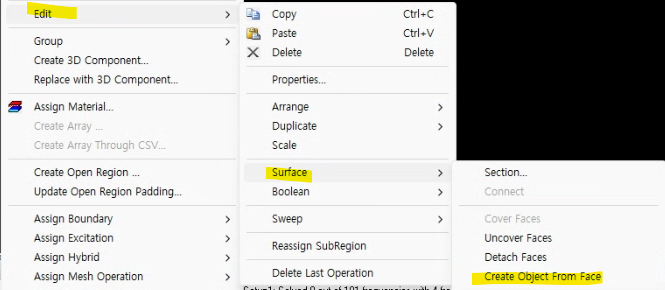
      Since the volume approach failed, I am considering a surface-based method. As shown in image below, I can use operations like Create Object From Face to extract the outer skin of the sphere.

      My question is: If I replace the solid sphere with a sheet object (a surface with no thickness) in the Background simulation, can I successfully import the mesh from the Target simulation? My goal is to use this sheet strictly to maintain the mesh topology without it affecting the electromagnetic fields.

      Is this surface-based approach a valid alternative to using a virtual material?

      I look forward to your clever insights! 


    • Takeshi Itadani
      Ansys Employee

      If you change the object, the Import Mesh function will no longer be available.
      Try assigning air instead of vacuum. If you still get the same error, it may help to assign a material with a slightly different Relative Permittivity.

    • gyummine
      Subscriber

      Thank you for the advice!

       I see your point that changing the material to Vacuum might have caused the mesh to be re-imported or re-calculated. and I'll try assigning Air instead of Vacuum to keep the mesh consistent. If the error persists, I'll follow your suggestion of using a material with a slightly different Relative Permittivity (e.g., 1.0001) to trick the solver into maintaining the original mesh structure. I'll let you know the results after the simulation! 


Viewing 15 reply threads
  • You must be logged in to reply to this topic.
[bingo_chatbox]