Ansys Assistant will be unavailable on the Learning Forum starting January 30. An upgraded version is coming soon. We apologize for any inconvenience and appreciate your patience. Stay tuned for updates.
Electronics

Electronics

Topics related to HFSS, Maxwell, SIwave, Icepak, Electronics Enterprise and more.

HFSS Simulation Error: Com Engine non-responsive, Engine terminated unexpectedly

TAGGED: ,

    • gyummine
      Subscriber

      Hello Ansys Support team,

      I am encountering a recurring issue while running a simulation in Ansys HFSS and would greatly appreciate any advice or guidance.

      Here is a brief overview of my simulation setup:

      • Solver/Boundary: IE and FEBI

      • Mesh Count: Approximately 12,000 elements

      The problem is that the simulation frequently hangs and eventually crashes. This does not happen at one specific variation or point; rather, it occurs randomly but persistently during the solving process. When it crashes, it throws the following messages in the Message Manager:

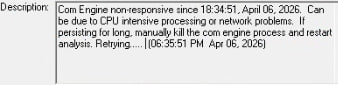
      • Com Engine non-responsive since. Can be due to CPU intensive processing or network problems. If persisting for long, manually kill the com engine process and restart analysis. Retrying....

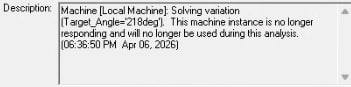
      • Machine [Local Machine]: Solving variation [...]. This machine instance is no longer responding and will no longer be used during this analysis.

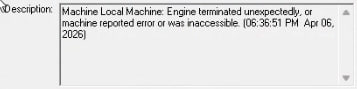
      • Machine Local Machine: Engine terminated unexpectedly, or machine reported error or was inaccessible.

        Given that the mesh size is only around 12k, I wouldn't expect this to be a severe hardware limitation. Since it randomly disconnects and terminates on my local machine, could this be related to a CPU overload, an MPI/communication glitch, or some background timeout?

        Has anyone faced a similar random crashing issue with IE/FEBI solvers, and how did you resolve it? Any suggestions on HPC setup adjustments or solver settings would be very helpful.

        Thank you in advance!

    • Takeshi Itadani
      Ansys Employee
      The "Com Engine non-responsive" message usually indicates a high load on the analysis machine or network. However, since this issue occurred after updating Windows OS from 10 to 11, please first check the following:
       
      â‘  Check disk space
      Please check if the data size of the Temp folder, where data is temporarily stored, is taking up too much disk space.
      You can find the location of the Temp folder by selecting the menu:
      Tools > Options > General Options
      and then navigating to General > Directories > Temp: in the Options window.
      Try deleting files and folders in the Temp folder while HFSS is not running.
      Also, please check if you have access rights to the specified Temp folder.
       
      Furthermore, please consider changing the Temp Directory to another drive with available space.
      If you change it, check "Override" in the above settings and enter the folder path.
      When doing so, be sure to create a folder and specify that folder, rather than specifying the root directory of the drive. (Example: D:\temp)
       
      Please note that when setting the Temp folder, avoid using network drives and use a local drive on the analysis machine.
       
      â‘¡ Perform an analysis environment reset.
      With AEDT not running, delete the folder $HOME\\Ansoft\ElectronicsDesktop20##.#\config.
       
      â‘¢ Please update your graphics driver to the latest version.
      Do not update your NVIDIA graphics driver through the OS's Device Manager; always download the latest version from the NVIDIA website.
       
      â‘£ Is the folder hierarchy where your project files (with the .aedt extension) are located too long?
      If you are using a Windows environment, exceeding the Windows OS character limit may prevent the system from recognizing the files inside the aedtresults folder where the analysis results are saved.
      Please avoid using long file names and long folder paths.
      Also, if you are saving and analyzing files on a network drive, please save them to the local drive of your analysis machine and perform the analysis there.
    • gyummine
      Subscriber

      Hi,

      Thank you so much for the helpful advice!

      Since the issue started right after the Windows 11 update, these steps seem very relevant. I'm going to try clearing the Temp folder, resetting the config, and updating the drivers as you suggested. I'll also make sure to keep the file paths short and run everything on a local drive.

      I’ll let you know how it goes once I’ve tested everything. Thanks again for your support!

Viewing 2 reply threads
  • You must be logged in to reply to this topic.
[bingo_chatbox]