-
-
September 23, 2018 at 10:07 pm
-
September 23, 2018 at 10:15 pm
peteroznewman
SubscriberHello Mekafime,
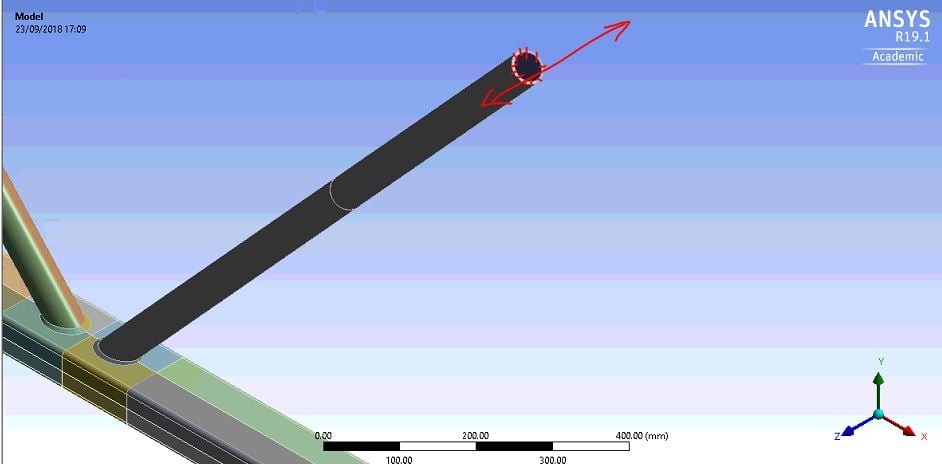
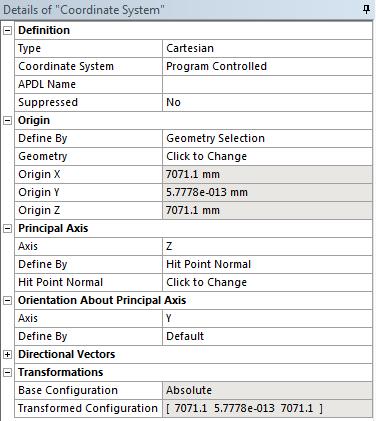
Go to Coordinate System and Insert a Coordinate system. Pick the face and a coordinate system origin will be created at the center of that face. Use Hit Point Normal to align the Principal Axis with the face.
Then you can use that coordinate system in the definition of the motion of that face.Â
Perhaps you want to apply a Displacement, then you can type a zero for X and Y and a value for Z in that coordinate system and it will take that face and only move it axially and not allow any other motion.
Regards,
Peter
-
September 23, 2018 at 11:10 pm
mekafime
SubscriberHi Peter,
How can I specify a hint point so that the axis is in the direction I want?
-
September 24, 2018 at 1:09 am
peteroznewman
SubscriberHello Mekafime,
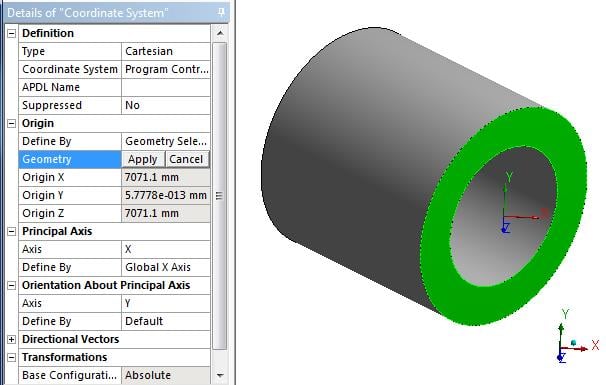
After you pick the face once to define the Origin of the coordinate system, you see this:
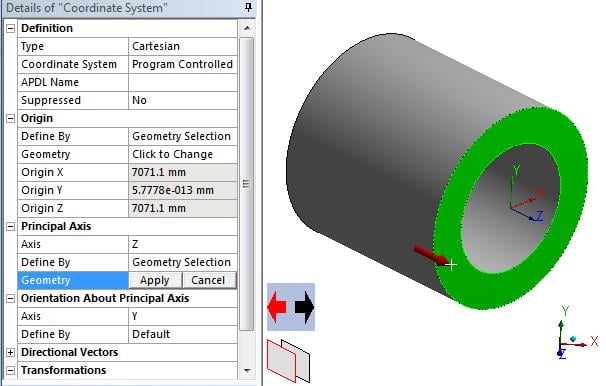
Then in the Principal Axis, change the Axis to Z (or whichever axis you want to call axial), and Define By Hit Point Normal, then click on the face. You can also Define By Geometry and then pick the face then click Apply. Define By Geometry is not useful on curved surfaces, but Hit Point Normal works on both flat and curved surfaces.
Regards,
Peter
Â
-
September 24, 2018 at 1:11 am
mekafime
SubscriberThanks !
-
- The topic ‘Axial displacement’ is closed to new replies.
- LPBF Simulation of dissimilar materials in ANSYS mechanical (Thermal Transient)
- Real Life Example of a non-symmetric eigenvalue problem
- How can the results of Pressures and Motions for all elements be obtained?
- BackGround Color
- Contact stiffness too big
- Element Birth and Death
- Python-Script to Export all Children of a Solution Tree
- Which equations and in what form are valid for defining excitations?
-
4592
-
1494
-
1386
-
1209
-
1021
© 2025 Copyright ANSYS, Inc. All rights reserved.