General Mechanical

General Mechanical

Topics related to Mechanical Enterprise, Motion, Additive Print and more.

Automating extraction of tabular data

    • Maks Brus
      Subscriber

      Greeting to everyone!

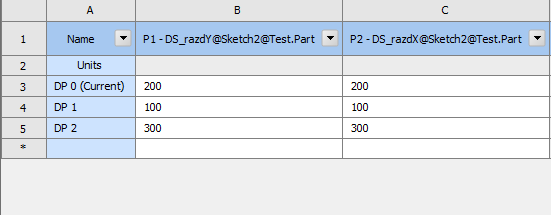
      I am currently working on a project in Ansys Student 2023, where I would need to make many iterations based on location of a certain part (let's say a couple of thousand different locations). The model was drawn in SolidWorks and the x and y parameters for location were also imported and parameterized. Now I need to do a Modal analysis and Harmonic analysis. 


      Figure 1: Imported parameters (currently only 3 for testing purposes).

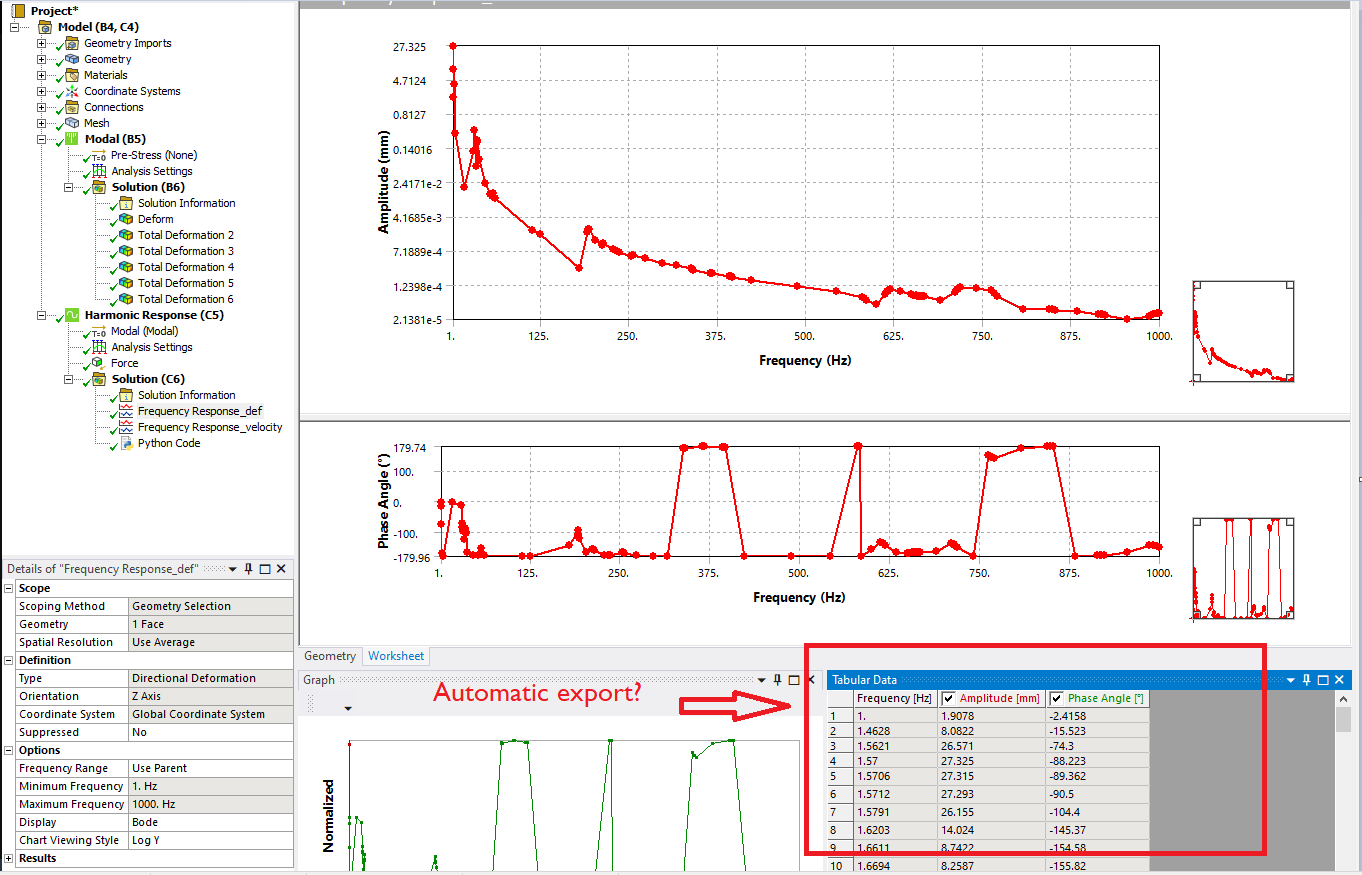
      From harmonic analysis I would like to export a CSV (or similar) for the tabular data of Frequency response deformation for each design point. Currently I have spent the whole weekend trying to find a solution. 

      Figure 2: Tabular data I would like to export

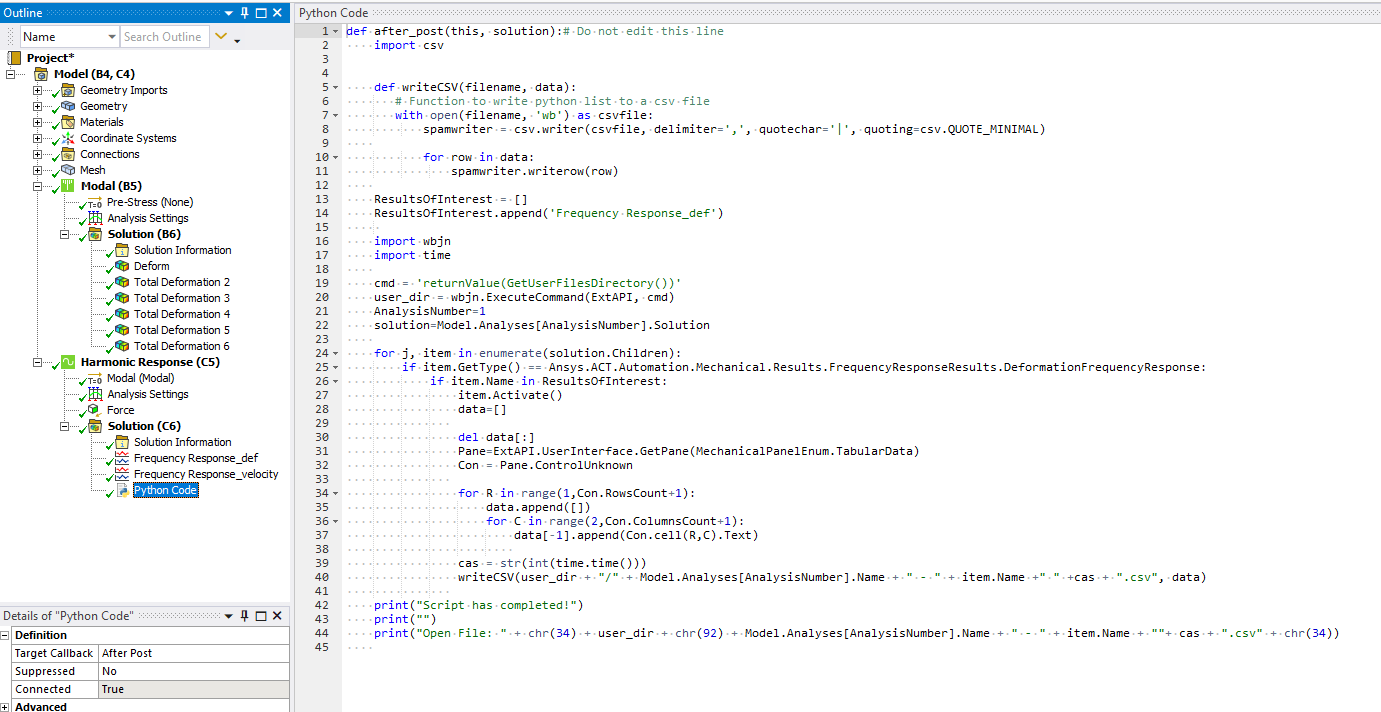
      I found this (Figure 3) and it seems to work, BUT! It only works in Mechanical. If I update all design points it doesn't generate the files:
      https://blog.ozeninc.com/resources/using-python-to-export-tabular-data-from-within-ansys-mechanical
      The reason is that this method only works with the Mechanical GUI:
      /forum/forums/topic/tabular-data-extraction/


      Figure 3: The Python script, slightly modified to work.

      Now is there any way of doing this with Python? Or any other way of doing this? I have found APDL and VWRITE, but have no clue in this regard.

      *Disclamer: Total Ansys beginner and basic Python knowledge.

      **Also: This seems like something that should be integrated.

    • ErKo
      Ansys Employee


      Hi

      By default, the Python objects are not connected, for security purposes. It is possible to activate an option to automatically connect the Python objects. This is mandatory to be able to use Python objects in a Design Point experiment.

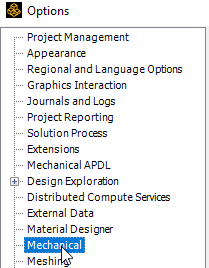
      The option is: activate the Connect/Run Python Code Objects when Mechanical is Launched preference contained in the Mechanical category of the Workbench Options dialog (Tools > Options > Mechanical):

      image.png


      image.png
      image.png


      See this page of the help for further information: https://ansysproducthelpqa.win.ansys.com/account/secured?returnurl=/Views/Secured/corp/v231/en/wb_sim/ds_python_code.html

      In the future should you have any scripting related questions you can also post here:

      https://discuss.ansys.com/categories/engineering-simulation

      Thank you

      Erik


    • Maks Brus
      Subscriber

      Thank you for your answer Erik!
      But it doesn't solve the problem as I had the option enabled before posting the question. The script runs, but it doesn't work because it requires Mechanical GUI, which doesn't open if you update all design points from Workbench.

      • Akshay Panchwagh
        Subscriber

        Hi,

        I am facing the EXACT issue. I need to store the results for the Parameter Set in a CSV file, and I have used the script from the same source (Ozen Engineering). Even I have enabled the option to connect Python Code Objects when Mechanical is launched. Still no success. Were you able to figure this out? 


        Regards,

        Akshay

        • Maks Brus
          Subscriber

          Greetings Akshay!

          Sadly I have not found a solution to this problem. The way I went about my research was to reduce the number of iterations to a managable amount, and then to manually export the data. A suboptimal path, but I had a limited time frame.

          Hopefully you will find a way to do this automatically, as I noted in the original post this seems as something that should be included in the program. If you do manage to solve this, please inform me as I would like to know how to automate this in the future.

          Best of luck

          Maks

        • Akshay Panchwagh
          Subscriber

          Greetings Maks!

          I finally found a solution which is working according to my, or our liking. I am able to export the results in Tablular Data for all the selected Solution Objects while the Design Points update through Workbench. I used a different script which does not need to access the User Interface Pane command to read the results. From what I understood, the UserInterface.GetPane command needs the Mechanical GUI to be open in order to work. So I found a workaround after interacting with ANSYS employees regarding this problem. You also don't need to make any changes in the Property Provider in order to get the active Design Point number. Initially while executing this script, Workbench used to crash. So I updated it from 2022 R2 to 2023 R2. And now it works perfectly. 


          I am posting the script here. Let me know if it works for you. I will suggest to use the latest version of Workbench for this script to work. Otherwise it will crash.

          Also, the main parts of the code which I thought were necessary for successful execution of the script have been highlighted in bold. Rest of the parts you can edit according to your needs. 


          ####Things to note:
          ###Create a Python Code Object in Solution
          ###Set the Target Callback under Definition of the Python Code Object to 'After Post'
          ###Paste the below written code into the Python Code Object
          ###Connect the Python Code Object
          #If you want this code to run for multiple design points in a Parameter Set, ensure that the Python Code Object stays connected every time Mechanical is opened. This can be ensured in Workbench as follows:
          #Workbench -> Tools -> Options -> Mechanical -> Check the box "Connect/Run Python Code Objects When Mechanical is launched"

          import os
          import wbjn
          import csv

          #This command returns the user files directory where the CSV files will get stored. It can be changed to any other target folder of choice.
          userfilesdir = wbjn.ExecuteCommand(ExtAPI,"""returnValue(GetUserFilesDirectory())""")

          #This command returns the active design point from the Parameter Set
          dpn=wbjn.ExecuteCommand(ExtAPI,"returnValue(a+Parameters.GetActiveDesignPoint().Name)",a="DP")
           
          file_name = os.path.join(userfilesdir, dpn+"data.csv")
          file_handle = open(file_name, "w")

          #Returns units of the desired quantities which you want to be written in the CSV file. Write the desired quantity name in string format.
          time_unit = ExtAPI.DataModel.CurrentUnitFromQuantityName("Time")
          temp_unit = ExtAPI.DataModel.CurrentUnitFromQuantityName("Temperature") 

          #Create an empty list here where target result quantities will be stored. 
          #Append the names of the target result quantities in string format. 
          ResultsOfInterest = []

          ResultsOfInterest.append()

          #Accesses the solution of the project through ACT API
          solution=ExtAPI.DataModel.AnalysisList[0].Solution

          #Accesses the counts of time steps through result object
          ### VERY IMPORTANT: THE DEFINITION OF THE DESIRED SOLUTION OBJECT MUST BE SET TO "RESULT SET". THIS CAN BE DONE AS FOLLOWS ###
          ### SOLUTION -> DESIRED SOLUTION OBJECT(S) -> DEFINITION -> BY -> RESULT SET ###
          ### IF THIS IS NOT DONE; THE CODE WON'T WORK ###
          reader = Model.Analyses[0].GetResultsData()
          rsets = reader.ResultSetCount

          #This loop here loops through the Solution Objects one by one. It verifies if the name of the solution object is
          #present in the list created before. If yes, it activates that solution object. After that, the code reads 
          #all the result values for all the time steps in the particular solution object(s) and saves these results into the CSV file
          #which was defined previously
          for sol_obj in solution.Children:
              if sol_obj.GetType() == Ansys.ACT.Automation.Mechanical.Results.ThermalResults.TemperatureResult:
                  if sol_obj.Name in ResultsOfInterest:
                      sol_obj.Activate()
                      #n += 1
                      sol_obj.By = Ansys.Mechanical.DataModel.Enums.SetDriverStyle.ResultSet
                      file_handle.write("Time[{0}];Minimum[{1}];Maximum[{1}];Average[{1}]\n".format(time_unit, temp_unit))
                      for rset in range(1,rsets+1):
                          sol_obj.SetNumber = rset
                          sol_obj.EvaluateAllResults()
                          result_avg = sol_obj.Average
                          result_max = sol_obj.Maximum
                          result_min = sol_obj.Minimum
                          result_tstep = rset
                          file_handle.write("%s;" % result_tstep)
                          file_handle.write("%s;" % result_min)
                          file_handle.write("%s;" % result_max)
                          file_handle.write("%s;" % result_avg)
                          file_handle.write("\n")
          file_handle.close()


          Let me know if you are able to run it. The only drawback is that the results get stored in string format along with their units in the CSV file. But that is something that can be dealt with later using Python, or any other programming tool. As I said, let me know how it works.


          Regards,

          Akshay

Viewing 2 reply threads
  • The topic ‘Automating extraction of tabular data’ is closed to new replies.