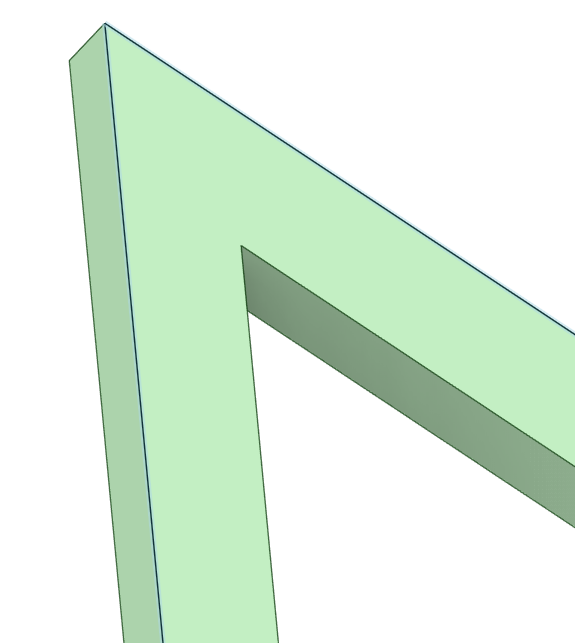
3D Design

3D Design

Topics related to Ansys Discovery and Ansys SpaceClaim.

SpaceClaim & Sweep/Pull

    • 1260960796
      Subscriber

      Assume there are many lines in SpaceClaim, how can I sweep all of them and apply a certain section pattern at once?
      I know "pull" function, but when the lines are discontinous, this function can't apply a certain section pattern at once. It's suggested that create the same patterns at all the endpoints of lines and "pull" them one by one, which is so complicated.


    • peteroznewman
      Subscriber

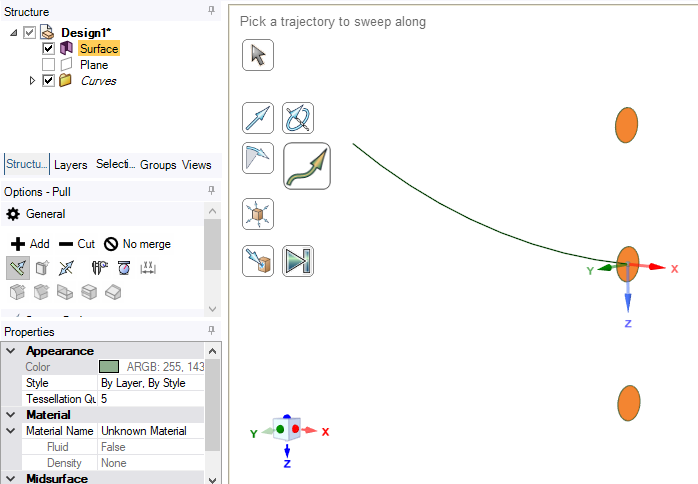
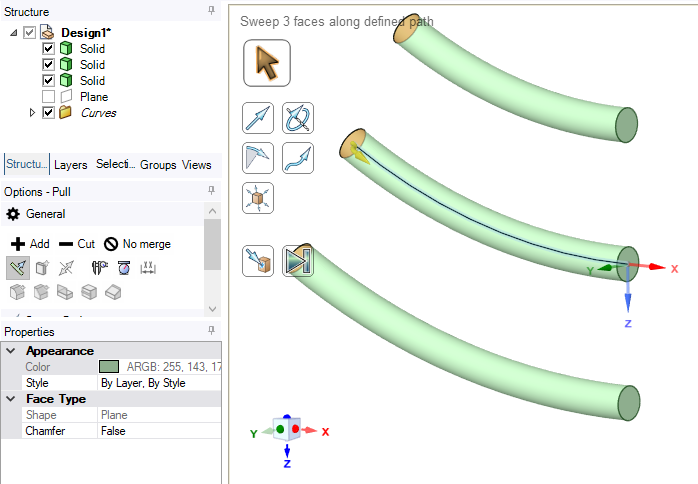
      The Pull tool has a Sweep button that allows you to select a face to sweep along a trajectory.  The face becomes the cross-section of the sweep.  A surface can be created that has 3 faces.  Here is a surface selected with the Pull Tool and the Sweep Button pushed then the arc selected for the Trajectory.

      Here is the result:

      Please provide an image of what you want to accomplish.

      • 1260960796
        Subscriber

        Actually, I think you misunderstand my attempt on the opposite. What I want is to sweep lots of different lines by a face, instead of sweep a line by creating several faces.
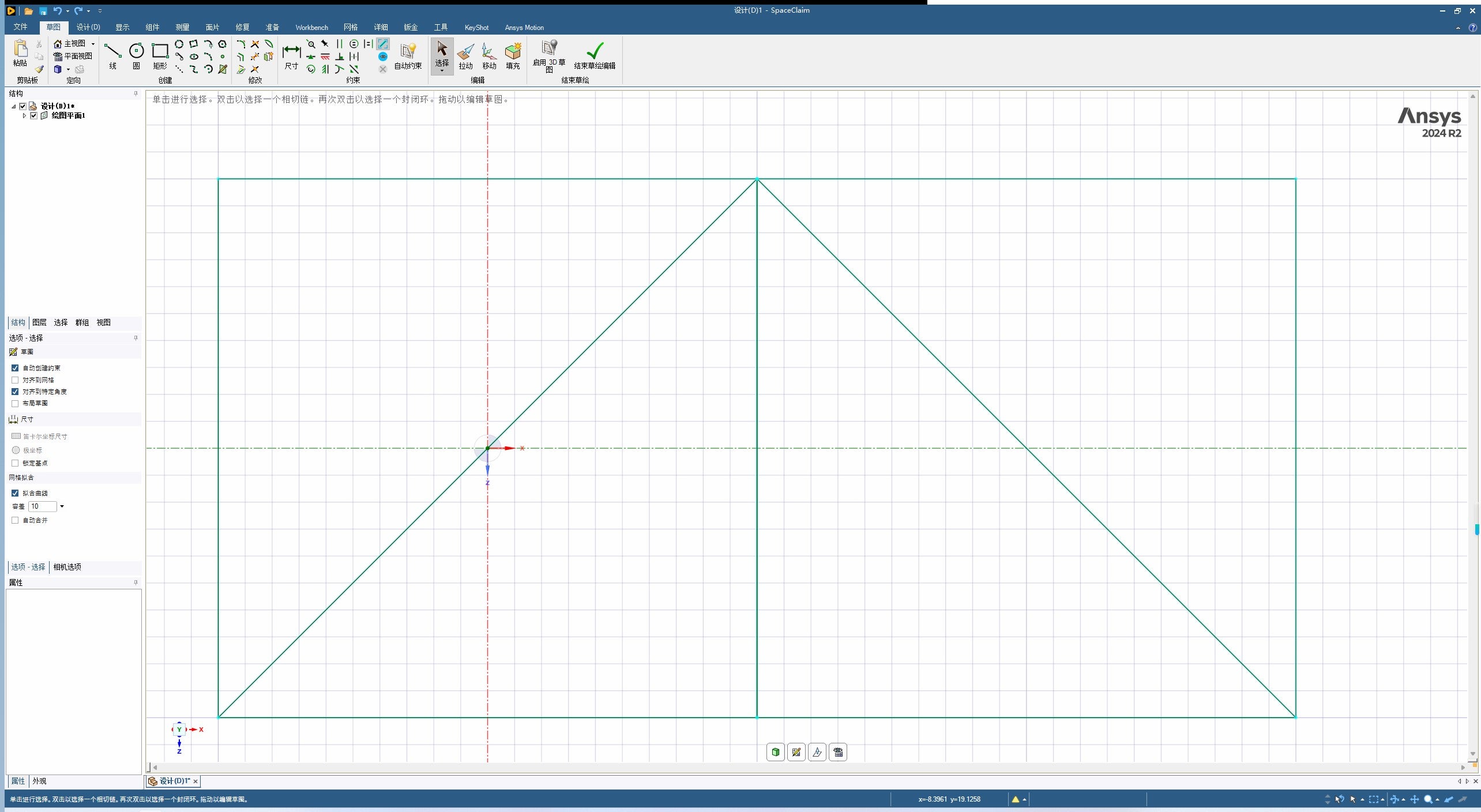
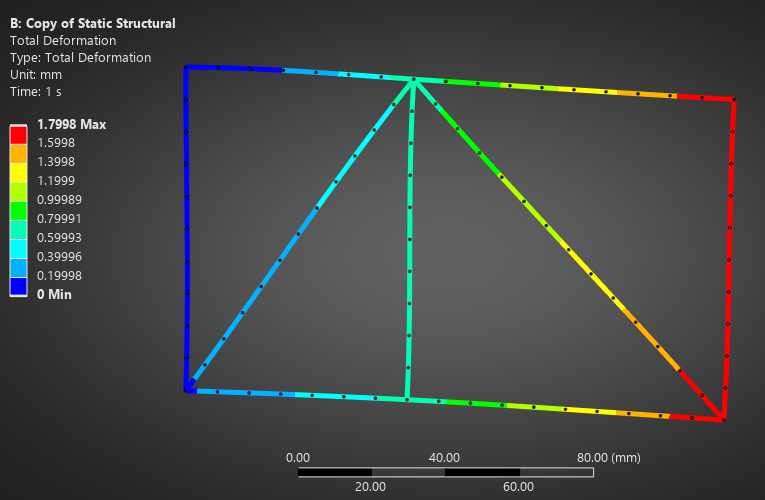
        For instance, as the figure below shows, there are splines of a simple truss. I want to sweep them by a section pattern(such as an "I-shaped" face). How can I sweep all of lines at once?

    • peteroznewman
      Subscriber

      With that image and some more description, I believe you wish to create beams with a cross-sectional profile such as an I-beam shape for structural analysis.

      Here is your truss created using a Layout sketch:
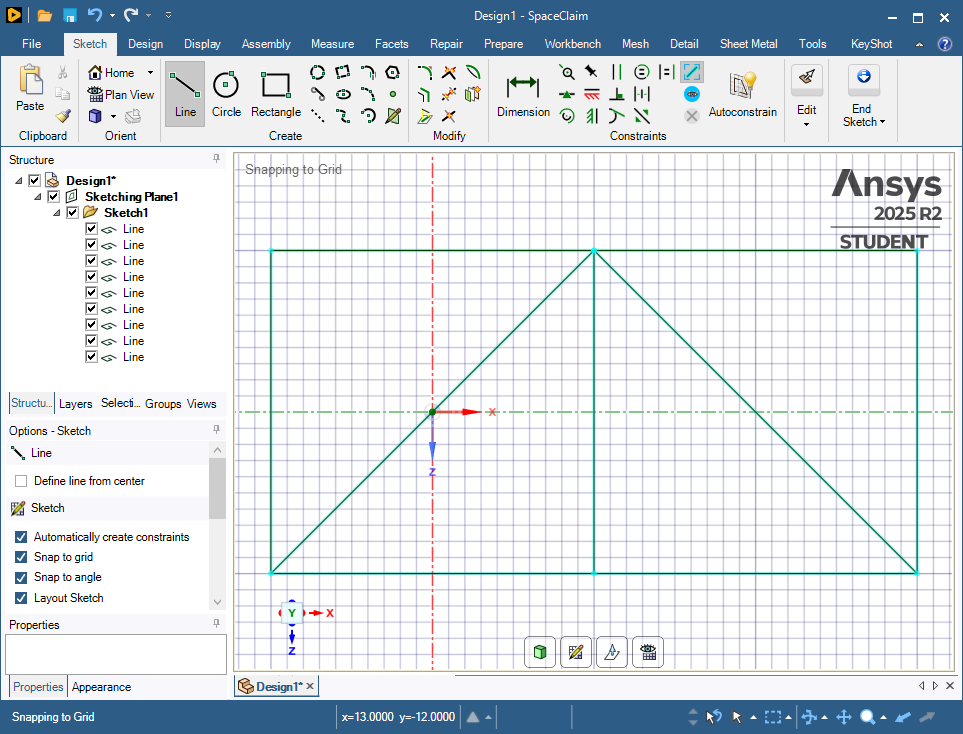
      Click on the Prepare Tab and pull down the Profiles button to select an I profile.
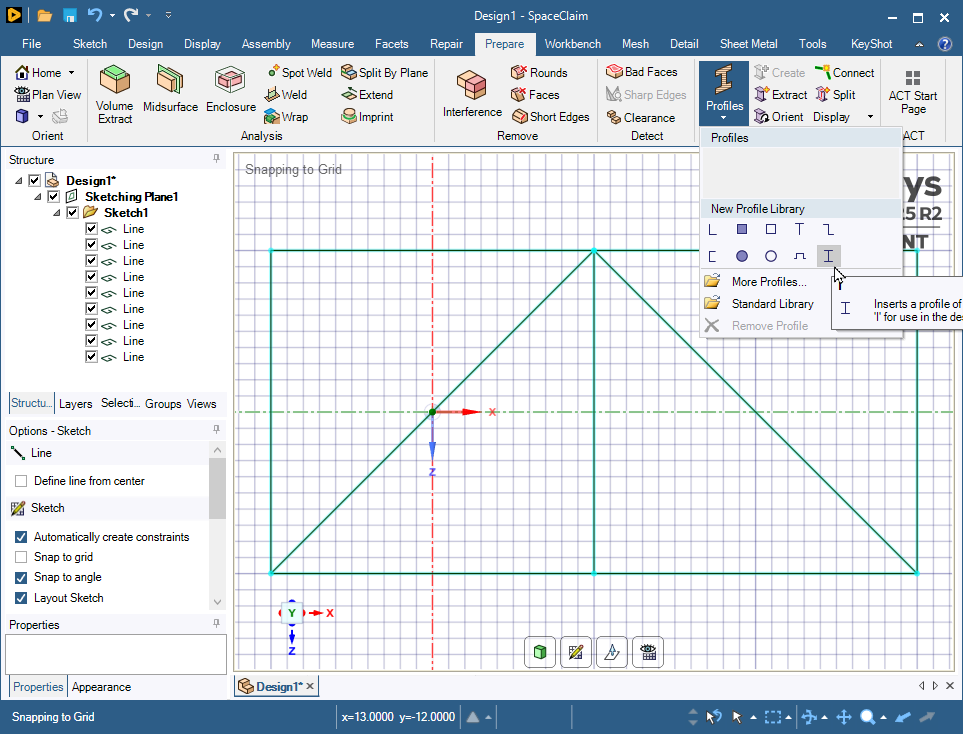
      In the Structure, there is an I profile that you can edit the dimensions.
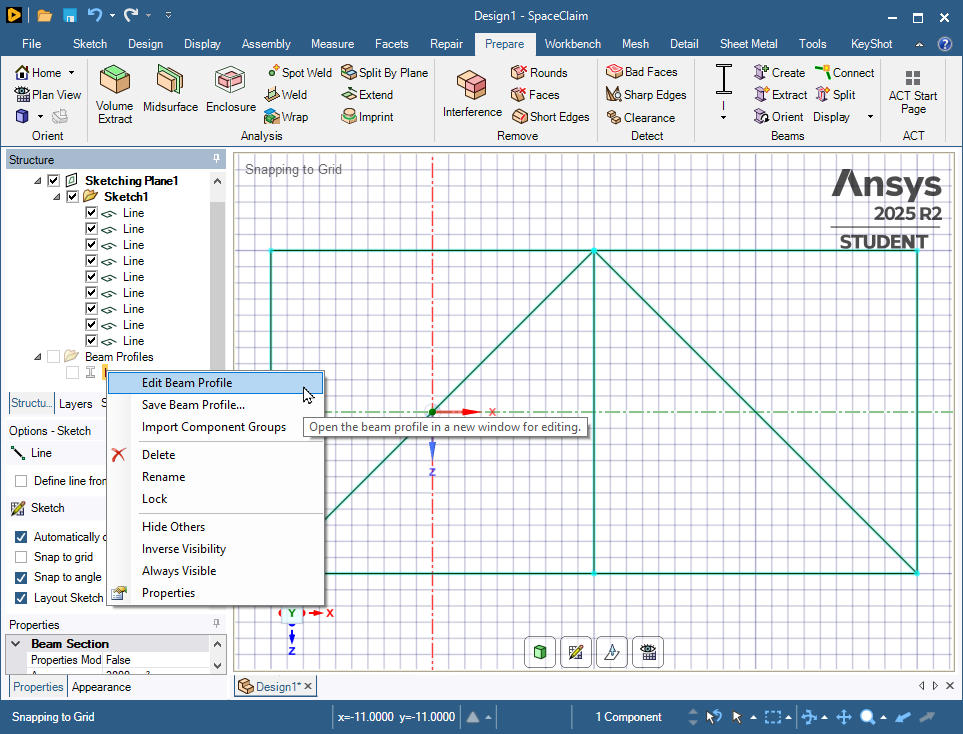
      Now all the dimensions are available to edit.
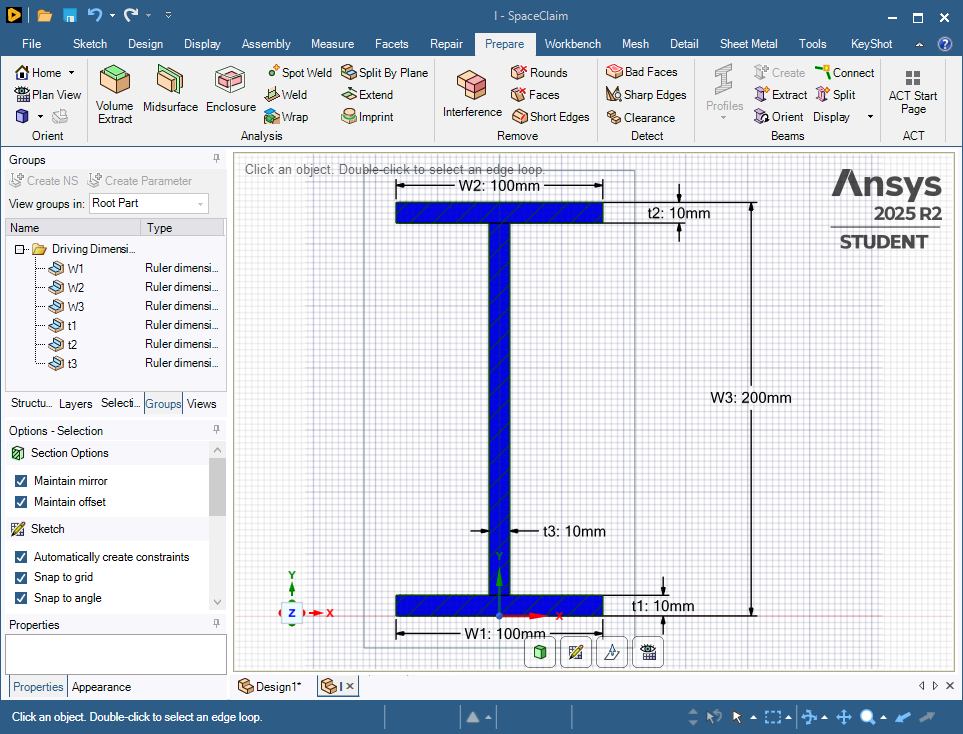
      You can close the I tab at the bottom of the graphics window to get back to your truss sketch. Now use the Create button to make beams from the lines. Every beam clicked gets the same profile.
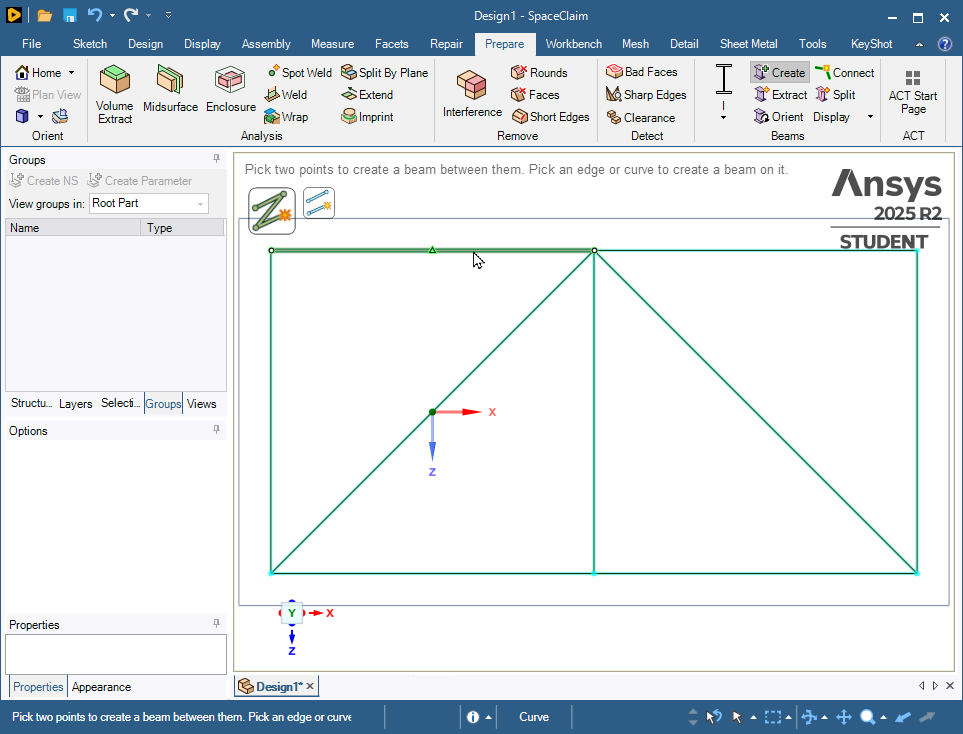
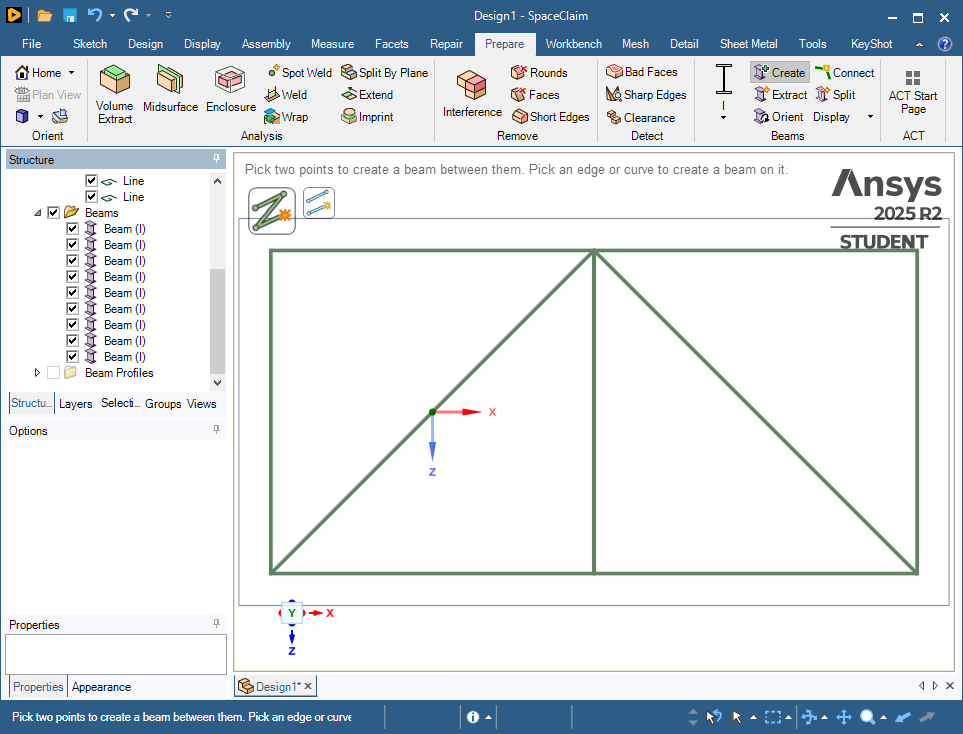
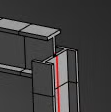
      Click on the Workbench tab then the Share button then the green check to connect the beam ends to each other.
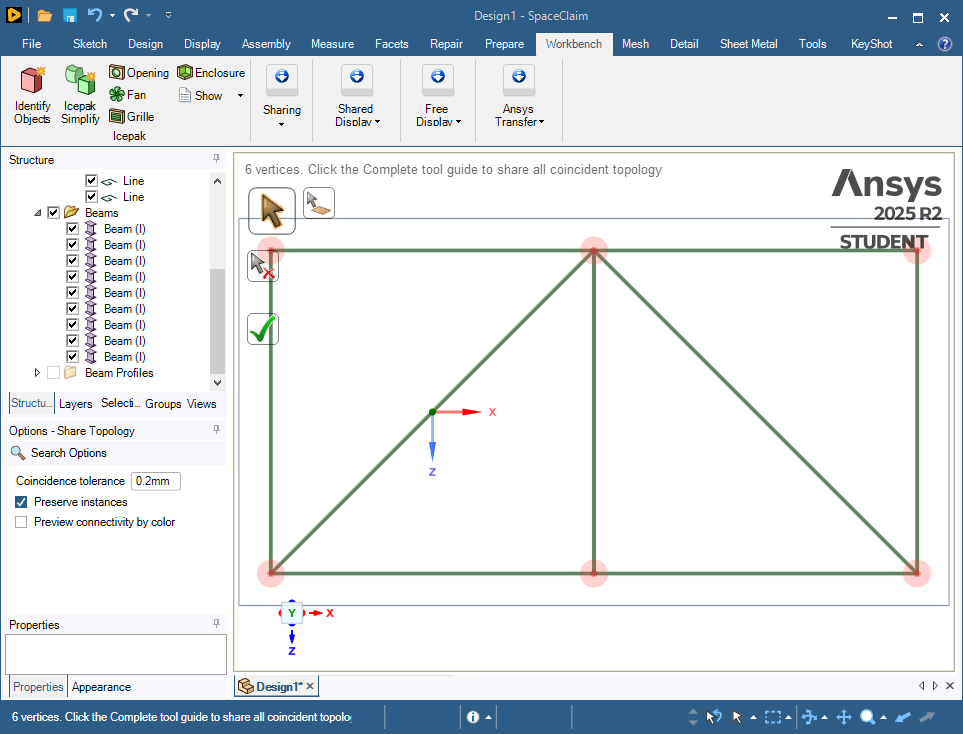
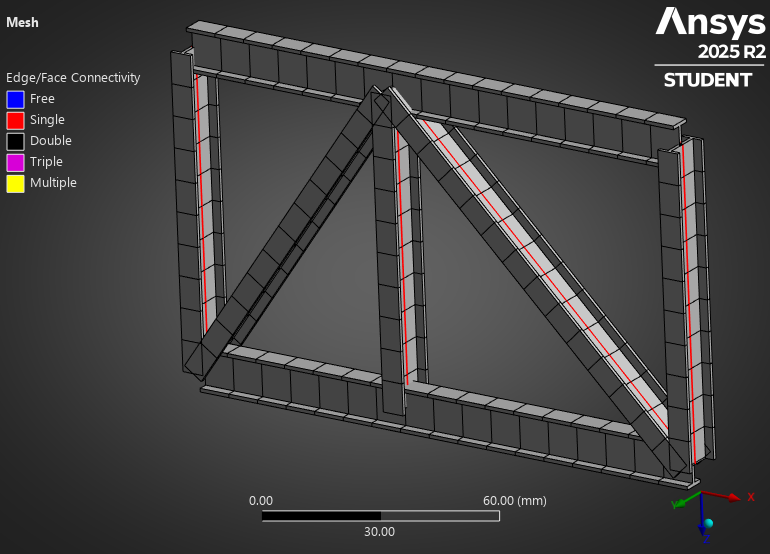
      When you open this file in Mechanical, you will have an I-beam structure that you can support and load.

      Go back to the Prepare tab and click the Orient button if any of the beam cross-sections are not oriented the way you want.
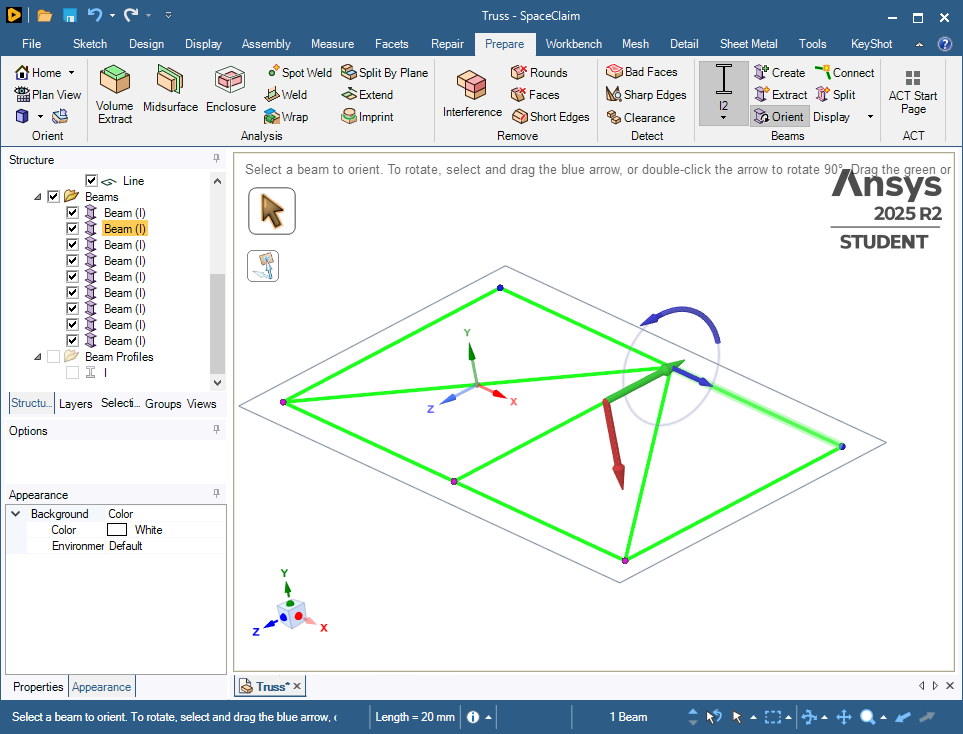
      In Mechanical, on the Display tab, turn on Thick Shells and Beams to see the I beam profile orientation.
Viewing 2 reply threads
  • You must be logged in to reply to this topic.