

-
-
May 16, 2020 at 11:23 am
Thelemko
SubscriberI recently downloaded and installed ANSYS Student Edition 2019 R3. When I try to use Workbench, I can't see any modules. I've tried:
- Uninstalling and Reinstalling while, clearing registry keys and AppData/Local and /Roaming
- Checking out the license file, which returns successfully
- Turning my antivirus off
- Resetting the workspace and window layout in Workbench
- Resetting the environment variables
I've looked around, and none of the solutions in other threads have worked for me.
-
May 18, 2020 at 4:07 am
Keyur Kanade
Ansys EmployeePlease post the questions in appropriate category. Moving this question to other category to get better response.
moving to installation.
please use latest 2020R1.
-
May 18, 2020 at 11:34 pm
tsiriaks
Ansys EmployeePlease post the output of the checkout command
From Workbench -> Tools -> License Preferences, then post the screenshot of the list.
Also, post the output of 'set' command
-
May 19, 2020 at 1:11 amSubscriber
Screenshots of both commands and license preferences in Workbench are below.
Thank you for your help
Edit: Reposting pictures for resolution
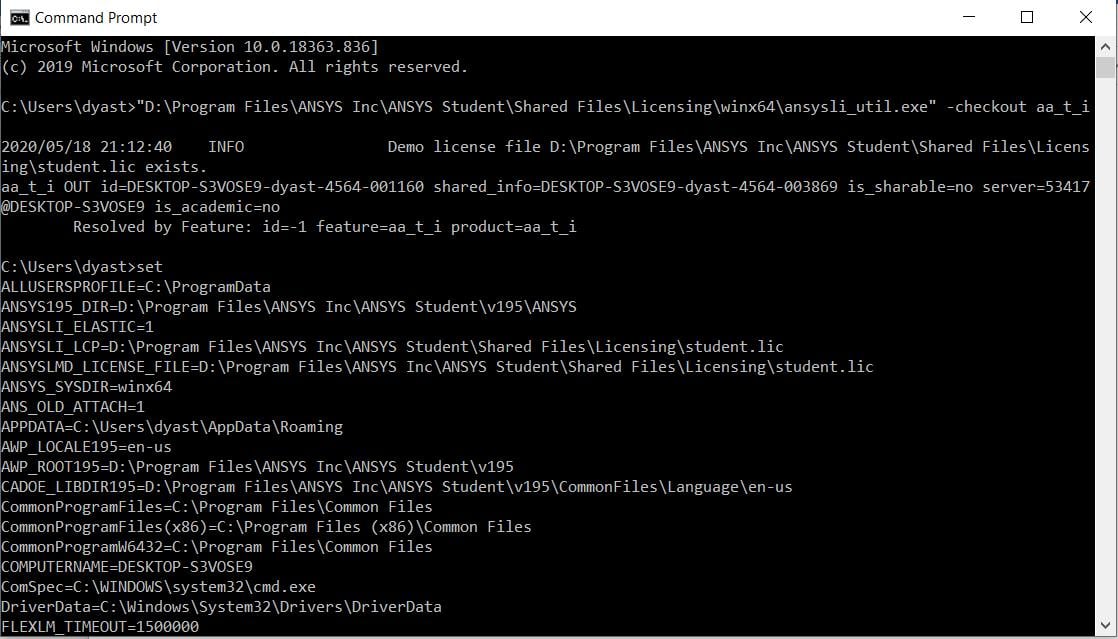
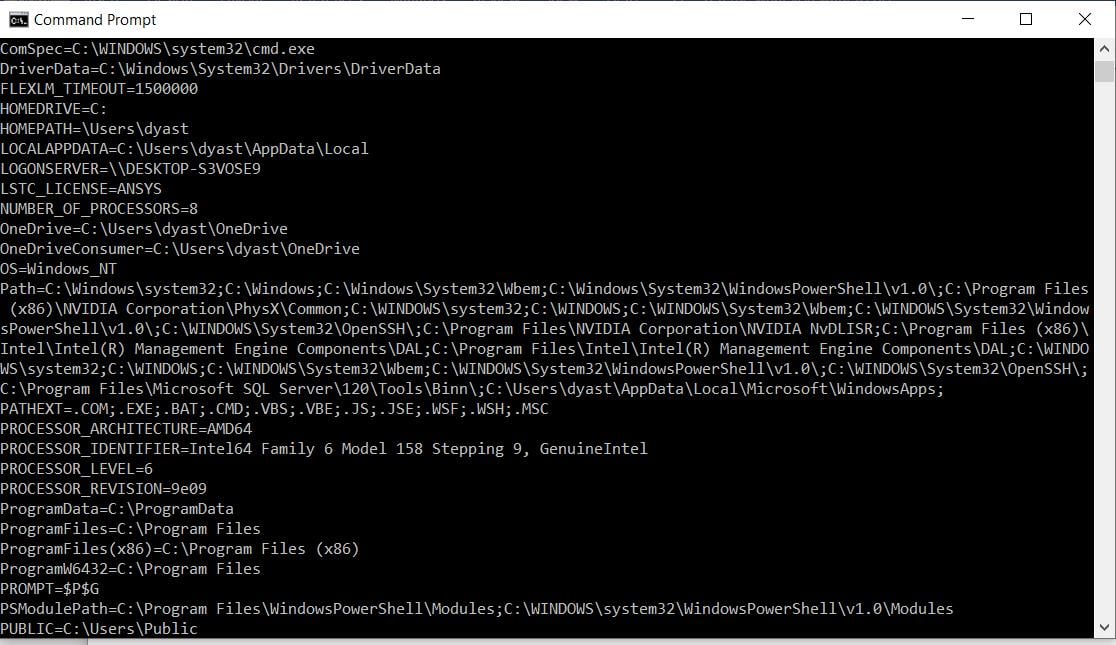
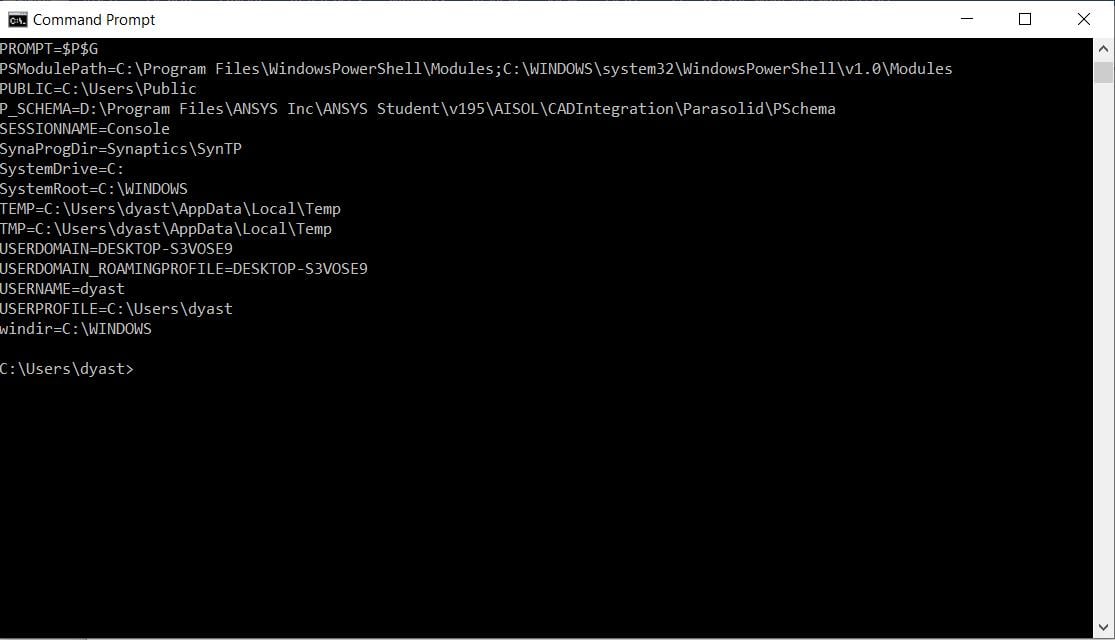

-
May 19, 2020 at 8:17 pmAnsys Employee
Remove the environment variable
ANSYSLI_ELASTIC=1
Then, try launching Workbench again.
-
May 19, 2020 at 8:42 pmSubscriber
Still no luck, the workbench showed no modules.
I removed the variable with the command "set ANSYSLI_ELASTIC=" and re-ran workbench. Result is posted below:
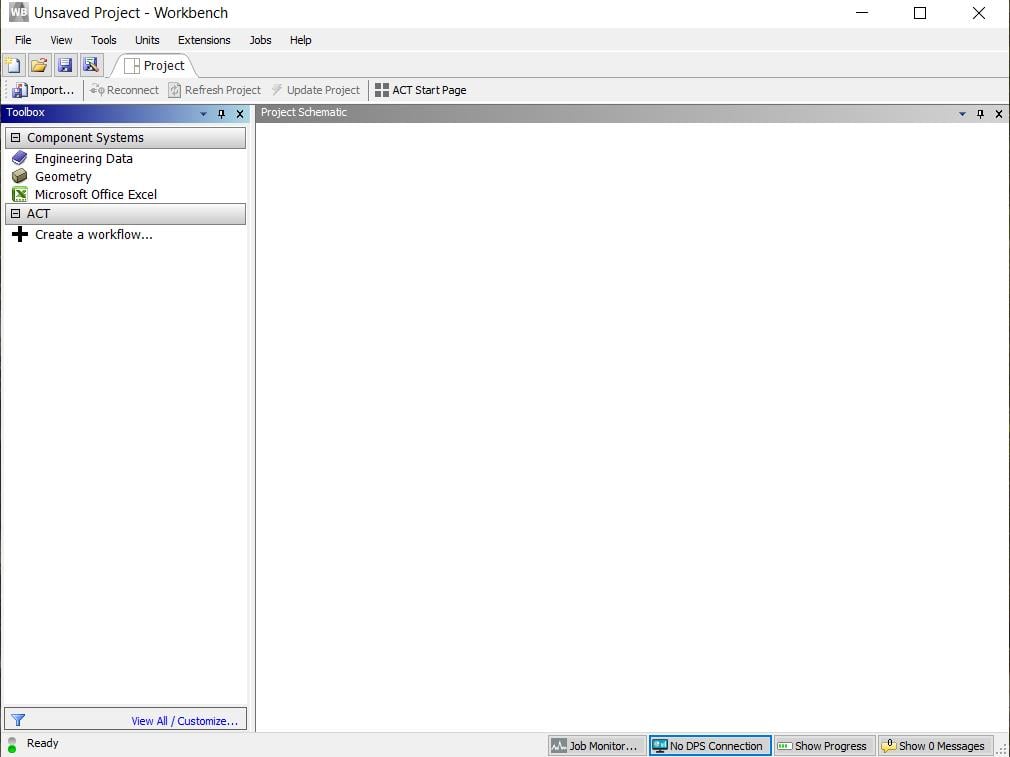
I checked afterward and the variable was reset to ANSYSLI_ELASTIC=1
-
May 19, 2020 at 9:02 pmAnsys Employee
The command
set ANSYSLI_ELASTIC=
is not permanent. It's only for that particular CMD Prompt session. This is normally done solely for a temporary test. So, if you want to just test it, you need to run the above command, followed by the command to start Workbench like
"%AWP_ROOT195%FrameworkbinWin64runwb2.exe"
But if you want it to be permanent, you have to remove it with a correct way using Windows built-in tool. You can search online on how to do add/modify/remove an environment variable.
-
May 19, 2020 at 9:54 pmSubscriber
Using a permanent method worked to fix WorkBench, and now all modules are displayed. I tested SpaceClaim to ensure everything worked, and it seems to work so far.
For posterity's sake, I was able to edit my environmental variables by going to "Advanced System Settings", from which I was able to select "Environmental Variables" and delete the above variable from the user variables.
Thank you for your help.
-
May 20, 2020 at 12:28 amAnsys Employee
Good to hear ! Thanks for the details.
Please mark this thread as 'Is Solution' so we know it's been addressed
-
June 7, 2020 at 5:18 pm
hidalgoatomas
SubscriberHi, I have the same problem, so when I try this:
" alt="">
From Workbench -> Tools -> License Preferences, then post the screenshot of the list.
I have 2019 R2 version.
Thanks for you help. -
June 8, 2020 at 11:56 pmAnsys Employee
Check the content of your 'student.lic' file in that error message to see if it has expired. If so, you will have to renew the license according to the steps here
/forum/forums/topic/how-can-i-renew-ansys-student-version-license/
-
September 8, 2020 at 11:42 am
Meyss
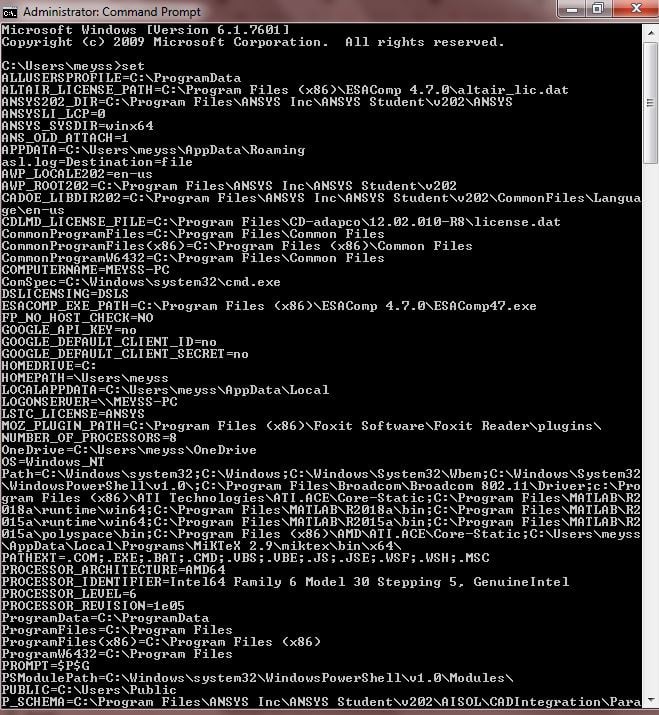
Subscriberi have problem in Ansys 2020, r2 version. let me know how to fix it please.n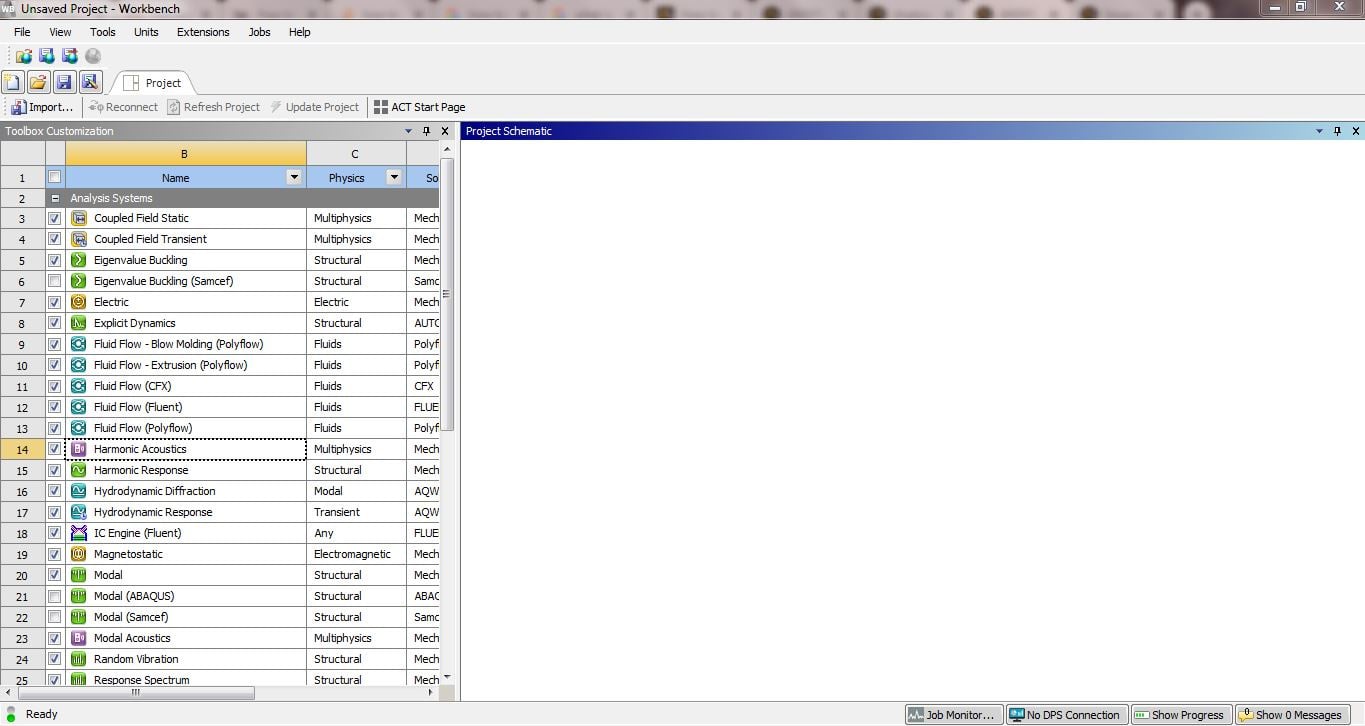

 n
n
-
September 8, 2020 at 9:34 pmAnsys EmployeeDo you have an install.err file under C:\Program Files\ANSYS Inc\ANSYS StudentnTry this in CMD Promptn%awp_root202%\..\Shared Files\Licensing\winx64\ansysli_util -checkout ANS_DMndoes it show OUT ?nYou can also try this command in CMD Promptnmove %appdata%\ansys %appdata%\ansys.oldnnIf none helps, try removing the environment variable ANSYSLI_LCP from your Windowsnn
-
November 25, 2020 at 4:01 pm
Chettay
SubscriberHi,nI have a very similar problem (Ansys 2020 r2, student license). I tried uninstalling and reinstalling with admin permissions. I also checked the environment variables:n Also: %awp_root202%\..\Shared Files\Licensing\winx64\ansysli_util -checkout ANS_DM in command prompt returned:n2020/11/25 16:48:37 INFO Demo license file C:\Program Files\ANSYS Inc\ANSYS Student\Shared Files\Licensing\student.lic exists.nANS_DM OUT id=DESKTOP-HFA3JNM-DIEE-11288-009694 shared_info=DESKTOP-HFA3JNM-DIEE-11288-013262 is_sharable=yes server=50650@127.0.0.1 is_academic=yes has_academic_logo=yes max_h_elem=0 max_nodes=0 max_struct_nodes=0 max_faces=0 max_bodies=0 max_species=0 min_cell_size=0 max_depth=0n Resolved by Feature: id=183 feature=aa_t_i product=ANSYS Academic Teaching IntroductorynnI managed to run the workbench and the APDL launcher from command prompt, after this command and moving appdata\ansys folder: nmove %appdata%\ansys %appdata%\ansys.oldnHowever, I have not managed yet to definitely fix this problem and avoid launching the app through the command prompt. nIf I launch the app normally, this is the error:n
 The Ansys Learning Forum is a public forum. You are prohibited from providing (i) information that is confidential to You, your employer, or any third party, (ii) Personal Data or individually identifiable health information, (iii) any information that is U.S. Government Classified, Controlled Unclassified Information, International Traffic in Arms Regulators (ITAR) or Export Administration Regulators (EAR) controlled or otherwise have been determined by the United States Government or by a foreign government to require protection against unauthorized disclosure for reasons of national security, or (iv) topics or information restricted by the People's Republic of China data protection and privacy laws.
Please Login to Report Topic
Please Login to Share Feed
Edit Discussion
[bingo_chatbox]The Ansys Learning Forum is a public forum. You are prohibited from providing (i) information that is confidential to You, your employer, or any third party, (ii) Personal Data or individually identifiable health information, (iii) any information that is U.S. Government Classified, Controlled Unclassified Information, International Traffic in Arms Regulators (ITAR) or Export Administration Regulators (EAR) controlled or otherwise have been determined by the United States Government or by a foreign government to require protection against unauthorized disclosure for reasons of national security, or (iv) topics or information restricted by the People's Republic of China data protection and privacy laws.
-
Ansys Assistant will be unavailable on the Learning Forum starting January 30. An upgraded version is coming soon. We apologize for any inconvenience and appreciate your patience. Stay tuned for updates.
 You are navigating away from the AIS Discovery experience