Ansys Assistant will be unavailable on the Learning Forum starting January 30. An upgraded version is coming soon. We apologize for any inconvenience and appreciate your patience. Stay tuned for updates.
General Mechanical

General Mechanical

Topics related to Mechanical Enterprise, Motion, Additive Print and more.

    • miansaqib668
      Subscriber

    • miansaqib668
      Subscriber

      I make a cantilever beam but I don't know how to identify the element type, number of element rows and columns in the ANSYS workbench R 19.1


      Kindly guide me how to do it 

    • peteroznewman
      Subscriber

      The element type 182 is a Plane Linear element for 2D Plane Stress, Plane Strain or Axisymmetric analysis.


      You want Plane Stress since you will assign a thickness in the A direction to the sheet body.


      In Workbench, drag and drop a Static Structural analysis system onto the Project Schematic.


      The default material, Structural Steel, matches the specifications in your problem, so you don't need to change anything there.


      Right click on the Geometry Cell and select Properties. On the right, change the Analysis Type of the Geometry cell to 2D on a new model. 


      Double click on Geometry to open SpaceClaim. Click the Sketch tool to select the XY plane. Use the Rectangle tool to draw a rectangle C long by B tall. Click the 3D mode and the lines will turn into a surface. Close SpaceClaim.


      Double click on Model to open the model in Mechanical, click on the Geometry branch of the outline and in the Details, you can choose the 2D Behavior to be Plane Stress, Plane Strain or Axisymmetric. Choose Plane Stress (which is the default).  Click on the Surface and type in the depth value A in the Thickness field.


      Click on Static Structural in the Outline, click on the Fixed button on the ribbon, click on the Edge filter, then click on the left edge and click the double arrow Apply button. Click on the Force button, click on the right edge and click Apply, then type in the value of D in Newtons. You can flip the direction if you care that it points down.


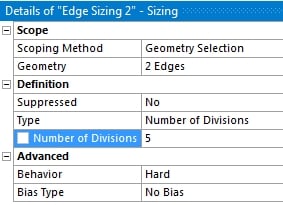
      Click on Mesh in the Outline, in the Details window, on the Element Order line, select Linear. That is the Plane 182 elements. On the ribbon, click on the Face Meshing button, click on the surface the click the Apply double arrows. Click on the Sizing button, click on the Edge filter and pick the two vertical lines (hold the Ctrl Key). Now you can set the type to Number of Divisions and enter the value for the number of rows. Under the Advanced category, change the Behavior from Soft to Hard. Duplicate the Sizing mesh control, and select the horizontal lines and change the value to the number of columns.


      Click on Solution in the Outline, click the Deformation button and pick Total, click the Stress button, and pick Normal, which defaults to the X axis.


      Click Solve.


      To do the last row that uses the Plane 183 element, click on Mesh in the Outline, in the Details window, on the Element Order line, select Quadratic. Edit the values in the two sizing mesh controls to have the correct number of division and click Solve.


       

    • peteroznewman
      Subscriber

      This tutorial is very similar, but is Axisymmetric.

    • miansaqib668
      Subscriber

      Mr. peter through the point that you told (Click the Sketch tool to select the XY plane)  I am unable to select the XY plane. Kindly guide me.

    • peteroznewman
      Subscriber

       Watch the tutorial video at 1 minute 37 seconds and you will see me select the XY plane.

    • miansaqib668
      Subscriber

      Mr. Peter thank you so much for help.

    • miansaqib668
      Subscriber

      Mr. Peter can you guide me about its hand calculations?

    • peteroznewman
      Subscriber

      I will check your work. Reply with the equation for the tip deflection of a cantilever beam and show your example.

    • miansaqib668
      Subscriber

      What is the role of mesh density and element type in relation to results?


      Kindly explain this

    • peteroznewman
      Subscriber

      Please show results for the five rows of the table in your original post and include the hand calculation exact answer.

    • miansaqib668
      Subscriber

      Hand Calculations are 


      Deflection= 23.567 mm


      Stress= 279.3 MPa


    • peteroznewman
      Subscriber

      Where do you get 42 elements from? The number of elements should be equal to Rows x Columns. 


      Row 4 should have same number of elements as Row 1.


      After you redo your table, add two new columns for %error_displacement and %error_stress


      where %error = 100*(FEA - Exact)/Exact   where Exact is the Hand Calculation value.


    • miansaqib668
      Subscriber

      I got 42 elements during meshing 


      I followed the whole procedure that you mentioned 

    • peteroznewman
      Subscriber

      Please insert an image of the mesh and the mesh controls. Show an image of the Outline with the Geometry expanded.

    • miansaqib668
      Subscriber

    • peteroznewman
      Subscriber

      You have to set the Behavior to Hard to force exactly 5 elements along the long edges.
      I said this in my instructions but you missed it.


      You can also add a Face Meshing control on the surface to force it to do quad elements.

    • miansaqib668
      Subscriber

      Yes I checked it again now the number of elements equal to rows x columns

    • peteroznewman
      Subscriber

      Okay, you you want to share your new table?

Viewing 18 reply threads
  • The topic ‘project’ is closed to new replies.
[bingo_chatbox]