-
-
January 9, 2019 at 5:07 pm
Mohsenhiva
SubscriberDear friends,
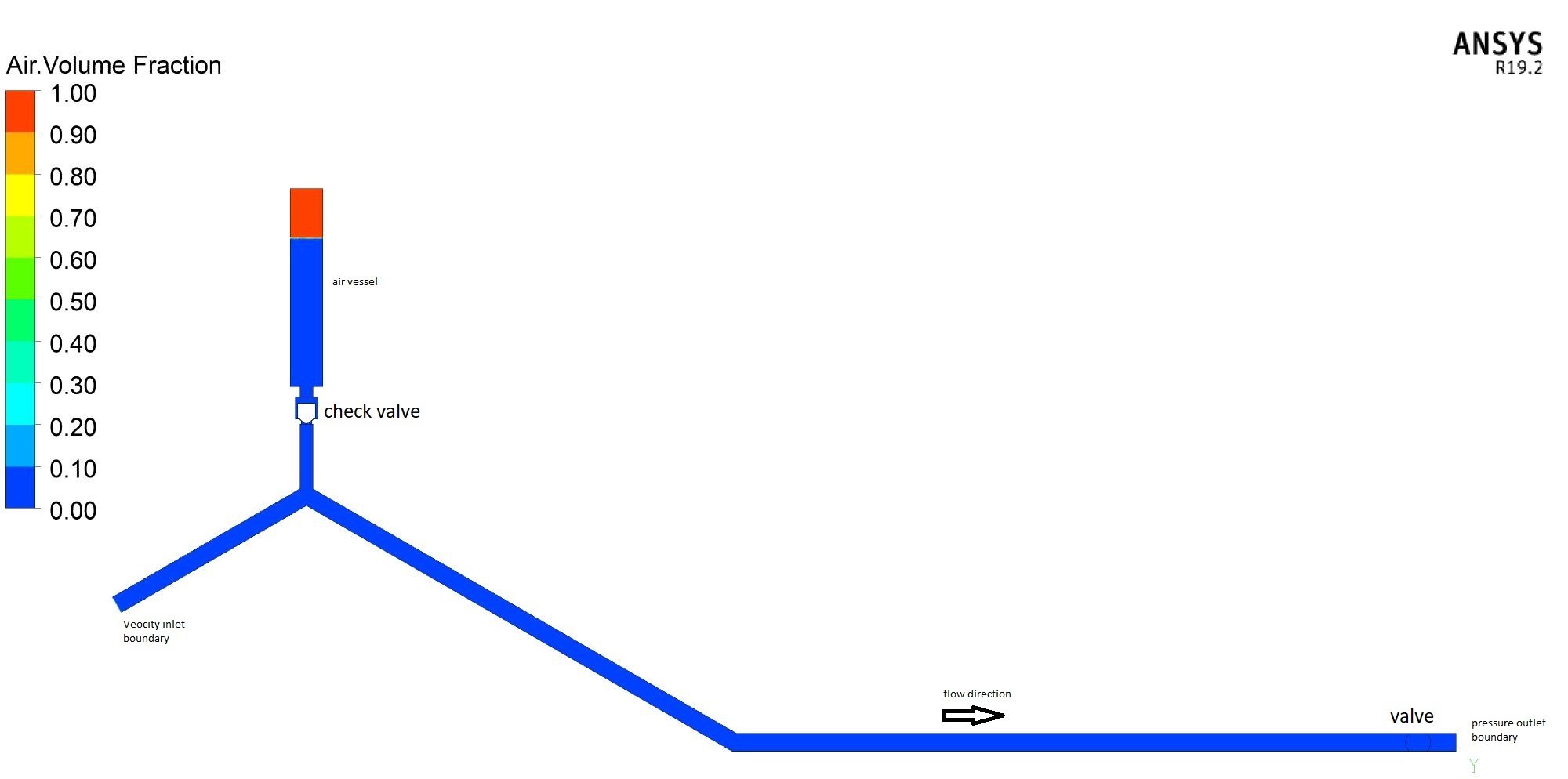
I am willing to simulate a check valve to confine the pressure from a water hammer within an air vessel. In fact, as you can see in the following images, a valve at downstream creates water hammer. I have air in the air vessel. I want that after a water hammer see the surge pressure entering the air vessel. The check valve is supposed to let flow only in +y direction. The problem is that check valve doesn't move at all. Do you have any comment on this?
Thanks a lot.Â
-
January 10, 2019 at 5:35 am
Keyur Kanade
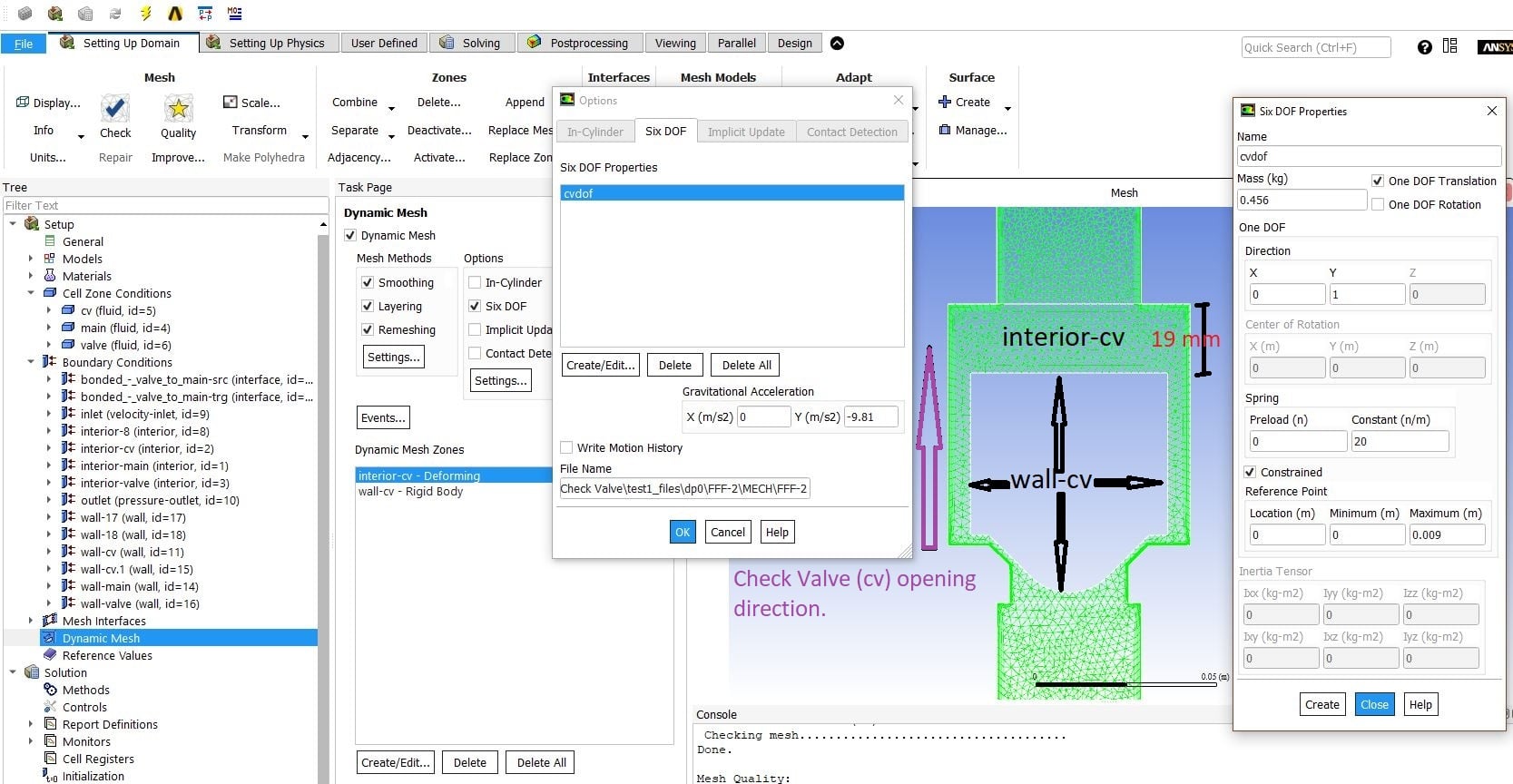
Ansys Employeefrom image, dynamic mesh settings look ok. you may want to click off layering option.Â
can you please simplify problem. can you please reduce mass, remove spring constant and check.Â
https://www.youtube.com/watch?v=Va6aI96UDj0
Â
-
January 10, 2019 at 2:40 pm
-
January 10, 2019 at 4:00 pm
Rob
Forum ModeratorTry reducing the timestep. You need the solver to run such that the valve cannot cross one cell in a timestep.Â
-
January 14, 2019 at 10:01 am
Mohsenhiva
SubscriberThanks for your comment. I have still the same problem with time step 0.0001! What can I do?
-
January 14, 2019 at 11:20 am
Rob
Forum ModeratorOK, then check your remeshing settings: do you have remeshing turned on? If so, check the size/skew settings to make sure they'll pick up the cell sizes you're using.Â
What is the cell size, and how fast is/can the valve move?
-
January 14, 2019 at 3:41 pm
Mohsenhiva
SubscriberThe element size is 0.002 m and I used triangular cells with 5 inflation layers. Regarding the remeshing, yes it is turned on. I put a screenshot from the remeshing window. Thanks for your time.Â
For the valve, I don't control the velocity of movement it is supposed to move based on the change in pressure force on it similar to a real-world case.
-
January 14, 2019 at 6:47 pm
DrAmine
Ansys EmployeeI encourage you to watch the first part of the tutorial shared by my colleague:
Â
https://www.youtube.com/watch?v=9-Tu-Koy-D8
-
January 15, 2019 at 4:07 am
Keyur Kanade
Ansys Employeein remeshing panel, please use mesh scale info and use those values in min and max length scales.Â
-
January 17, 2019 at 10:59 am
Mohsenhiva
SubscriberThanks a lot. I did so. But no success yet!
-
January 18, 2019 at 3:50 am
Keyur Kanade
Ansys Employeeplease refine mesh further reduce time step.Â
-
January 21, 2019 at 4:05 pm
-
January 22, 2019 at 3:26 am
Keyur Kanade
Ansys Employeethe mesh looks weird at the shoulder. the inflation layer is abruptly stopped. looks like you have different cell zones at that edge.Â
you may want to use a single cell zone.Â
-
January 22, 2019 at 1:22 pm
Max4
SubscriberYou can create another cell_zone for the inflation layer around the valve. In the dynamic mesh settings, set this cell_zone as Rigid Body so that this layer moves with the valve. This can be done around the wall too.
An example of its usefulness is a falling rigid object in a fluid domain. If the rigid object is represented as a void in the mesh surrounded by an inflation layer, and the elements surrounding the inflation layer are tet elements, then separating the inflation layer will allow you to specify rigid body motion to the inflation layer (so that the inflation element quality is maintained throughout the simulation) and remeshing/smoothing is only performed on the surrounding tet elements. Solution: There are two ways to separate the inflation layer. 1) If the inflation has a constant # of elements: Adapt > Boundary > Option = Cell Distance > Number of Cells = inflation layers > Boundary Zone = [wall boundary with inflation] > Mark > Mesh > Separate > Cells > Mark > Registers = Marked Zone > Separate. 2) If the inflation elements are a different element type than the rest of the mesh: Initialize > Adapt > Iso-Value > Iso-Values of = Cell Info… > Cell Element Type > Compute > Mark separate zone for, e.g. element type 6, which is triangular prisms. Separate marked zone as above.
Â
Regards,
Maxime
-
- The topic ‘Dynamic Mesh for Simulation of a Check Valve (Cone Type)’ is closed to new replies.
-
6520
-
1906
-
1463
-
1310
-
1022
© 2026 Copyright ANSYS, Inc. All rights reserved.