TAGGED: installation
-
-
March 10, 2023 at 11:06 am
-
March 10, 2023 at 11:12 am
Devendra Badgujar
Forum ModeratorHello joe jackson
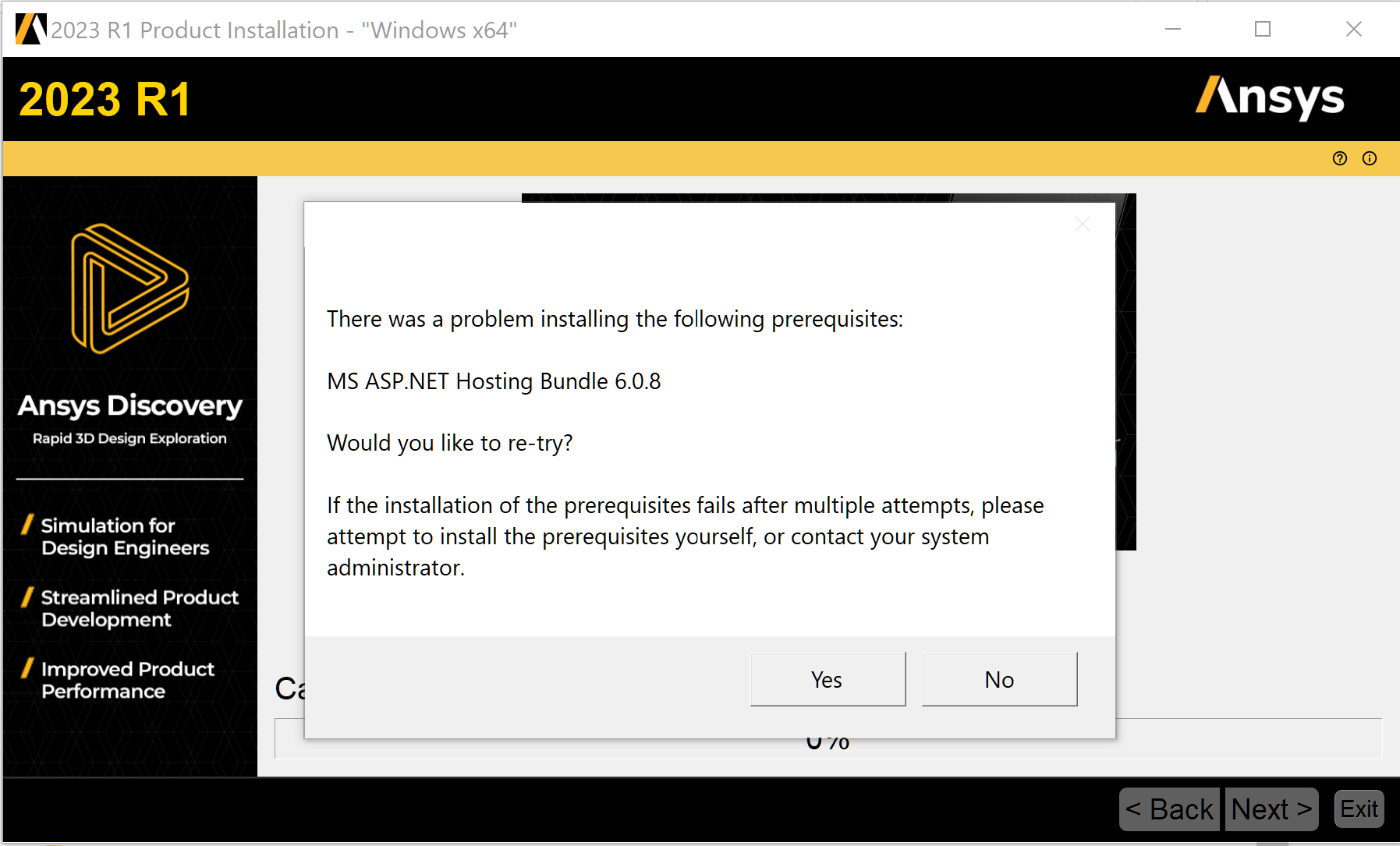
For most users, selecting no and proceeding with the installation has not caused any issues as such.Â
Please refer this post How do I resolve problem installing MS ASP.NET Hosting Bundle 6.0.8? - Questions - Ansys Discovery Forum for more information. Let me know if the solution in this works for you.
Regards.
-
March 10, 2023 at 11:22 am
-
-
March 10, 2023 at 11:29 am
Devendra Badgujar
Forum ModeratorHello joe jackson
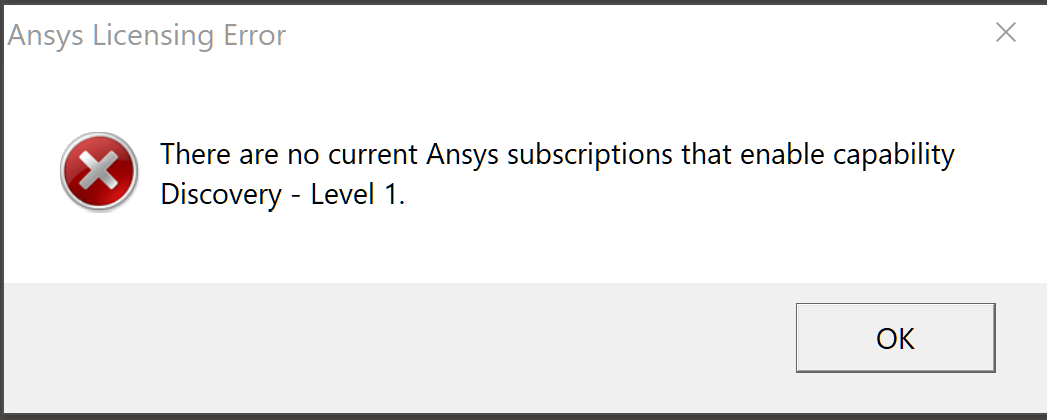
I can see that your Ansys Discovery Modeling (Named User) license is already activated on two devices.
Please can you confirm if the license mode is set as Subscription?
You can check this by launching Discovery Licensing Mode Manager from Windows Start menu. If the license option is set to Floating, please set it to Subscription and try again.
-
March 10, 2023 at 11:32 am
joe jackson
SubscriberJust to clarify - From my understanding we only have this installed on one laptop. I'm am attempting to setup on an additional. Could the problem be that I am using the same email/credentials on both computers?     I verified the subscription settings with no changes in the pop up.
-
March 10, 2023 at 12:10 pm
Devendra Badgujar
Forum Moderatorjoe jacksonÂ
No, there should not be any problem activating it on second machine and you will have to use the same login credentials of the user who has this license assigned on both computers.Â
As I mentioned that your license is activated on two devices already. You can try releasing the activation from this new device from your Ansys Account My Subscriptions page and activate it using the command lines option shown below:
Discovery Subscription license - Command line options - Knowledge Base - Ansys Discovery Forum
Let me know if this solves your problem.
-
March 10, 2023 at 2:06 pm
joe jackson
SubscriberDevendra Badgujar  None of the command prompt options yield any results. None of them seem to work
-
-
March 10, 2023 at 12:27 pm
joe jackson
SubscriberThanks!  I have found that section. How do I determine which device is which on the list?  Both are listed as alphanumeric info. We have current work being done on the other device at the moment. I dont want to cause any issues by releasing the wrong one.
-
March 13, 2023 at 3:10 am
Devendra Badgujar
Forum Moderatorjoe jackson the device ID of the current machine can be identified by executing one command in command prompt. This command is documented in this forum article. The device ID obtained from this command can then be checked under the list of activated devices for releasing. For your reference, I am mentioning the steps to execute this command:
Please find below the steps to execute the commands:
1.    Launch the Windows Command Prompt from the start menu in administrative mode.
2.    In the command prompt, type in:
For version 2021R1 and later:
cd C:\Program Files\ANSYS Inc\v211\licensingclient\winx64
(This is the default installation directory of Discovery products. If you have installed it at a different location, enter the appropriate path where ansysls_client.exe is present)
3.    Once in that directory, run the following commands:
ansysls_client.exe -GetDeviceIdÂ
This command returns the subscription device ID for the current system and user. You can also view the device ID from your Discovery Account page under Manage Subscriptions section and the subscription license activated on that machine.
-
-
- The topic ‘Installation Error’ is closed to new replies.
-
6520
-
1906
-
1463
-
1310
-
1022
© 2026 Copyright ANSYS, Inc. All rights reserved.