Ansys Assistant will be unavailable on the Learning Forum starting January 30. An upgraded version is coming soon. We apologize for any inconvenience and appreciate your patience. Stay tuned for updates.
Ansys Free Student Software

Ansys Free Student Software

Topics cover installation and configuration of our free student products.

ANSYS Workbench can’t Open

    • fakihatu.19023
      Subscriber

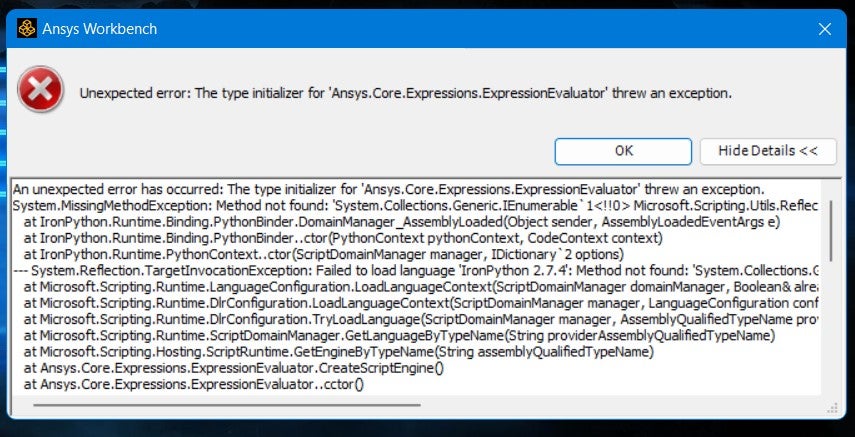
      Hello everyone, I have a problem after installing Ansys Student. The installation was successful, but with an error. If I try to open the workbench, there is an error with the dialog that I picture below. I've tried to search for the solutions, but nothing. Are there any guys here who can help me with this problem? I've uninstalled and installed it again but the problem is still the same. Thank you

    • George Karnos
      Ansys Employee

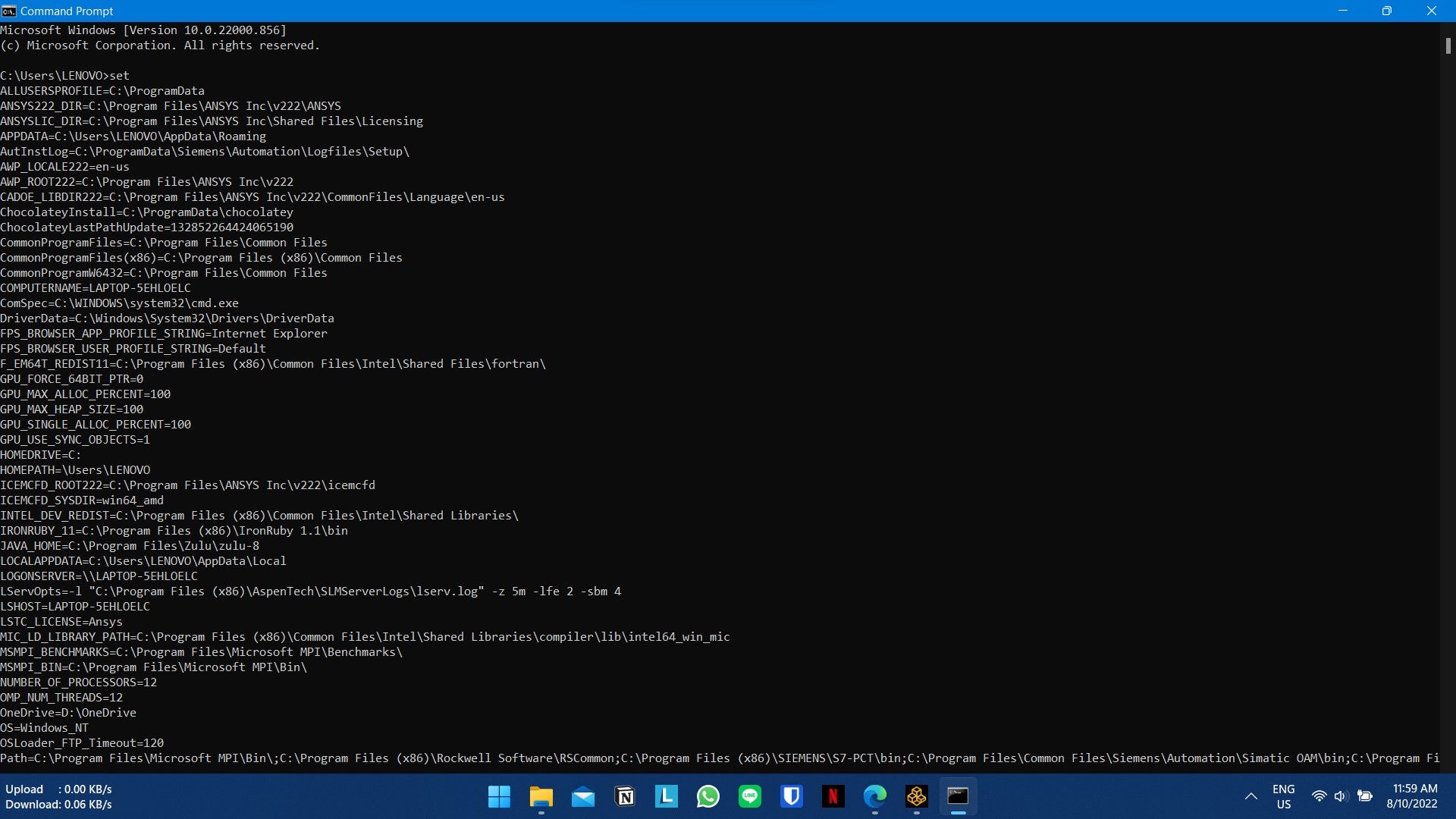
      Can you open a dos command prompt and type in the following and hit Enter:
      set

      What is returned?


      • fakihatu.19023
        Subscriber

        thank you for your reply, I want to try this


      • fakihatu.19023
        Subscriber

        Like this? and then what should I do?

    • George Karnos
      Ansys Employee

      Thank You for trying that.

      What I would like to see is the environment settings, and this is what this does.
      But, not everything is listed in the window you screen-shotted.
      Can you type the following in the DOS Command prompt window:
      set >set.txt

      This will create a file named set.txt in the directory where the DOS cmd prompt opens to.
      When this is finished, open the file set.txt with notepad.
      copy all contents and paste in a post
      Thank You.

      • fakihatu.19023
        Subscriber

        ALLUSERSPROFILE=C:\ProgramData
        ANSYS222_DIR=C:\Program Files\ANSYS Inc\v222\ANSYS
        ANSYSLIC_DIR=C:\Program Files\ANSYS Inc\Shared Files\Licensing
        APPDATA=C:\Users\LENOVO\AppData\Roaming
        AutInstLog=C:\ProgramData\Siemens\Automation\Logfiles\Setup\
        AWP_LOCALE222=en-us
        AWP_ROOT222=C:\Program Files\ANSYS Inc\v222
        CADOE_LIBDIR222=C:\Program Files\ANSYS Inc\v222\CommonFiles\Language\en-us
        ChocolateyInstall=C:\ProgramData\chocolatey
        ChocolateyLastPathUpdate=132852264424065190
        CommonProgramFiles=C:\Program Files\Common Files
        CommonProgramFiles(x86)=C:\Program Files (x86)\Common Files
        CommonProgramW6432=C:\Program Files\Common Files
        COMPUTERNAME=LAPTOP-5EHLOELC
        ComSpec=C:\WINDOWS\system32\cmd.exe
        DriverData=C:\Windows\System32\Drivers\DriverData
        F_EM64T_REDIST11=C:\Program Files (x86)\Common Files\Intel\Shared Files\fortran\
        GPU_FORCE_64BIT_PTR=0
        GPU_MAX_ALLOC_PERCENT=100
        GPU_MAX_HEAP_SIZE=100
        GPU_SINGLE_ALLOC_PERCENT=100
        GPU_USE_SYNC_OBJECTS=1
        HOMEDRIVE=C:
        HOMEPATH=\Users\LENOVO
        ICEMCFD_ROOT222=C:\Program Files\ANSYS Inc\v222\icemcfd
        ICEMCFD_SYSDIR=win64_amd
        INTEL_DEV_REDIST=C:\Program Files (x86)\Common Files\Intel\Shared Libraries\
        IRONRUBY_11=C:\Program Files (x86)\IronRuby 1.1\bin
        JAVA_HOME=C:\Program Files\Zulu\zulu-8
        LOCALAPPDATA=C:\Users\LENOVO\AppData\Local
        LOGONSERVER=\\LAPTOP-5EHLOELC
        LServOpts=-l "C:\Program Files (x86)\AspenTech\SLMServerLogs\lserv.log" -z 5m -lfe 2 -sbm 4
        LSHOST=LAPTOP-5EHLOELC
        LSTC_LICENSE=Ansys
        MIC_LD_LIBRARY_PATH=C:\Program Files (x86)\Common Files\Intel\Shared Libraries\compiler\lib\intel64_win_mic
        MSMPI_BENCHMARKS=C:\Program Files\Microsoft MPI\Benchmarks\
        MSMPI_BIN=C:\Program Files\Microsoft MPI\Bin\
        NUMBER_OF_PROCESSORS=12
        OMP_NUM_THREADS=12
        OneDrive=D:\OneDrive - Institut Teknologi Sepuluh Nopember
        OneDriveCommercial=D:\OneDrive - Institut Teknologi Sepuluh Nopember
        OneDriveConsumer=D:\OneDrive
        OS=Windows_NT
        OSLoader_FTP_Timeout=120
        Path=C:\Program Files\Microsoft MPI\Bin\;C:\Program Files (x86)\Rockwell Software\RSCommon;C:\Program Files (x86)\SIEMENS\S7-PCT\bin;C:\Program Files\Common Files\Siemens\Automation\Simatic OAM\bin;C:\Program Files (x86)\Common Files\Intel\Shared Files\fortran\bin\Intel64;C:\Program Files (x86)\Common Files\Intel\Shared Libraries\redist\intel64_win\mpirt;C:\Program Files (x86)\Common Files\Intel\Shared Libraries\redist\intel64_win\compiler;C:\Windows\system32;C:\Windows;C:\Windows\System32\Wbem;C:\Windows\System32\WindowsPowerShell\v1.0\;C:\Windows\System32\OpenSSH\;C:\Program Files (x86)\NVIDIA Corporation\PhysX\Common;C:\Program Files\NVIDIA Corporation\NVIDIA NvDLISR;C:\WINDOWS\system32;C:\WINDOWS;C:\WINDOWS\System32\Wbem;C:\WINDOWS\System32\WindowsPowerShell\v1.0\;C:\WINDOWS\System32\OpenSSH\;D:\Applications & Games Data\MATLAB\R2020a\bin;C:\Program Files\MATLAB\R2020a\bin;C:\PROGRA~1\MATLAB\R2020a\bin;C:\Users\LENOVO\AppData\Roaming\Python\Python38\Scripts;C:\Program Files\Microsoft SQL Server\Client SDK\ODBC\110\Tools\Binn\;C:\Program Files (x86)\Microsoft SQL Server\120\Tools\Binn\;C:\Program Files\Microsoft SQL Server\120\Tools\Binn\;C:\Program Files\Microsoft SQL Server\120\DTS\Binn\;C:\Program Files (x86)\Windows Kits\8.1\Windows Performance Toolkit\;C:\Gradle\gradle-6.6-all\gradle-6.6\bin;C:\Program Files (x86)\Common Files\AspenTech Shared\;C:\Program Files\Common Files\AspenTech Shared\;C:\Program Files\dotnet\;C:\Program Files\CMake\bin\bin;C:\Program Files\Graphviz\bin;D:\Applications & Games Data\MATLAB\MATLAB Runtime\v94\runtime\win64;C:\Program Files\nodejs\;C:\ProgramData\chocolatey\bin;C:\Program Files\Microsoft SQL Server\110\Tools\Binn\;C:\Program Files\PKWARE\pkzipc;C:\Program Files (x86)\Common Files\Rockwell\;C:\Program Files (x86)\Common Files\Intel\Shared Libraries\redist\intel64_win\compiler\;C:\Program Files (x86)\Common Files\Intel\Shared Libraries\redist\ia32_win\compiler\;C:\Program Files (x86)\IronRuby 1.1\bin;C:\Users\LENOVO\AppData\Local\Programs\Python\Python38\Scripts\;C:\Users\LENOVO\AppData\Local\Programs\Python\Python38\;C:\Users\LENOVO\AppData\Local\Programs\Python\Python39\Scripts\;C:\Users\LENOVO\AppData\Local\Programs\Python\Python39\;C:\Users\LENOVO\AppData\Local\Microsoft\WindowsApps;C:\Users\LENOVO\AppData\Local\Programs\Microsoft VS Code\bin;C:\Users\LENOVO\AppData\Roaming\npm
        PATHEXT=.COM;.EXE;.BAT;.CMD;.VBS;.VBE;.JS;.JSE;.WSF;.WSH;.MSC
        PROCESSOR_ARCHITECTURE=AMD64
        PROCESSOR_IDENTIFIER=AMD64 Family 23 Model 96 Stepping 1, AuthenticAMD
        PROCESSOR_LEVEL=23
        PROCESSOR_REVISION=6001
        ProgramData=C:\ProgramData
        ProgramFiles=C:\Program Files
        ProgramFiles(x86)=C:\Program Files (x86)
        ProgramW6432=C:\Program Files
        PROMPT=$P$G
        PSModulePath=C:\Program Files\WindowsPowerShell\Modules;C:\WINDOWS\system32\WindowsPowerShell\v1.0\Modules;C:\Program Files (x86)\Microsoft SQL Server\120\Tools\PowerShell\Modules\
        PUBLIC=C:\Users\Public
        P_SCHEMA=C:\Program Files\ANSYS Inc\v222\AISOL\CADIntegration\Parasolid\PSchema
        RABBITMQ_CONFIG_FILE=C:\Program Files\AspenTech\aspenONE V12.0\rabbitmq
        SCPLMD_LICENSE_FILE=C:\Program Files (x86)\Common Files\Honeywell\OLGAS\license.dat
        Simatic_OAM=C:\Program Files\Common Files\Siemens\Automation\Simatic OAM
        Simatic_OAM_DATA=C:\ProgramData\Siemens\Automation\Simatic OAM
        SoS_debug_exe=C:\Program Files\ANSYS Inc\v222\optiSLang\sos\sos_console.exe
        SoS_exe=C:\Program Files\ANSYS Inc\v222\optiSLang\sos\sos.exe
        SoS_install_dir=C:\Program Files\ANSYS Inc\v222\optiSLang\sos
        SW_SIM_HYDRA=C:\Program Files\Common Files\SolidWorks Shared\Simulation Worker Agent\
        SW_SIM_MPIT=INTELMPI
        SW_SIM_TEMP=C:\ProgramData\SOLIDWORKS\SW_net_sim_temp\
        SystemDrive=C:
        SystemRoot=C:\WINDOWS
        TEMP=C:\Users\LENOVO\AppData\Local\Temp
        TMP=C:\Users\LENOVO\AppData\Local\Temp
        USERDOMAIN=LAPTOP-5EHLOELC
        USERDOMAIN_ROAMINGPROFILE=LAPTOP-5EHLOELC
        USERNAME=LENOVO
        USERPROFILE=C:\Users\LENOVO
        USE_SLM=1
        VBOX_HWVIRTEX_IGNORE_SVM_IN_USE=1
        VRAY_GPU_PLATFORMS=amd accelerated parallel processing gfx902 gpu index0;nvidia cuda geforce gtx 1650 gpu index0;
        windir=C:\WINDOWS

    • George Karnos
      Ansys Employee

      Try running with your Antivirus disabled as a test...
      Another user that was seeing this error stated his virus/firewall software was blocking

Viewing 3 reply threads
  • The topic ‘ANSYS Workbench can’t Open’ is closed to new replies.
[bingo_chatbox]