

TAGGED: attributes, granta-edupack, granta-selector, materials, properties
-
-
December 7, 2021 at 11:41 am
David Mercier
Ansys EmployeeUsing specific properties in a project
The properties available to use in a selection project are dependent on the data table and subset currently used in the project. To use a specific property, select an appropriate subset.
About selection properties
The properties available to use in a selection project are dependent on the data table and subset currently used in the project. Material properties are grouped together into layouts, based on which material class those properties apply to. Each material subset has a pre-defined layout of selection properties associated with it.
In MaterialUniverse, all datasheets contain values for properties in the standard property set. These properties are common to all materials, and are included within all layouts. Materials in certain subsets contain additional properties that apply only to that material class. For example, the elastomer subset contains the property tear strength, and stainless alloys subset contains Hardness – Rockwell C.
Not all properties will be available in a selection project, depending on which subset and property layout you are using. To use a class-specific property in a selection project, you need to select a subset that contains that property in its list of selection attributes.
Alternatively, you can create a custom subset, and specify the materials and the selection attributes to use in the project.
Using class-specific properties in a project
If you cannot find the property you are interested in using in the selection project, it could be a class-specific property. These properties are only available within certain subsets and databases.
Use a known subset
If you know which subset the property is included in, and you only want to compare materials from one material class, you can select a pre-defined subset from the choice in Granta EduPack.
- Click
Chart/Select on the main toolbar.
- Select a database: on the selection project panel, click Change to select a different database for the selection project.
- The name of the current database is displayed under the Selection Data heading.
- Select the subset from the Select from list.
- The subsets are grouped by data table.
- Create selection stages as part of your selection project.
Use a custom subset
If you don't know which subset the property is included in, or you want to compare materials from different material classes, you can create a custom subset.
- Click
Chart/Select on the main toolbar.
- In the Select from list, click Custom: Define your own subset.
- Set the initial subset to All materials.
- Set the selection attributes to All attributes, and click OK.
- Create a selection stage, such as a chart stage or a limit stage, and use the class-specific property. Note: you need to select the selection attributes before creating the selection stage.
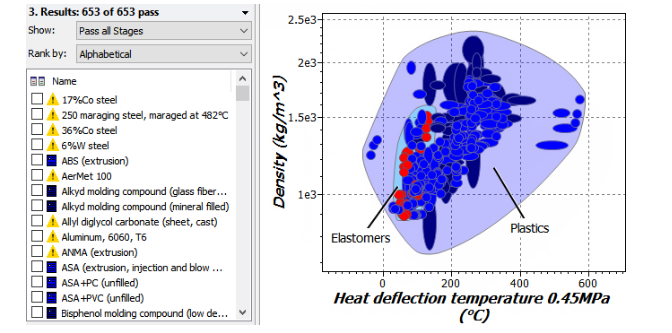
Records that have no data for a property included in a selection stage are set, by default, to fail that stage. If you want to compare materials from different classes, you need to change the setting to "Pass records with no data":
- Click Tools > Settings.
- On the Selection tab, check the option to "Pass records with no data". Any records from other material classes that do not have values for one of the attributes will automatically pass the selection stage. A yellow warning triangle
- is displayed beside the record name in the results list to indicate missing data.
Viewing 0 reply threads- The topic ‘Can’t find the property you are looking for in Granta EduPack or Granta Selector?’ is closed to new replies.
Innovation Space Trending discussions
 Top Contributors
-
peteroznewman
 6485
6485 -
scabo
 1906
1906 -
Dennis Chen
 1458
1458 -
javat33489
 1308
1308 -
Shyam Prasad V Atri
1022
Top Rated Tags
© 2026 Copyright ANSYS, Inc. All rights reserved.
Ansys does not support the usage of unauthorized Ansys software. Please visit www.ansys.com to obtain an official distribution.
-


 You are navigating away from the AIS Discovery experience