Practical Case Study: Ansys pySpeos Automation
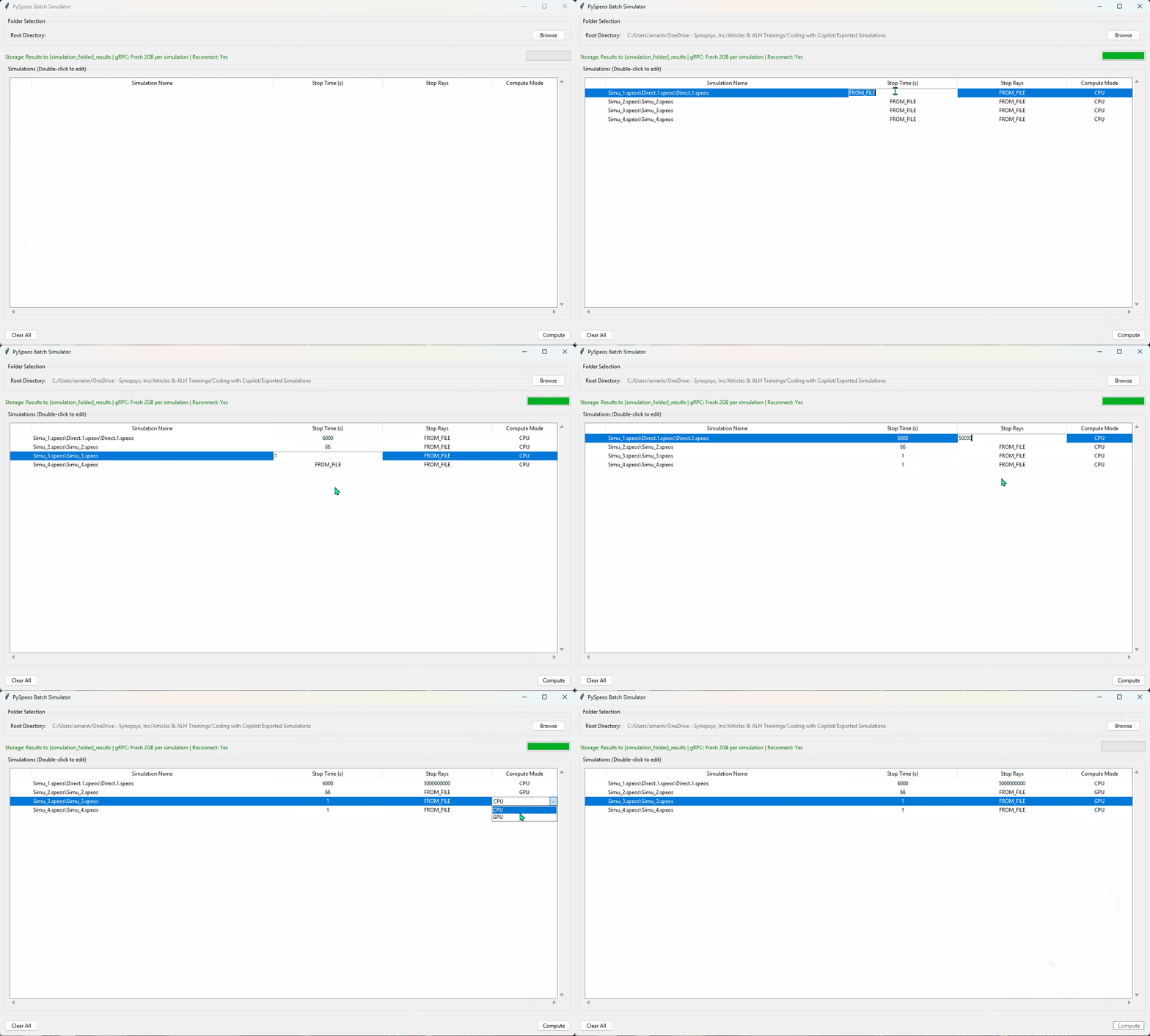
You need a program that allows you to select a root folder and automatically detects all .speos files contained within that folder and all its subfolders. The program should include a graphical user interface (GUI) with the following features:
- A folder selection input to choose the root directory.
- Once selected, the program should quickly scan all subdirectories and load all .speos simulations.
The GUI must display a table with the following four columns:
- Simulation Name (the .speos filename without extension) — read-only
- Stopping Criterion (Time)
- Stopping Criterion (Number of Rays)
- Compute Mode (CPU or GPU, selectable per simulation)
Additional requirements:
- The interface you let by default “From File” to keep the predefined stopping criterias.
- You must be able to edit both stopping criteria directly in the table.
- If any modification is done in the stopping criteria, consider this as stopping criteria.
- The simulation name must not be editable and must include the relative path to the root folder.
- The compute mode (CPU/GPU) should be selectable for each simulation (e.g., via dropdown or checkbox).
- To compute each simulation RPC will be opened and closed letting 2Gb of buffer for each simulation.
- Do not open Speos RPC until I click in compute. Find all .speos files with simple operations.
- Include a rich log file reporting the status of each simulation and the inputs before and after the simulation.
Finally:
- Include a “Compute” button located at the bottom-right of the interface.
Workshop Files and Instructions
You can download the simulation files here . Follow the step-by-step instructions in this document.
Inside the folder, you will find a script called ComputeQueue 2.py(opens in a new tab) to automatically compute a queue of several .speos file.